
Introduction
Occasionally, issues with your firm’s network may affect Collection-Master performance. How can you determine if the issue is with Collection-Master or with your network outside of the Collection-Master software itself?
Collection-Master Issues: If the app is crashing or presenting error messages, Vertican technical support can help you. You may also refer to some of the How To pages on the Help Center that help you troubleshoot errors or other issues with Collection-Master. If your firm recently made updates to the software version and you experience degraded performance or apparent conflicts with other software, this would also be handled by technical support.
Firm Network Issues: If there is no indication of a software issue as noted above, troubleshooting your network makes the most sense. This article takes you through three common troubleshooting topics. These steps are outside the scope of a technical support ticket. If your firm wishes to have assistance diagnosing network or general performance issues, Vertican offers billable Professional Services to access the expertise of our product team, who can troubleshoot in partnership with your staff or 3rd party vendors.
Network Troubleshooting Topics:
- Anti-Virus Software: Enhance system startup performance by reducing the number of directories scanned for virus protection.
- Indexing: Case study on indexing options for increasing performance and reducing downtime.
- Firewalls: IT resources should address firewalls if they block BRlistener.exe on install and prevent access to Collection-Master.
- Network Capacity: Processing capacity may hinder performance and impede high-demand jobs (e.g. large reports).
Anti-Virus Software
Performance Issues
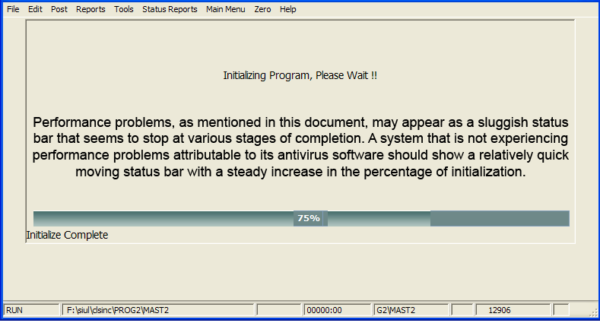
This document presents a method of reducing performance problems as Collection-Master starts up and initializes prior to opening or exiting the [1-1] Claim Review screen.
Not everyone will encounter this slowdown because it relates to some, but not all antivirus utilities. For instance, some Collection-Master users who run Norton Antivirus, McAfee, or TrendMicro software have experienced performance problems. If your system seems to take a long time to start up or initialize when opening the [1-1] Claim Review screen, this procedure may be useful.
Reducing Scanned Directories
Better performance during startup and Paperless File initialization may be accomplished by reducing the number of CM directories that are scanned by your antivirus software during work hours.
IMPORTANT NOTE: The number of directories excluded from a virus scan corresponds to an increase in performance; however, it also corresponds to a decrease in the overall safety and security of your network. You can reduce the number of CM directories run as active real-time scans during work hours but you should still run full virus scans during off-hours.
Procedure
Keeping the pros and cons of speed versus security in mind, decide which directories to exclude from a virus scan. You can expect to see a noticeable decrease in the startup time of Collection-Master as well as an increase in performance of the Paperless File by excluding the following directories:
F:\CLSINC\DATA
F:\CLSINC\HISTORY
F:\CLSINC\PERM (ALL OF THEM)
F:\CLSINC\COMMON
F:\CLSINC\SHARE
Whether you choose to exclude more or less directories than those listed above should be decided by the level of safety versus performance that you decide is appropriate for your system.
Indexing
Case Study
NOTE: This case study is presented as a practical application scenario as opposed to a set of specific instructions.
Collection-Master’s indexing features provide a higher level of database maintenance, efficiency, reliability, and integrity. Indexing is not a required nightly task. However, it “rebuilds” the database and ensures that any problems due to system failure (such as power outages) are dealt with and that all reports and searches have a current and accurate list of all the accounts.
Indexing Options
These options can be used to increase performance and reduce downtime.
- Create a Batch File for Running a [1-9-1] Index.
- Automation allows you to run critical tasks such as EDI exports/imports, indexing, diary reports etc. during off hours without any human intervention.
- Critical tasks can be completed overnight/weekends with minimal set up of components.
- Index Open [1-9-1] creates a comprehensive index for all open claims.
- Indexes the primary financial data file (FINSUM) in all bank accounts.
- Please review the Index System Default Setup [1-S-4-4] document for setup options associated with this index function.
- This index should be run at least once a week. However, if your firm deals with a high volume of claims and has a fast and dependable network file server, it is advisable to run this index nightly.
- Index Closed [1-9-2] creates a comprehensive index for all closed claims.
- Review the Index System Default Setup [1-S-4-4] document for setup options associated with this index function.
- This index should be run at least once a week.
- This is one of two indexing functions in which users may access Collection-Master while the index is in progress. However, users must stay out of the closed files database. This includes the following menu paths and options: [1-1-F7] (Claim review for closed files), [1-4] (Claim searches), and [1-5] (Closed files management).
- Index Paperless Notes [1-9-3] should only be used to rebuild the Paperless File if it becomes damaged.
- It should only be run on demand.
- This option is a subroutine of the [1-9-1] Open Files Index.
- Everyone must be out of the Collection-Master system while this index is running.
- Re-Sort Internal Files [1-9-4] prepares the [1-2] Internal Data Files so that the searches and sorts are current and accurate.
- It should only be run on demand.
- The [1-9-1] Open Files Index and [1-9-8] Short Index both perform this step.
- Everyone must be out of the Collection-Master system while this index is running.
- Selective Index (User-Defined) [1-9-5] allows you to select a particular index or sort.
- This is usually done to repair a damaged portion of the index.
- It should only be run on demand.
- Multiple Terminal Index [1-9-6] allows multiple sessions to run a portion of the index instead of just the single session.
- This typically decreases the time it takes to finish the index.
- Should only be used if a regular [1-9-1] Open Files Index is needed and your network file server is not fast enough to process all of the data by the start of the next work day.
- Unless absolutely necessary, use the [1-9-1] Open Files Index over this index.
- Security File Index [1-9-7] packs and indexes security files.
- Running this index will improve the performance of the main menu.
- Vertican recommends running this at least once per update.
- This can only be performed when 100% of the users are out of the system.
- Short Index [1-9-8] performs all daily maintenance and should be run often to ensure all reports and features are current and functional.
- It should only be run on demand or at your discretion.
- Everyone must be out of the Collection-Master.
- The following indexes and sorts are performed: Pack and re-index the Diary File (performance and integrity), and indexes for the [3-4] Status Report, [2-4-6] Collect and Hold Report, [1-2] Internal Data Files, [3-2] Report Generator Reports, and [1-4-F8] Conflict of Interest Search.
- Short Multiple Terminal Index [1-9-9] performs all of the [1-9-8] functions, but may be run on two or more terminals for performance reasons.
- It should only be run on demand or at your discretion.
- Everyone must be out of the Collection-Master.
- Refresh MASTER.PER_DIEM Values [1-9-U] brings the values of Per Diem fields current through today.
- Test and Repair Index (Both) [1-9-V] is a “Quick Repair.”
- Only broken things will be indexed.
- It searches open and closed files for damaged indexes and re-indexes any encountered problems.
- Re-Calculate Last S-Code (Closed) [1-9-W] zeros out old codes and defines S and S-F codes on closed files.
- Re-Calculate Last S-Code (Open) [1-9-X] zeros out old codes and defines S and S-F codes on open files.
- Re-Index Instant Statistics [1-9-Y] updates the instant statistics for the Forwarder File so that the statistics are current and truly instant.
- It should only be run on demand or at your discretion.
- Review the “Internal Data File Statistics” section of the Miscellaneous Defaults [1-S-4-4] document for setup options associated with this index.
- Re-Index Financial Trail (FINSUM) [1-9-Z] refreshes the accounting indexes to ensure the accounting reports are current and accurate.
- It should be run on each bank account at least once a month.
- Users may access the Collection-Master system while the index is in progress. However, users must stay out of the financial programs, which is any menu option that begins with 2.
Firewalls
Firewalls may block BRlistener.exe on install and prevent access to Collection-Master. Please consult with your firm IT resources to determine the best approach to addressing this issue.
Network Capacity
Sometimes if you run a report that is too large, it can impact performance due to your network processing capacity. Try running jobs in smaller chunks when possible. Depending on the task being run, this can be accomplished by limiting the date range or number of claims or by running data only for specific Forwarders.