Last Update: March 11, 2022
JOB SCHEDULER USER GUIDE
Table of Contents
Describing the Job Detail Screen
Send a File Via Internet Email
Set a Job Flag to permit that Job to be run on a User's local PC
Permit a User to select a Job to be submitted to Job Scheduler PC to run as next available Job
List of programs currently supported in Job Scheduler
Which Database Tables Can be Used
Setting Up Your DDAS for QFileStep
Running QFileStep via Custom Programs
Issue: The Scheduler opens, nothing happens, and it just closes.
Issue: When I try to run a job, it immediately goes to Hold status.
Issue: I occasionally see an error that contains a reference to Documents and Settings.
Issue: The Job Scheduler doesn't run, OR Q-LawE starts when the Job Scheduler should run.
Issue: Emails (reports or errors) don't appear to get to the recipients.
Issue: The job is set to run Weekly/Monthly, but it always resets to run the next day.
Diagnosing Job Scheduler Errors
Overview
The Q-LawE Job Scheduler supports several amazing features:
- Allows multiple scheduler computers to run different jobs; each job may be set to a specific computer using Windows computer names.
- Link the running of a job to the successful completion of another job.
- The ability to put a job on hold.
- Automatically holds any job that did not complete its previous run with a status of SUCCESS.
- Daily jobs can be set to start at the same time, then given a run order to prioritize and sort your jobs.
- Capture the time it took for a job to run. The number of seconds a job took is recorded in the jobs log file, allowing you to evaluate the history of a job's run time.
- Set a list of non-admin users who may be able to run a job on demand using the manual Job Scheduler run feature.
- Set a job to generate and send a report using internet email.
- Grabs existing log files or report files and send the file using internet email. Files that include date stamps can also be included by setting a dynamic naming convention.
- Send reports or files to multiple email addresses.
- Step through a list of accounts and activate DDAS on each account.
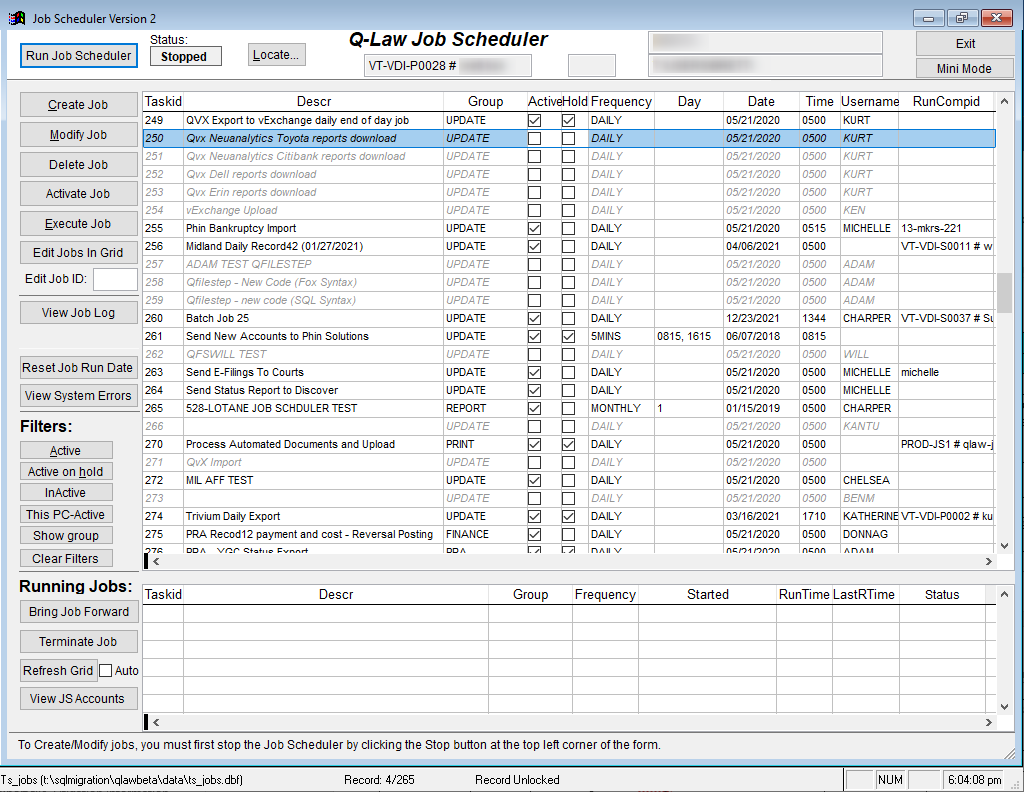
The Job Scheduler screen can be found in Maintenance, then the System Maintenance tab, then the [Auto Job Scheduler] button. The Job Scheduler screen looks like this:
Setup
In Q-LawE, we now allow Job Scheduler machines to spawn off jobs to run in their own Q-LawE instance rather than running them in the context of the Job Scheduler's Q-LawE instance. The job scheduler will still be started as it always has, either automatically or by a user logging in and going to the job scheduler. If started automatically, it will start with the Job Scheduler in a 'Running' state (i.e. processing jobs) otherwise it will start in a 'Stopped' state and can be started by clicking 'Run Job Scheduler'. While in the 'Stopped' state, a job can still be run manually by clicking the 'Execute Job' button and it will be run in the context of the Job Scheduler, just as it always has (it's not spawned off). While in the 'Running' state, the Job Scheduler will look for jobs that need to run and spawn them off into their own Q-LawE instance to run independently of the Job Scheduler.
Userlist Setup
Each spawned off job needs a user account to run under. This is in addition to the user account that is running the Job Scheduler. A Job Scheduler user account name must begin with JOBSCHED and must have its userlist.macuserid set to the machine name (ex. VT-VDI-P0010) it will be used on. Below you can see an example of user setup for JOBSCHED1 with macuserid.
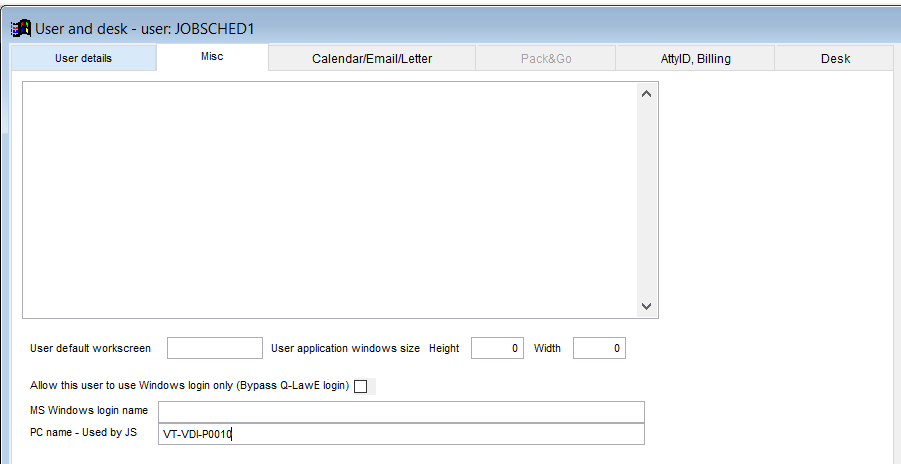
The first userlist record that meets these two conditions will be used to run the Job Scheduler, all other will be used to spawn off jobs. You will only be able to spawn off as many jobs as you have Job Scheduler user accounts set up. For example. If you have JOBSCHED2, JOBSCHED21, JOBSCHED22, JOBSCHED23, JOBSCHED24, setup (all set to the correct machine name), JOBSCHED2 will run the Job Scheduler and JOBSCHED21-JOBSCHED24 will be used to spawn off jobs. So, you will only be able to spawn off 4 jobs at a time. If there are 5 jobs that need to run, then the 5th job will wait until one of the first 4 jobs finishes before being spawned off. The naming of the accounts doesn't matter as long as it starts with JOBSCHED and they're assigned to the proper computer. In other words, the last two digits of the name can me any alphanumeric character (i.e. JOBSCHEDXY, JOBSCHED2A, JOBSCHED-9). A JOBSCHED account must also have a password to work in this setup.
Job Status
While the Job Scheduler is running, it will also monitor running jobs, looking for jobs that ended unexpectedly and cleaning things up.
A job can have any of the following statuses (in ts_jobs.lastrstat):
- SPAWNED – The job has been spawned off into it's own Q-LawE instance
- STARTED – The job's Q-LawE Instance has started up but hasn't started running the job
- RUNNING – The ts_jobs.runprog program is running
- RAN – The ts_jobs.runprog has finished running and it's now sending emails
- SUCCESS – The job has completed its run successfully
- ERROR – The job encountered an error
Creating a New Job
Below are the steps to creating a new job:
- From the Job Scheduler screen, click on [Create Job].
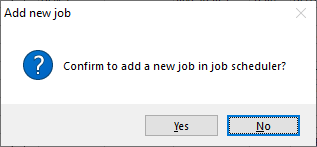
- You will be prompted with the following popup window.
- Click on [Yes] to continue
- Click [No] to exit the function and return to the Job Scheduler screen.
- The Job Detail screen appears, where you can begin editing your job.
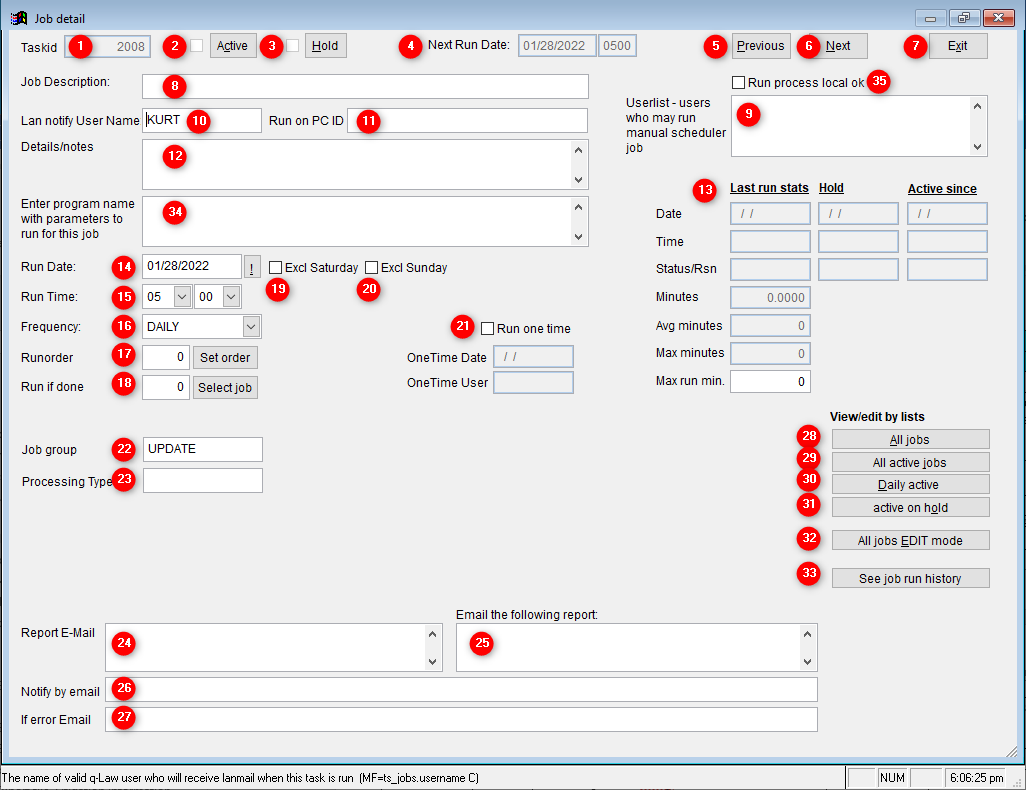
- Once your job is populated and a run date and time are set, you can activate the job for it to run when the date and time pass.
Describing the Job Detail Screen
The Job Detail screen is where you detail the specifics for each job.
- 1 – TaskID – Each job is assigned a unique task ID used to identify a specific job.
- 2 – Active – Indicates whether the job is active or not. If the box is checked, the job is active and will be included to run. If it is unchecked, the job is not active and will not be included to run.
- 3 – Hold – Indicates whether the job is on hold or not. If the job is on hold, it will not be included to run until the checkbox is unchecked taking the job off hold.
- 4 – Next Run Date – Q-LawE will display the date and time the job will run next.
- 5 – Previous – Will go back to the previous job in the list and display the data for that job.
- 6 – Next – This button will advance to the next job in the list and display the data for that job.
- 7 – Exit – Used to exit the screen and return to the Job Scheduler version 2 screen.
- 8 – Job Description – A freeform field used to give your job a title or description.
- 9 – Userlist – Jobs can be setup to be run by users remotely from the Maintenance screen. This allows you to give access to run specific jobs without giving them access to the Job Scheduler screen. Once usernames are entered here, those users can run the job from the [Run Manual Job From Scheduler] button in the maintenance screen.
- 10 – Lan Notify – The job scheduler can send LAN mail to any user you specify in this field. If you do not want any LAN mail sent, leave this field blank.
- 11 – Run on PC – Used to indicate what machine this job will run on. This field is required, and the machine name can be copied from the previous Job Scheduler version 2 screen. This field will indicate the current machine, therefore copying this field must be done from the actual Job Scheduler machine. This feature allows you to run different jobs on several different machines.
- 12 – Details/Notes – Freeform field to enter notes or instructions.
- 13 – Last Run Stats/Hold/Active Since – The fields below correspond to when the job was last run, put on hold or when it was marked as active.
- Date – The date the job was last run, on hold or active
- Time – The time the job was last run, on hold or active
- Run Seconds – The number of seconds the job took to run for when the job was last run
- Status – The run status of the job for the last time the job was run. Status can be:
- SUCCESS – Indicates that the job ran successfully.
- ERROR – Indicates that the job ran into an error prior to finishing.
- STARTED – Indicates that the job was started, but never finished. For example, if the job is started, but the Job Scheduler machine lost network connection to the server, prior to the job finishing and being marked as SUCCESS.
-
- Reason – Indicates the reason the job was placed on hold. Some reasons include:
- INIT-SETUP – Indicates the job has never been run.
- MAN-USER – Indicates the job was manually placed on hold, followed with the username that checked the hold box.
- ERROR – Indicates that the job encountered an error while running.
- ERROR-ONRE – Indicates the job encountered an error while running
- By User – Indicates the user responsible for the reason above.
- Reason – Indicates the reason the job was placed on hold. Some reasons include:
- 14 – Run Date – Select the next date that the job is expected to run.
- 15 – Run Time – Select the time you would like for this job to run.
- 16 – Frequency – Should be set to "DAILY", "WEEKLY" or "MONTHLY". This indicates the frequency the job will run on.
- 17 – Run Order – If you have multiple jobs scheduled to run at the same time, Q-LawE will pick the first one it finds and run it. You may want the jobs to run in a specific order, this can be done by entering any number from 1 to 99. Any number can be entered, Q-LawE will follow that order.
- 18 – Run if Done – Enter another job ID that must run with a status of successful before the current job will run. This is helpful if you have another job that downloads an import file and this job imports that import file. You can specify the job ID of the download job in this field of the import job and if the download does not happen, the import job will not run either.
- 19 – Excl Saturday – Check this box if you would like to exclude this job from running on Saturdays if the job is set to run "DAILY."
- 20 – Excl Sunday – Check this box if you would like to exclude this job from running on Sundays, if the job is set to run "DAILY."
- 21 – Run One Time – Check this box if you would like for the job to be placed on hold after it runs in effect only allowing it to run once.
- 22 – Job Group – Enter a group name for this job that can be used in the Job Scheduler version 2 screen to filter your list of accounts.
- 23 – Processing Type – Enter WORDMERGE in this field to prevent multiple word merge jobs running at the same time.
- 24 – Report E-Mail – If you would like to have the job send a file via email, indicate the email address in this field. The format for the email address is to have a friendly name followed by the email address. These will both need to be encapsulated in single quotes (double quotes will not work) and separated by a comma. Separate multiple email addresses with a semicolon. You can enter as many email addresses as desired.
Example: 'Ken Urban', 'kenurban@Q-LawE.biz'; 'Serena Wong', 'serenawong@Q-LawE.biz'
- 25 – E-Mail Report Using This Filename – If you would like to have the job send a file via email, you must enter the file path and file name encapsulated in single quotes (double quotes will not work).
- 26 – Notify by email – Adding an email to this field will send an email to the address when the job runs.
- 27 – If Error Email – The job can also email a user if the job fails. This is useful if jobs that run after hours fail, a user would be notified and can address the issue.
- 28 – All Jobs – Filter to show all jobs.
- 29 – All Active Jobs – Filter to show only active jobs.
- 30 – Daily Active – Filter to show only jobs set to run daily.
- 31 – Active On Hold – Filter to show only jobs that are active and are also on hold.
- 32 – All Jobs Edit Mode – Button to show all jobs in an editable grid.
- 33 – See Job Run History – Each time a job runs, a record is written in a log file. This log file can be viewed by clicking this button.
- 34 – Enter program name… – This box is what will contain your job run statement. For example, "do ptp_fup in day".
- 35 – Run Process Local OK – Check this box to activate allowing users to run the job remotely. This checkbox activates the usernames that were entered in the Userlist field.
Send a File Via Internet Email
The Q-LawE Job Scheduler can be set up to select a file on your network and email that file to someone, even a client. Follow the steps below to set up a job to send a file via email.
- Set the job as a normal job but leave the Enter Program Name with Parameters to Run field blank.
- In the Report E-Mail field, enter the email address(s). Email addresses must follow the following criteria:
- Must have a friendly name.
- Must have the email address.
- Friendly name and the email address must each be encapsulated with single quotes (double quotes will not work).
- Separate the friendly name and email address with a comma.
- If entering multiple email addresses, separate multiple emails with semicolons.
- Examples of a valid email in this field:
- 'Ken Urban', 'kenurban@Q-LawE.biz'; 'Serena Wong', 'serenawong@Q-LawE.biz'
- In the Email Report field, enter a fully qualified filename including the path that must be encapsulated with single quotes (double quotes will not work). File names can be either static or dynamic.
- Static File Name – Static file names means that the name of the file does not change. For example, if you have an xls file that users will go into and update daily and in this case the file name will not change, you can hard code the file name such as:
- 'U:\Q-LawE\logs\dailylogfile.txt'
- Dynamic File Name – If the filename changes each day, for example if the name is date and time stamped, you can have Q-LawE dynamically change the name of the file it is looking for. Below is an example of a file name that is dynamically changing the date and time stamp that it looks for:
- 'u:\Q-LawE\logs\ SOL-Update-log-' + Substr(Dtoc( Date() ),7,4)+ Substr(Dtoc( Date() ),1,2)+Substr(Dtoc( Date() ),4,2)+ '-*.txt'
- For help, contact Support at Q-LawE.support@vertican.com.
Set a Job Flag to permit that Job to be run on a User's local PC
If the 'Run Local PC ok' checkbox is checked, and a valid user is entered in the userlist field box, the user may be able to start that job on their local pc by selecting the job from a list of jobs in the Maintenance, System Maintenance tab, click [Run manual Job from Scheduler]. Once job is selected, the user will confirm running the job and the job will be on that local user's PC.
Permit a User to select a Job to be submitted to Job Scheduler PC to run as next available Job
If the 'Run Local PC ok' checkbox is unchecked, and a valid user is entered in the userlist field box, the user may be able to submit a request to the Job Scheduler PC to start that job as soon as the system can (When the currently running job is complete). The user may select the job from a list of jobs in the maintenance, system maintenance tab, click [Submit non local job to Scheduler']. Once the job is selected, user will confirm to submit the job and the job will set the ts_jobs.onetime flag to .t. and the Job Scheduler PC will run that job when the next job run occurs. When the one-time job flag is set, the system will record the date of user request and the user login name in the modify jobs screen. After the job has been run on the Scheduler PC, the system will put the job on hold, pending another manual request by a user.
List of programs currently supported in Job Scheduler
| Task Description | RUNPROG Value |
| Data backup to c:\Q-LawE\backup | do qbackup in manager |
| Pack and reindex | DO qpack IN manager WITH "ALL" |
| Process task document autoexec task | do autodocs in autorun |
| Batch Job 104 – Move completed calendar/email to archive | do emailclear in month |
| Batch Job 9 – Debtor payment automated follow-up processing | do dayautopay in day |
| Batch Job 10 – Print Collection postdate chk/pay reminder l | do day3 in day |
| Batch Job 11 – Print collection misc automatic debtor letter | do day4 in day |
| Batch Job 12 – Print collection counter automatic debtor le | do day5 in day |
| Batch Job 14 – Print Group by Worktype Count of files to work | do kworktype in day |
| Batch Job 15 – Prepare Pay, Reg and Counter letters Mailing | do day2 in day |
| Batch Job 16 – Debtor task letters – mailing vendor and norm | do day2task in day with "LETTER" ,"HIGHCOT" |
| Batch Job 17 – Debtor task letters – mailing vendor and nory | do day2task in day with "REVIEW","HIGHCOT" |
| Batch Job 18 – Prepare Task letters for Clients/Receivers | do day18task in day |
| Import servex status updates | do svxdown IN servex |
| Certified mail vendor – upload new jobs, downloads | do certmail |
| EDI Auto – Import/Export, incl YGC up/down | Do ediauto with "RUNAUTO" |
| Run vendor import (change code for your vendor) | DO avendorinex WITH "CASE_INFO" IN autorun |
| Run 501 phin export bkr request | do arunexport in autorun with 501 |
| Download from vendor FTP | do ftpnauto in ftpnauto with "DOWNLOAD","FTPCODE" |
| Upload to vendor FTP | do ftpnauto in ftpnauto with "UPLOAD","FTPCODE" |
| Import documents from batch document download | do Docimport with "DOCCODE" |
| Run daily SOL update | do SOLUPDATE in statesolq |
| Run a custom program in Q-LawE (compliant) | do customprogramname |
| Military status and affidavit – upload and down | DO milaffreturn |
| Digital matrix Credit Bureau, Upload/down | DO dmsbureau IN day |
| Run Reports from reports and query | Do runreport in autorun with 645, 'LAST7DAYS' |
| Run DMS | DO dmsbureau IN day |
| Q-File Step Program | DO qfilestep |
Logs
There are two different Job Scheduler logs that can be used to review what the Job Scheduler has done:
- .\logs\jobscheduler_log__.log – This file includes logs of the job scheduler itself (not the spawned jobs). For example:
- Job Scheduler Opening and Closing
- Job Scheduler Running and Stopping
- Manual running of Jobs
- Processing a Job (All the processing needed before spawning a job)
- Reasons a job did not run
- When a job was put on hold (by the Job Scheduler)
- When a job is terminated (Manually or Automatically)
- When a job is cleaned up (did not complete successfully)
- The ts_log table – This table includes logs from both the Job Scheduler and the spawned off Jobs and includes the following:
- The results of a job (Success or Failure)
- When a Job was put on hold (by either the Job Scheduler or the job itself)
- When a job is terminated (Manually or Automatically)
- When a job is cleaned up (did not complete successfully)
Note: The log file records information about when a job is started (before it's spawned) but has no information about when it ended or how it did (unless it died and it was cleaned up by the Job Scheduler). The ts_log table is populated when a job finishes (or is put on hold, terminated or is cleaned up) and includes how it did or why it was put on hold.
Updated QJS Screens
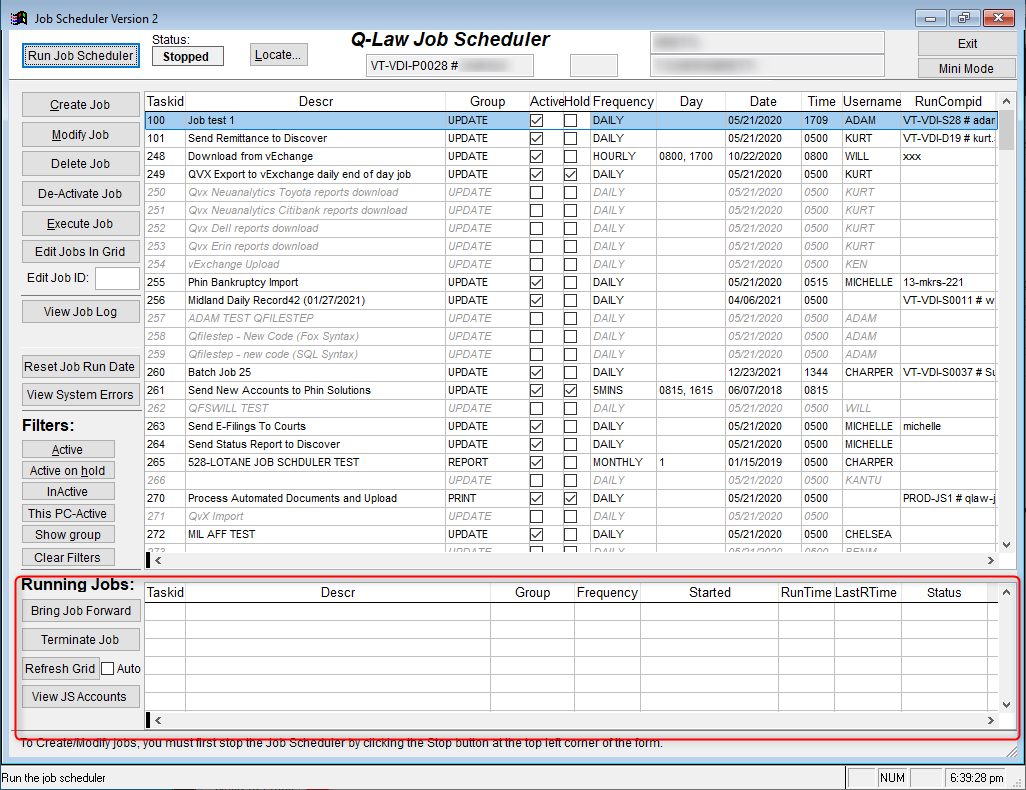
Since jobs are spawned off into their own Q-LawE instance, a job could potentially run forever in the background, thus keeping Q-LawE from doing maintenance, or even letting the job run again. Therefore, a new grid is provided on the Job Scheduler that will display what jobs are running and how long they've been running. There is also a new button called 'Bring Job Forward' that will bring a running job's window forward so you can see what it's doing. The new button called 'Terminate Job' will do a hard termination of the job. This should only be used as a last resort as it could cause data corruption.
Since the Job Scheduler has been decoupled from the running jobs, the list of available jobs can now be sorted in different ways by clicking the Taskid, Descr, Date or Time field headers. This, and also all the filters, can be used while the Job Scheduler is in a Running state now. The default sort order is now the job's taskid, which has been moved to the left-most column in the grid. We have also added a 'Locate' button to the form to make finding a specific job easier.
Changes to ts_jobs table
In support of spawning off jobs, several new fields had to be added to the ts_jobs table:
- ProcessID – This holds the OS's process id of the job being run. It's used to know a job is running, to bring the job forward and to terminate a job.
- ProcType – This can be used to specify the type of processing this job performs. If the keyword WORDMERGE is entered here, then the Job Scheduler will only allow one job with this keyword to run at a time (since word can't be used for multiple word merges at the same time).
- MaxMin – This is the Maximum Minutes a job is allowed to run before it's automatically terminated. If this is left blank then it will never automatically terminate a job. Use caution setting this field as terminating a job can corrupt data.
- RunAcct – This is the user's account (userlist.name) that is running this job. This is used to more efficiently determine if a job has completed and that the given account is available to spawn another job with.
Batch Processing Documents
Single Task
Job Scheduler
Ensure the Task Group is setup to process a single task and the correct code is called in the Job scheduler program. See Example Below

Program name with parameters to run: Do autodocs in autorun with "TASK"
Task Groups
Job Scheduler
Ensure the Task Group is setup to process a task group and the correct code is called in the Job scheduler program. See Example Below

Program name with parameters to run: Do autodocs in autorun with "JUDGMENT"
Logs
When a document is processed through either the TAS documents screen or through a job scheduler, a log of the event is created and stored in the Q-LawE\logs folder.
History of Jobs
Work Case -> [TAS Documents]
In the bottom right corner of the TAS Documents screen are two options to review/ QA document batches.
Select Batch – All Accounts
Work Case -> TAS Documents -> [Select Batch – All Accounts]
This will bring up a grid that will display information for the batch job for document processing.
- Code: This is the name of the task group selected when running the process.
- Descr: This is the description of the task group selected when running the process.
- Leg_state: This is the legal state selected when running the process.
- Byuser: The user who processed the batch
- Pcname: This is the name of computer and user that ran the process.
- Date: This is the date the process was ran.
- Timestart: This is the time at the start of the process.
- Timeend: This is the time at the end of the process.
- Seconds: This is the total seconds it took to complete the process.
- Numtasks: This is the number of tasks completed during the process.
- Avgseconds: This is the average number of seconds it took to complete each task.
- Taskerror: This is the number of errors received during the process.
- Pdf: This is the number of tasks that generated pdfs during the process.
- Pdffolder: This is the location the pdfs were saved to during the process.
- Printed: This is the number of tasks that generated printed documents during the process.
- To_Printer: This is the location of the printer the documents were sent to during the process.
- Mailmerge: This is the total number of documents sent to the printer during the process.
- Attached: This is the total number of pdfs created during the process.
Double clicking or clicking [Select Record] will provide additional process details by ourfile.
- Ourfile: This is the ourfile the process was ran on
- Byuser: The user who processed the batch
- Code: This is the name of the task group selected when running the process.
- Taskcode: This is the name of the task group selected when running the process.
- Leg_state: This is the legal state selected when running the process.
- Taskerror: This is the review task added to this ourfile.
- Error_desc: This is a description of the error.
- Date: This is the date the process was ran.
- Timestart: This is the time the process started on this ourfile.
- Timeend: This is the time the process ended on this ourfile.
- Seconds: This is the total seconds it took to complete the process on this ourfile.
- Pdffile: This is the location the pdfs were saved to during the process.
- Printed: This is a checkbox to indicate if documents were printed. If checked, documents were printed. If unchecked, documents were not printed.
- Mailmerge: This is the number of documents that were printed during the process on this ourfile.
- Attached: This is the number of pdfs that were created during the process on this ourfile.
- Doc_codes: Displays all documents linked to task
- Doc_result: Document batch result information.
- Error_Det: If there was an error when processing, this would provide the detailed error message
- Qa_user: This is the user assigned to QA the process on this ourfile.
- Qa_date: The date the QA was performed on the batch
- Qa_pass: If the document passed QA, this field will be checked
- Qa_fail: if the document failed QA, this field will be checked
- Qa_reason: A Description field for the reason(s) for QA Failure
- ID: Unique ID assigned to record
Select Batch – review for QA
Work Case -> TAS Documents -> [Select Batch – review for QA]
Selecting this option provides the same fields as the [Select Batch – all account] button, except for a few additional items.
Double clicking or clicking [Select Record] will provide additional process details by ourfile (QA Screen).
- Double clicking a record within the QA screen will bring up a pop-up asking to View Documents. Select [Yes] to proceed or [No] to cancel
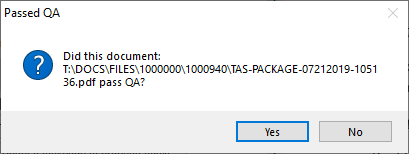
- Selecting YES will bring open the document. At the same time, a second pop-up will appear for QA. Select [YES] if document passes QA. Select [NO] if document failed QA.
-
- If [No] is selected, the user will receive a pop-up box to enter a reason why the document failed QA.
QFileStep
DDAS is an outstanding tool that will help you automate and standardize your operation, but there is a limitation with DDAS in that something has to happen on the account in order for DDAS to trigger. DDAS cannot just do something completely on its own without a human trigger; that is until now. We now have an exciting feature included in Q-LawE that will work through the job scheduler and will now trigger any DDAS for any account. The system can now be proactive and seek out accounts all on its own, and trigger one or multiple DDAS items to do something to those accounts, all without human intervention.
Summary
The QFileStep program can be run either via the custom programs screen or via the job scheduler. This document will focus on the job scheduler but will mention custom programs later. QFileStep is a program that lives inside of Q-LawE and can be called upon at any time to step through a user defined database table and based on a rule will trigger specific DDAS items for each account where that rule is true. For example, we can tell the QFileStep program to step through the debt database table and look for every account that is not closed (has an empty debt.cdate field) and has not been "worked" in more than 60 days (the debt.lwork field has a date that is older than 60 days ago). Once setup, QFileStep will access the debt table and start at the top and one account at a time will see if that account is open and has not been worked in more than 60 days. If the account has been worked in the last 60 days or is closed, the QFileStep program will do nothing to that account and move on to the next account in the table and apply the same rule again. If that next account is open and has not been worked in 60 days, QFileStep will now trigger a specific DDAS (or set of DDAS's) and DDAS would take over to do what it does, and when finished will hand control back to QFileStep to move on to the next account.
Setting up QFileStep
QFileStep is setup in the job scheduler and is called from the Enter Programs to Run field. A specific syntax will need to be entered to activate the QFileStep program as well as to tell it what it should do.
What are Parameters
Before we can talk about how to configure QFileStep, we first need to talk about parameters as they are the driver of how the QFileStep performs. When you call the QFileStep program from the job scheduler, the program will run but it needs to be told what it is you want it to do. The program is configurable via parameters so that you can dictate your own DDAS trigger name as well as that rule mentioned above that tells the QFileStep which database table to step through and what it should filter for. Since the DDAS trigger name and the rule that it applies can be dictated by you, this will require that we pass this information off to the program at the same time that we call it. These are called parameters.
Here is an example of syntax to call (or do) the program along with two parameters, one that dictates the DDAS trigger name of "QFSNOWORK" and the second that dictates that we would like to search only open accounts that have not been worked in the last 60 days.
do qfilestep with "QFS_SUIT","select debt.ourfile from debt join dlegal on debt.ourfile = dlegal.ourfile and dlegal.code = '1' where dlegal.suitdate >= '2018-02-01′"
QFileStep Format
The above is an example of what needs to be entered into the job scheduler in the Enter Program Name with Parameters to Run field. Below is an example of this.
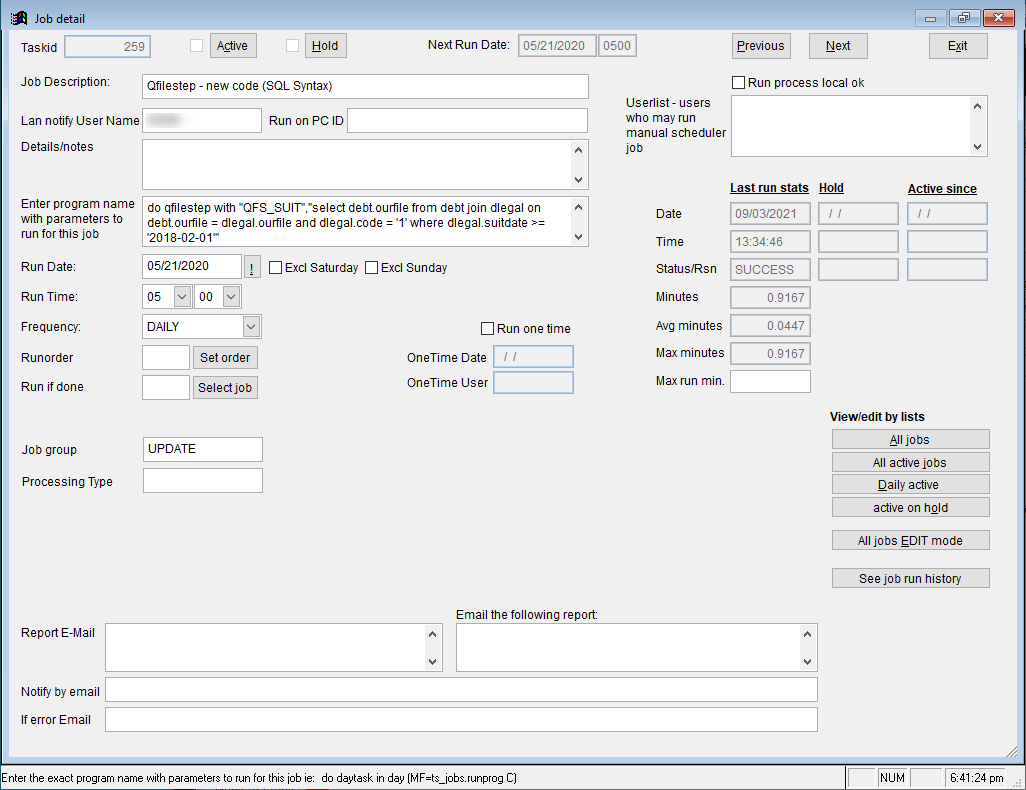
The syntax above calls the program and passes the two parameters. There are two additional parameters that can be used if necessary and we will look at the full format next.
QFileStep Full Format
The full format, or syntax, to run the QFileStep program includes the program name and 4 parameters. Below is an example of the full syntax (remember, parameters are separated by commas and encapsulated in double quotes).
do qfilestep with "QFS_SUIT","select debt.ourfile from debt join dlegal on debt.ourfile = dlegal.ourfile and dlegal.code = '1' where dlegal.suitdate >= '2018-02-01′"
- Do qfilestep = Indicates the name of the program to run and is always required for QFileStep
- With = Indicates that you will be identifying the following parameters:
- "QFS_SUIT" (Parameter 1) = QFSNOWORK is the name of the DDAS trigger. This trigger name can be whatever you would like it to be allowing you to create multiple QFileStep jobs all triggering different sets of DDAS items. The only restriction is that the trigger name begins with "QFS". (If this parameter is not entered, the default trigger name is "QFILESTEP" and is the only trigger that does not need to begin with "QFS")
- "empty(debt.cdate) and debt.lwork < date()-60" (Parameter 2) = Indicates the syntax that will be used to filter the accounts (If not entered, the default is simply "empty(debt.cdate)")
- "DEBT" (Parameter 3) = Indicates the database table where the scan is going to happen. (If not entered, the default uses the DEBT database table). You can use just about any database table that relates to an account such as: DLEGAL, DNAME, DEADLINE, SPECIAL, CASEPTP…
- "OURFILE" (Parameter 4) = Indicates the index in the database table identified in parameter 3 that will be used in the scan (the default uses the ourfile index). The default option of ourfile can be used in almost all cases meaning that you should never need to deal with this parameter and you can leave it blank. Consult with the Q-Soft staff if not sure.
Rules about Parameters
Each parameter has a default that it will use if that parameter is not entered in the programs to run field in the job scheduler. In our first example, we looked at the following syntax:
Do qfilestep with "QFSNOWORK", "empty(debt.cdate) and debt.lwork < date()-60"
This syntax only included two parameters and would default the DEBT table as well as the OURFILE index.
Parameters must be entered in the specific order described and each parameter builds on the next, meaning that if you would like to indicate something specific for parameter 2, you will be required to also enter something for parameter 1, even if you would like to use the default for that parameter. Later parameters do not have to be entered and can use the default. Parameters must be encased in double quotes and any quotes that you need as a part of the parameter, must be single quotes. For example if parameter 2 was going to be filtering for accounts with a status of "SUIT", the parameter would require double quotes on the outside and single quotes on the inside.
"debt.statid = 'SUIT' and empty(debt.cdate)"
Which Database Tables Can be Used
Any database table that is part of an account and stores an ourfile number can be used. Below is a list of database tables that can be used (this is not a complete list)
| DEBT | DNAME | DLEGAL | DNOTE |
| SPECIAL | UPATIENT | BITEM | PAYCARD |
| COST | TRANS | BTRUCASE | BTRUST |
| PAYEFT | CASEPTP | DEADLINE | DECEASED |
| FIN_PROF | ABKFILE | SCANFILE | DSERVE |
| DGARN | DLIEN | DCAL | MESSAGE |
Although, you can use one of many different tables, only one table at a time may be used in QFileStep. For example if you would like to scan all accounts that have a specific task on them, you might have the following example:
Do qfilestep with "ABC_TASK", "deadline.code = 'ABC_TASK' and deadline.done = .f.", "DEADLINE"
This string will trigger a DDAS with a name of "ABC_TASK" (SYSTEM in the database field and ABC_TASK in the field name field of the DDAS item). The accounts that will trigger DDAS will have an active ABC_TASK task on them (If the task is on the account twice and both are active, DDAS will trigger twice). In this case, the index is defaulted to OURFILE since it was not entered. Let's say that you would like to also exclude closed cases, but since the close date is in a different database table (DEBT) it cannot be done from here. In this case, you would need to add the filter for empty(debt.cdate) into the DDAS condition field. The result is that the QFileStep program will trigger DDAS for an account that may be closed, but the DDAS condition will turn up as false and will not run the DDAS item for that account even though the QFileStep program identified it as true.
Setting Up Your DDAS for QFileStep
We now know the ins and outs of setting up your job scheduler to run the QFileStep program, but what is it actually doing at this point? Well in all reality, not much. This is where DDAS now enters the picture and the whole purpose of the QFileStep program comes into view. QFileStep is a program when run on its own will do nothing more than take up computer resources. QFileStep does not make any changes to your accounts; it is DDAS that steps in to makes those changes. The only thing that the QFileStep program does is to identify the accounts that are to be sent over to DDAS and it is DDAS's job to now do something. So, let's look at what is involved to make DDAS work with QFileStep as one complete system.
Remember that "DDAS trigger name" that we discussed in the job scheduler run program syntax? Well, it is just that, a trigger name that we are going to create. If you have been already building DDAS items, you already know what a trigger is. Simply put, it is the name of an action that you take on the account. For example if you want DDAS to trigger when a user updates the court date, the trigger in DDAS would be DLEGAL.COURTDATE.
DLEGAL.COURTDATE is a trigger in DDAS and anytime that field in the account is edited, DDAS will trigger. Ok, we now have the basics of what a trigger is, well how does QFileStep become a trigger. Remember that second parameter that you set in the job scheduler? Well, that happens to be your trigger. All you need to put this all together is the database value which is "SYSTEM". So, in our very first example where we had the following syntax in the job scheduler:
Do QFILESTEP with "QFSNOWORK", "empty(debt.cdate) and debt.lwork < date()-60"
Our DDAS item should now have SYSTEM as the database and QFSNOWORK as the field name (all QFileStep trigger names must begin with "QFS").
Once you have at least one DDAS item setup with that trigger, each time you run that QFileStep job in the job scheduler, those DDAS's will trigger for each identified account. Of course, after the DDAS is triggered, the first thing it will do is check its own conditional field to evaluate for true. If the condition returns a true, the DDAS will activate and perform its changes and then hand control back to the QFileStep program which will then step to the next account. If the conditional field come back as false, DDAS will do nothing and then also hand control back to the QFileStep program.
Multiple DDAS Items
Aside from that fact that you now have the ability to proactively seek out accounts and do something to them, you also have the benefit of its flexibility. In our earlier example of our "QFSNOWORK" trigger name, each identified account will have any DDAS with a trigger name of "QFSNOWORK" activated. Whether you setup one DDAS item or a thousand with that same trigger name, each of them will be triggered. So, you have the flexibility of adding as many DDAS's off of that same trigger name as you need.
Multiple QFileStep Jobs
In addition to the ability to add as many DDAS items as you would like, you also have the flexibility of adding as many jobs with as many different DDAS trigger names as you would like, well there is a limitation but more on that in a minute. This means that you can have one QFileStep with a trigger name of "QFSNOWORK" and another one with a completely different trigger name, or a third one, or even a fourth. You get the point, since you dictate the trigger name, you get to create as many as you would like. Oh yeah, back to that limitation mentioned earlier. Although the system allows for as many jobs with as many trigger names as you would like to add, each one of these QFileStep jobs takes a certain amount of time to run. How much time? Well that depends on a lot of things, the size of your data, the number of accounts you are querying, the speed of your server, the speed of your network, the speed of the workstation running the job, and so on. A QFileStep job could take as little as a few seconds to run, while another could take hours to run. Since there are only 24 hours in a day, there is a limitation as to how many QFileStep jobs can be run on a daily basis.
If you find yourself in a situation where your existing QFileStep jobs are taking more time then you have in a day and you want to add another job, your only option is to have that new job run on a different machine and allowing the QFileStep jobs to run in parallel. There is no magic rule here to determine this, the only way to know is to setup your jobs and monitor how long they take.
Running QFileStep via Custom Programs
Although the job scheduler is the most efficient way to run the QFileStep program, it can also be run from the Custom Fields screen. Let's say that your office does not have the job scheduler or it is a job that you do not want to schedule on a timely basis but instead would like to run the job only when needed, the custom programs functionality is exactly what you need. To access this functionality, the screen is located right on the Main Menu screen under the [Custom Programs] button.
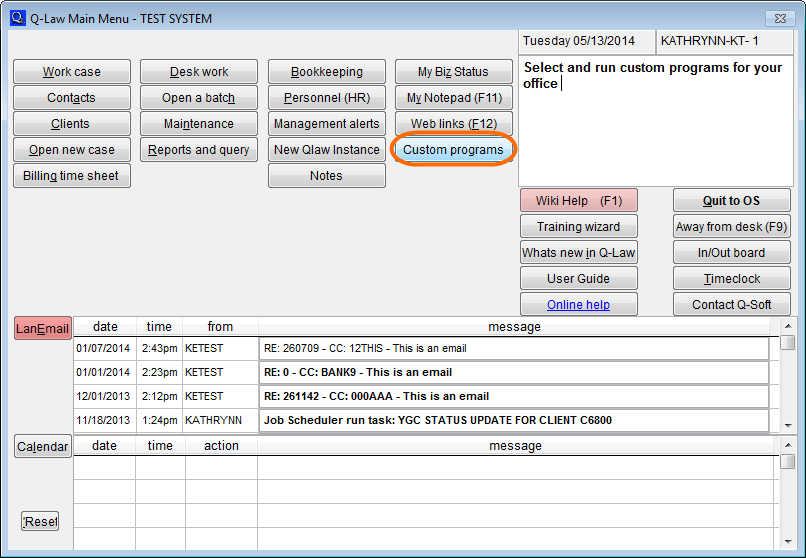
Once in the Q-LawE Client Custom Programs screen, add a new record, group name, description, and program name. In the command column, enter the same syntax that we discussed earlier that goes into the Enter Program Name with Parameters to Run field in the job scheduler.
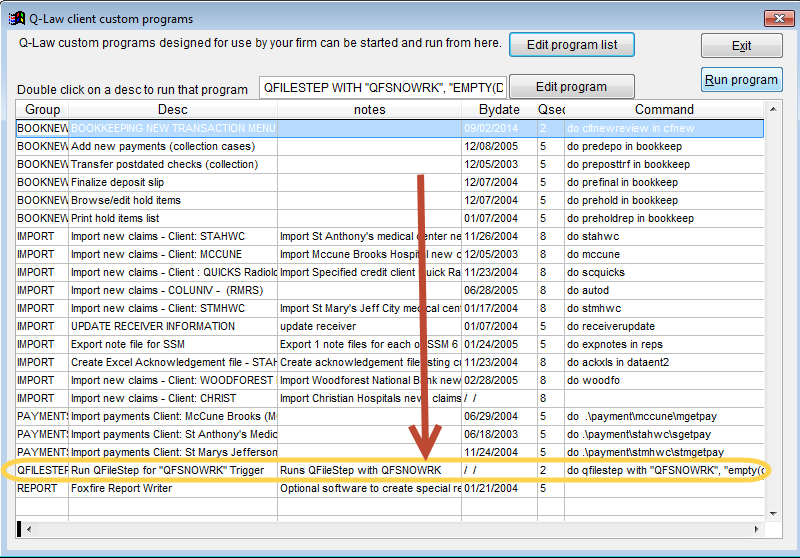
The difference between running QFileStep in the job scheduler versus the custom programs screen is that with the latter, someone will need to manually click the [Run Program] button each day.
QFileStep Log File
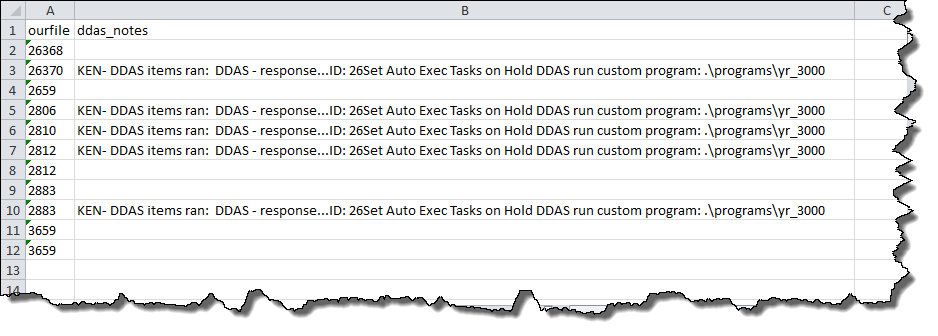
Each time the QFileStep program is run, it will create a log file indicating what accounts were touched, both by the program itself as well as the first 250 characters of the note line created by DDAS for that account. Trouble shooting will involve reviewing the log file and if the account in question appears in the list, it was included in the QFileStep scan of accounts. If you have the account listed and you see a DDAS note, both QFileStep and DDAS activated for that account. If there is no DDAS note for that account, that means that DDAS did not trigger, and reviewing the DDAS condition is a good place to start to determine why it was not triggered. Of course, if the account is not even listed in the log file, the search criteria that you dictated as one of the parameters in your QFileStep job did not match for the account in question and it was skipped.
The log file is stored in the .\Q-LawE\logs folder and will always begin with "QFILESTEP" followed with the trigger name and then the date and time. The log file is an XLS file type.
The below log file shows that QFileStep identified eleven accounts but DDAS only activated on 5 of them, which is indicated by the text in the ddas_notes field.
Troubleshooting
The Q-LawE Job Scheduler is a powerful automation tools that helps take mundane everyday activities out of the hands of your staff, freeing up productivity and reducing costs. When properly configured, the Job Scheduler can manage importing and exporting data for EDIs or Vendors, run reports, print documents, perform system maintenance, and run a variety of custom functions. While the Job Scheduler is a powerful tool, it is also one of the more difficult items to troubleshoot. The Job Scheduler relies on various functions within Q-LawE to operate and issues within the configuration of those functions can cause the Job Scheduler jobs to fail. The Job Scheduler comes with a robust error handling engine, which prevents the system from halting if there's an error on a single job and provides error logs, which can be sent via LAN-mail or emailed to specific users. Because of this, a single item failure should never prevent other items in your workflow from continuing, and locating an error related to a failure is relatively straight forward.
Due to the nature of the Job Scheduler, it is imperative that on your end, the time be taken to diagnose the most common areas of issue within the Job Scheduler prior to contacting Vertican for support. Many errors are caused by simple misconfigurations or environmental issues, which are easily corrected. If Vertican has to step in to assist with these issues, support costs will be incurred. Please use the suggestions below to troubleshoot the Job Scheduler prior to contacting Vertican for support.
Issue: The Scheduler opens, nothing happens, and it just closes.
Cause: Typically caused by the machine code or username of the job not matching the machine code or username of the system running the Job Scheduler.
Background: The Job Scheduler supports the ability to run on multiple machines at the same time. For example, if your firm has processes which can take large amounts of time, printing documents for example, another machine can be set up to run the Job Scheduler to complete smaller tasks. To achieve this functionality, jobs are tied to specific machines and users when they are created. This way, the system will only run jobs assigned to it and will prevent situations where two machines accidentally start the same job.
Resolution: On the Job Scheduler Machine, make a note of the machine code and user name in the field you see below (insert screenshot). It must be IDENTICAL to the jobs' which should run on that machine. Note: The field is case sensitive.
Issue: When I try to run a job, it immediately goes to Hold status.
Cause: A job was started, but the Job Scheduler terminated due to an error. Or a job that the selected job relies on did not complete successfully.
Background: When a job is started, a "STARTED" flag is set within the system. When the job finishes, the "STARTED" flag is updated to "SUCCESS" and the system moves on to the next job. If a job is started but does not finish, when the Scheduler restarts, it will check the hold flag and move on to the next job.
Resolution: The cause of the error will need to be investigated, for more detailed information, see "Diagnosing errors" below.
Issue: I occasionally see errors such as "TS_JOBS not found" or "MJOBSUCCESS not found" and the Job Scheduler has halted.
Cause: You are running an outdated version of Q-LawE. These errors have since been resolved.
Background: There were errors that were triggered by misconfigurations that caused issues within Q-LawE. These issues resulted in pop-up errors being displayed in the Job Scheduler, which caused the Scheduler to halt. The Vertican staff has found the cause of these issues and resolved them, therefore errors should not halt the Job Scheduler.
Resolution: Update Q-LawE.
Issue: I occasionally see an error that contains a reference to Documents and Settings.
Cause: Your server has lost connection to the network, resulting in the Scheduler being unable to find the EXE.
Background: Q-LawE is a "Client/Server" type application which relies heavily on your network to function. If network connectivity is lost, Q-LawE can no longer access the Executable for direction on how to proceed. In these situations, the system resorts to backup locations stored in the Executable when the code is compiled, these locations are often temp folders within the developer's system. These locations aren't found on the user's system, so this error is displayed. This is not an error we can suppress; when this error appears, the system has stopped seeing code outright and will be unable to follow a path we outline.
Resolution: This is an environmental issue. Please contact your IT and begin troubleshooting your network.
Issue: The Job Scheduler doesn't run, OR Q-LawE starts when the Job Scheduler should run.
Cause: The Windows Task Scheduler is misconfigured.
Background: To ensure the Job Scheduler runs on a reliable schedule, we decided to utilize Windows' built-in Task Scheduler. The Task Scheduler provides numerous benefits over a built-in timer function such as the ability to run as specific users, support for various start times and configurations, ability to start tasks if not logged in, etc. The Task Scheduler requires a specific setup to be able to properly start the Job Scheduler; if it is not properly configured, the Job Scheduler may not start, or may launch into the Q-LawE login screen.
Resolution: Verify the Task Scheduler is properly configured. The Vertican Support Staff can assist in setting up the Task Scheduler, but we cannot be held responsible for issues that may arise due to misconfiguration. We can provide the string needed to properly launch the Job Scheduler, if requested.
Issue: Emails (reports or errors) don't appear to get to the recipients.
Cause: The email setup in Q-LawE is incorrect, or the email account is not properly set up in the server.
Background: The Job Scheduler makes use of the Simple Mail Transfer Protocol (SMTP) when sending email, which is widely supported. When reports are generated, the Job Scheduler will attempt to email the report to the recipients listed in the job. When errors are encountered, the system will send an email containing the error message to the recipient specified in the job. For the Job Scheduler to send emails, there must be a valid address for the system to send from, and Q-LawE must be configured to properly access the account.
Resolution: First verify the email configuration in Q-LawE is correct. To do so, from the Q-LawE Main Menu perform the steps below:
- Click Maintenance.
- Click System Maintenance.
- Click Users.
- Look for the QLAWSERV user in the list to the right (this user MUST exist).
- Click Calendar/Email/Letter.
- Click [Edit]
- Verify the email configuration details are correct.
After verifying the user details are correct, verify the email address is functional by setting the email account up in an email client such as Outlook and sending emails. Finally, verify the account is properly configured to allow SMTP emails to be sent. Often, Exchange servers must be configured to allow Open Relay to send SMTP emails from the Job Scheduler. Note: Vertican cannot assist in setting up the email account on your server.
Issue: The job is set to run Weekly/Monthly, but it always resets to run the next day.
Cause: The day/date on which the job should run is not properly set.
Background: When an item is set to run on a Weekly or Monthly rotation, the Job Scheduler expects it to run on a specific date within that month, e.g. the 15th, or on a specific day in the week, e.g. Tuesday. If the day is not set within the job, the system defaults to "tomorrow".
Resolution: In the Job setup, verify there is a day of the week (Sunday, Monday, Tuesday, etc), or day of the month (1, 2, 3, etc) populated in the On field adjacent to the Frequency field.
Diagnosing Job Scheduler Errors
When the Job Scheduler encounters an error, it will first log the error to the system error log. After the error is logged, the system will attempt to notify a user, either by LAN-mail or by standard Internet Email. Once the notification is sent, the Job Scheduler will terminate and upon restart, will mark the job as HOLD so it does not halt the Job Scheduler. As mentioned prior, the nature of the Job Scheduler means it relies heavily on the configuration of items within Q-LawE, and any misconfiguration can result in a job not running. The below troubleshooting steps can be used to identify what caused the error, how to diagnose it, and if needed, how to report it to the Vertican Support Staff.
Identifying the Error
The error will be listed in one of three places: a LAN-mail sent to a user assigned in the job, an email sent to a designated email address, and the error log. The error reveals three primary bits of information: The error description, the error line number, and the procedure the error was executing at the time of failure. Below are basic descriptions of what these three fields mean:
- Error description: This is the technical description of what happened to cause the error to display. Many of these errors are caused by easily identifiable misconfigurations within the system. Occasionally they may point to a bug in the system, which Vertican will have to address.
- Line number: This is the line in the code where the error occurred. When reporting an error, this number MUST be included.
- Program name: This is the code Q-LawE was executing when the error appeared. This also MUST be included when reporting the error to Vertican.
Diagnosing Common Errors
There are a number of errors which point to issues that are relatively straight forward to address. The most common jobs which can result in Job Scheduler errors due to misconfiguration are reports and jobs, tied to improper DDAS rules. Each of these items can typically be diagnosed and addressed without support from the Vertican Support Staff.
Misconfigured Reports
These typically manifest themselves with a simple "SQL: Column not found" error. They also typically reference the REPS.FXP program, which can be seen in the error detail. Proper report building practice dictates extensive testing outside of the Job Scheduler before rolling the item into the system to be run. If the report is not thoroughly tested on its own, it can cause errors within the Job Scheduler. Please refer to the Reporting section of the vCon materials for more details on creating and customizing reports.
DDAS Related Issues
DDAS is Q-LawE's powerful business automation engine, and while it can help improve business process flow, it can also be a point to find difficult errors. DDAS items are easily recognized due to their reference to the "RUPDATES" program within Q-LawE. The Error Log, referenced above, contains numerous details useful for diagnosing DDAS errors, namely the Job number. Due to the nature of DDAS, the error may point to the first rule triggered; therefore, you may need to check numerous rules to find the culprit. DDAS errors are most often caused by mistakes in the Condition; these errors should be caught during testing, but some slip through the cracks. DDAS can also error because of improper date formatting, improper use of custom fields in notes and reminders, and mismatched data types in the field replace commands.
If presented with a DDAS error, first identify if the cause of the error was an issue with the condition. These errors are recognizable from their line number which, depending on the version, is in the low 200's. If it is a condition issue, take your time and review each condition looking for issues. If you cannot pinpoint a problem, feel free to email the string to Q-LawE.support@vertican.com.
If the error points to another issue within the DDAS setup, further rules evaluation may be needed. Please refer to the DDAS vCon documentation for additional details on designing, configuring, and troubleshooting DDAS rules.
Windows Task Scheduler Setup
Now that you have your jobs set up and ready to go, we have one additional step before we can turn this on. From the Windows environment, Q-LawE has no way of launching itself and needs some external help to get going. This external help comes from Windows. Just like Q-LawE has a built-in Job Scheduler, Windows has something similar as well that can launch the Q-LawE Job Scheduler and once launched, Q-LawE then takes over. This tool in Windows is called the Windows Task Scheduler. You can find detailed directions on Microsoft's website. Below is a summary of how to set up the Windows Task Scheduler.
Setup
- From a user account with Windows Administrator rights, Click Start and on the search box type: Task Scheduler
- User must have read, write, create, and delete permissions to at least the following
- FTP services
- Email services
- File server services including copy, delete and moving documents
- U:\ and Q-LawE subfolders
- Additional folders as applicable if Q-LawE is interfacing with other applications
- All firewalls need to be configured for the user account to allow https://www.vportal.vertican.com/ and https://vertican.tech/
- If these rules are not followed and Vertican becomes involved, it will be a chargeable incident.
- User must have read, write, create, and delete permissions to at least the following
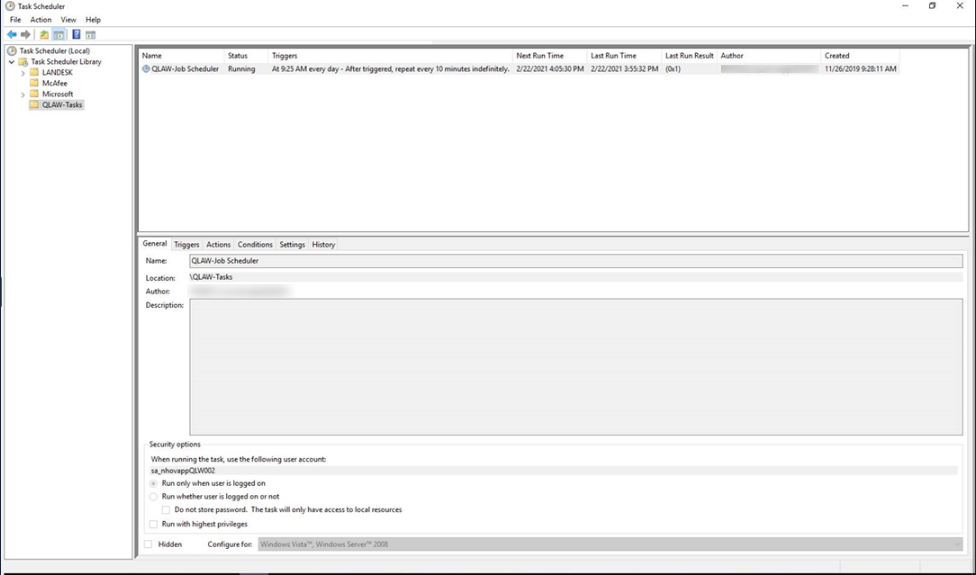
- Click on Task Scheduler Library, and then Right click on it and select Create Task
- Then match the settings for the General Tab as follows:
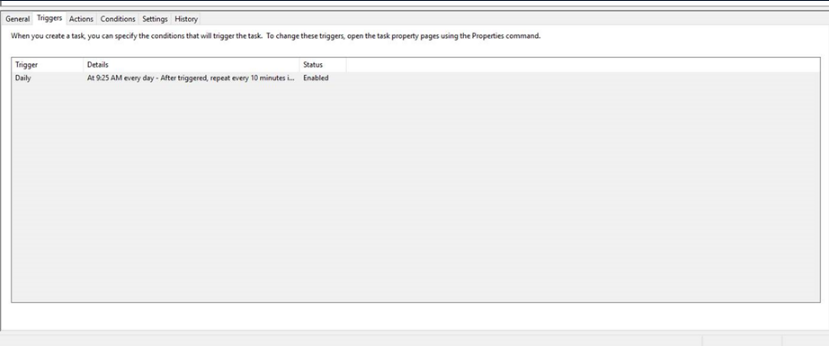
- Now on the Triggers tab, click on New and setup as follows:
- If you have a back-up system or other system that needs to run on your server and you cannot afford the application to be running, you should not start job scheduler until that has completed. It is suggested to start at 3:00 a.m. if that does not conflict with any back-ups or other systems running on your server.
- Repeat needs to be set to at least every 10 minutes.
- If Q-LawE runs into an error of any kind, job scheduler will kill the application at that time and that job will be put on hold. Q-LawE will start again 10 minutes later (based on Repeat time) and will restart with the next job.
- Now under Action, click New and setup as follow:
- Change to the applicable drive letter if your Q-LawE drive letter is not U.
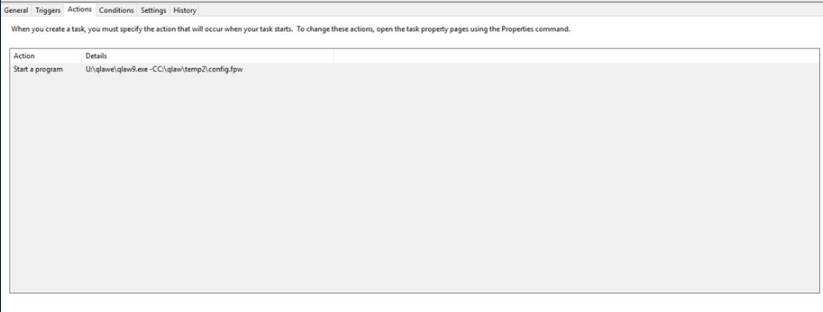
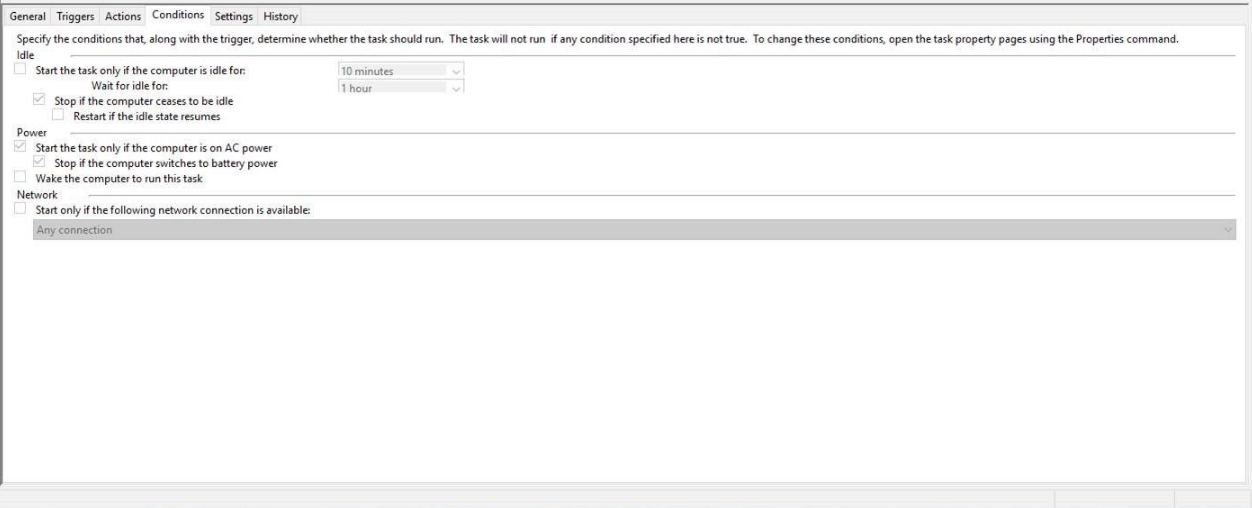
- Under Conditions, setup as follows:
- Conditions need to be the same as shown below, this is mandatory.
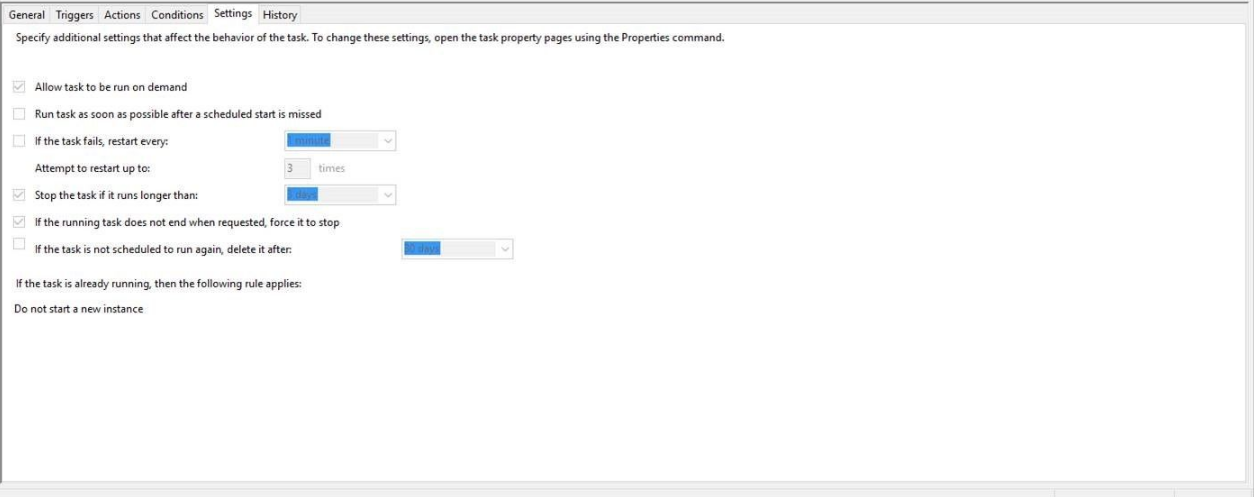
- Under the Settings tab, configure as follows:
- Settings need to be the same as shown below, this is mandatory.
NOTE: There is Export functionality in case you would like to simply export this task and migrate it to another Windows 10 system. To do that, Right click on the task you would like to export and select "Export Task". Under the new system's task scheduler, right click on Task Scheduler Library at the left and hit "Import Task".