
- Purchase the free PaymentVision DTP from the vStore.
- Navigate to vPortal > vStore > Collection-Master > DTPs and ‘purchase’ the free PaymentVision DTP.
- Register the PaymentVision DTP in Collection-Master.
- Follow the instructions in the EDI Help Manual for Registering an EDI.
- PaymentVision is EDI #356.
- Add the AutoPost Module from the vStore.
- Navigate to vPortal > vStore > Collection-Master > Modules & Enhancements. Add the free AutoPost module, which is required for PaymentVision.
- Run the Interface Registration Tool.
- From the Collection-Master dashboard, go to Tools and select Interface Registration.
- This step ensures that the system is ready to communicate with PaymentVision.
- Configure PaymentVision Login Settings.
- Access the [4-2-5-Y-3] PaymentVision Login Configuration.
- Configure the required login settings in the system.
- Configure the PYVISION.INI File.
-
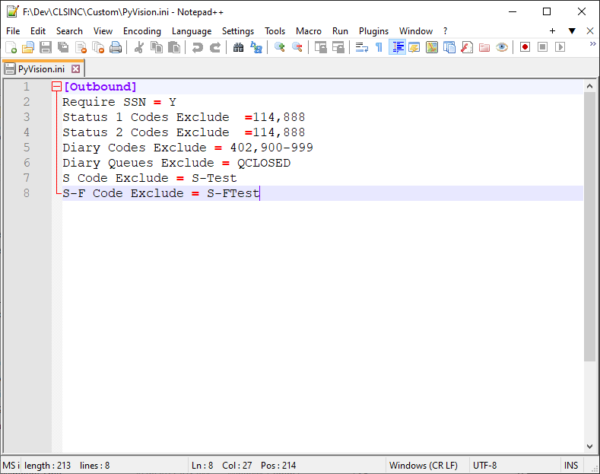
In the CUSTOM folder, configure the PYVISION.INI file with the desired settings:
- Require SSN = Y (Set to ‘Y’ if SSN is required for login or payment processing)
- Status 1 Codes Exclude = ,0,0.00,00/1,,114,15,16,699,888 (Exclude specific status codes)
- Status 2 Codes Exclude = 0,0.00,00/,114,15,699,888 (Exclude additional status codes)
- Diary Codes Exclude = 900-999 (Exclude certain diary codes)
- Diary Queues Exclude = QCLOSED (Exclude specific diary queues)
- S Code Exclude = S-Test (Exclude certain S codes)
- S-F Code Exclude = S-FTest (Exclude specific S-F codes
-
- Run PaymentVision Outbound Tools.
-
Run either of the following PaymentVision outbound tools:
- [4-2-5-Y-1] PaymentVision Outbound (All Debtors)
- [4-2-5-Y-2] PaymentVision Outbound (Debtor 1)
- Choose the tool based on whether you need to process all debtors or just a specific debtor.
-
- Set up the FTP to PaymentVision (if not already set up).
- Ensure the FTP (File Transfer Protocol) connection to PaymentVision is configured properly.
- Configure the FTP settings to allow file transfers between the systems.
How to Install PaymentVision in Collection-MasterLisa Ujifusa2026-10-01T06:55:10+00:00