Last Update: February 5, 2022
TASK MANAGER
Additional Screen Information:
Exclude Non Master Companion Files
Step 1: Search Criteria Selection
Step 4: Fields-Sortby (Optional)
Step 6: Save Report for Future Use
Step 7: OK or Processing Options
Recalling and Editing a Build Custom List
Overview
Working your accounts is key to success. They will not work themselves and make you money, although that would be very convenient. Some automation tools can take many manual burdens away; however, there will always be some things that have to be handled manually. That is where the information in this session will be helpful. Learning how to use all the tools in the Task Manager. From the Main Menu click [Work case] – then click [Task manager].
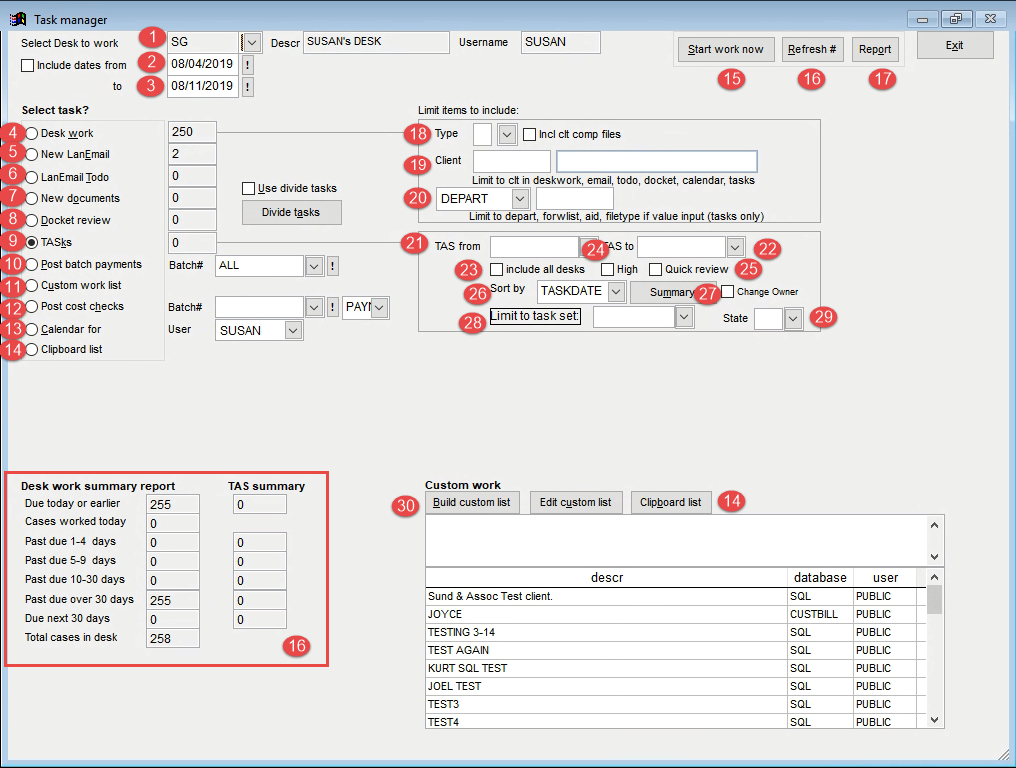
1. Select Desk to Work – select your desk from the list of the users’ setup.
2. Include Dates from – this is used to create a working list for a future date. The from date is preset to the oldest past due task date, tickler date, etc. for tasks and deskwork. But when working items via Docket 8) and Calendar 13), it honors the from date selected. But this box must be checked to enable a future date or specific date range for a working list.
3. To – This is the future date you select when checking the Include Dates from box.
4. Desk Work – works the accounts based on desk assignment (debt.collect) and the tickler date (debt.update). Once you click [Start work now], Q-LawE will create a working list of all accounts assigned to the selected and the tickler date due or past due.
5. New Lan Mail — work the accounts by Lan Mails sent to your current user from the accounts (or that reference an ourfile). These Lan Mails are the ones in your Inbox. Once you click [Start work now], Q-LawE will create the working list and you can begin to work the accounts associated to the Lan Mails you received.
6. LanEmail Todo – work accounts using the old workflow todo system (was replaced by task codes). View the Action tab of the account work screen you can add a todo item for your user.
7. New Documents – work all accounts that are assigned to the selected desk where documents have been added to the file and not opened/read. Once a document has been opened in the documents tab of the account, then that document will be removed from the working list.
8. Docket Review – work the accounts based on the date in the dlegal.courtdate field. This option does honor the dates from and to fields both and will pull a working list of all accounts where there was a hearing date in the dlegal.courtdate field for all desks (debt.collect). It does not evaluate the DCAL table so if there are multiple hearings dates for an account it only looks at those appearing in the legal screen.
9. Tasks – Since task codes tell the users to perform specific jobs on the accounts, task codes are the preferred method of working accounts. By choosing tasks it will create a working list of all accounts that have task codes that are due or past due for the selected desk.
10. Post Batch Payments – This method will be used by the bookkeepers when posting payments to the accounts. This method is normally used for exceptions and manual payments that cannot be autoposted in the Bookkeeping menu using Collection Batch Payments. The bookkeepers will create a batch of payments in the Bookkeeping Menu by using the Collection Batch Payments option. Then they will go to the task manager, select the batch they want to post from the dropdown list, click [Start work now]. Choose the first account in the list (batch) – Q-LawE will open that account paycard. Click [Receipt]. If you are posting older batches, it may ask you to confirm the transaction date first. The amount of the payment for that account in the batch is already populated. The bookkeeper clicks [Quick Post] to post the payments. Q-LawE will post the payment accordingly then exit to the account paycard. Then click [Next] on the bottom right to go to the next account in your list. Quick Post may not always work especially in cases where costs need to be refunded or if there is a receiver is on the account (cannot quick post 04 payment types).
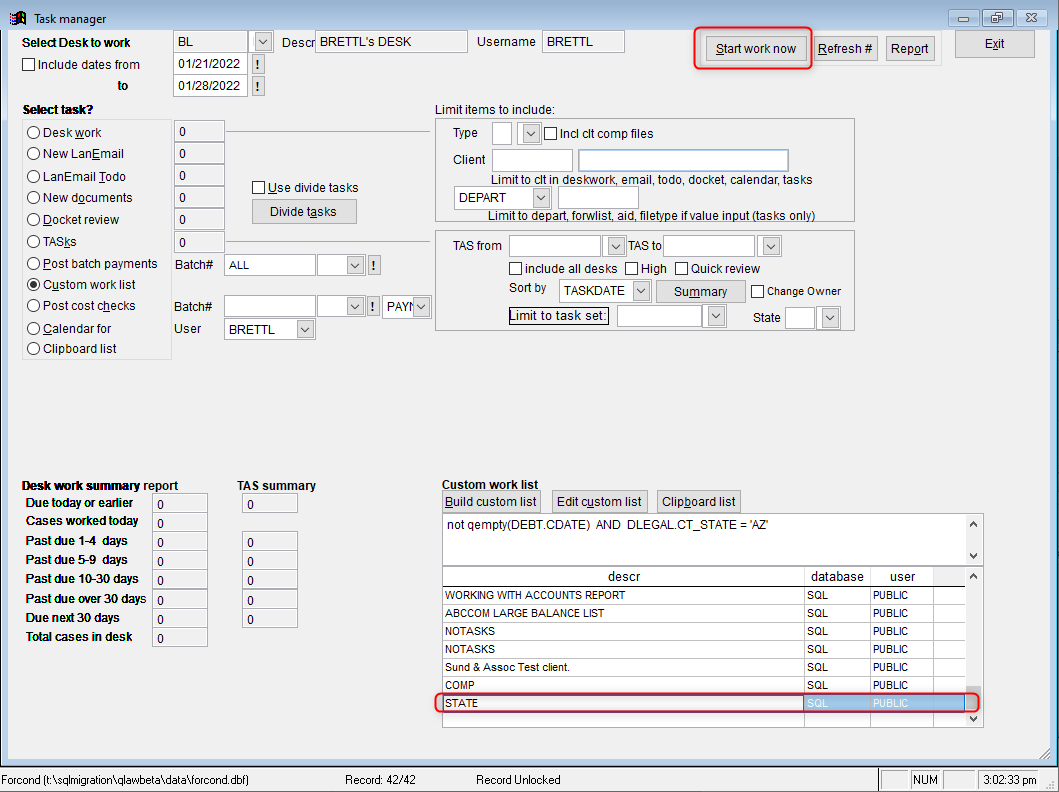
11. Custom Work List –select a previously saved custom work list from the box on the bottom right then click on [Start work now]. Q-LawE will create a working list based on the perimeters outlined in the selected custom work list.
12. Post Cost Checks – This method will be used by the bookkeepers to manually post cost checks to the accounts. Task codes, DDAS, and manual user requests of costs can be done on the accounts. This is the process of posting those costs to the account and cutting the checks. Select the Batch (Approved, Error, Pending, Hold-DDAS) then choose how to sort the accounts listed in your working list (by Payname, Costcode, Byuser, Payto). Once you click [Start work now], Q-LawE creates the working list. Select the first account in the list and the system will open to the paycard of that account. Next click [Disburse]. The curser will be in the cost code field. Tab out of that field and the amounts, payto etc. will populate. Next click [Calculate]. It will advise if ready to post, then click [Post Item]. Choose to preview or print check. Once you have printed the check, confirm it printed correctly, click [Exit]. It will open the Paycard screen. Click [Next] to go to the next account in the list and repeat. There is an optional module, Cost Check Auto Post, that can make this process more automated.
13. Calendar for – work accounts where calendar events have been added to the selected user’s Calendar from the account level (calendar items reference an OURFILE). This method also honors the FROM and TO fields.
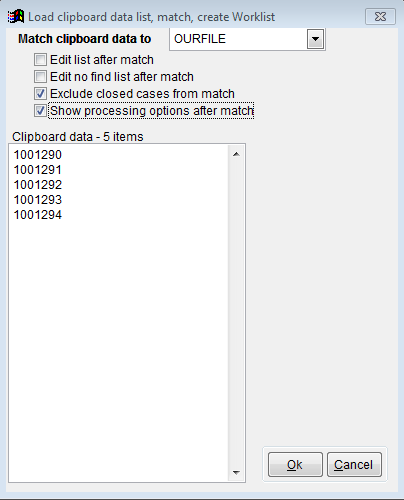
14. Clipboard List – When you copy a list of OURFILEs, CUSTFILES, NCUSTFILES or FCCUSTFILES from a spreadsheet it places that information on a clipboard list. Clicking [Clipboard List], identifies which field you are matching. If you need to edit the list before or after a match, or if you want to exclude closed cases, click [OK]. Q-LawE will automatically select the clipboard list work method, so when you click on [Start work now], it creates a working list for you to then go into the first account on the list and utilize the next and previous buttons in the bottom right corner of the screen to move between the file listed in your clipboard list.
15. Start work now – This is the button you click to create the working list. It brings up the list of accounts created from the method you chose. Once you click this button you have the option to list the accounts to an Excel spreadsheet.
16. Refresh# — this button is a process that refreshes the totals you see in the lower left corner for the desk you selected. It is a summary of Deskwork and Task codes. The boxes on the left identify the accounts assigned to that desk and the tickler (debt.update) date field on the accounts. The boxes on the right look for task codes assigned to the chosen desk and the task due dates.
17. Report – Instead of using a working list or Excel that can be created when clicking [Start work now], choose Report and it will list your accounts to a pdf form that can be printed.
Limit items to include
Limit which accounts appear in the list. By default, the list of accounts created will default to all accounts that have criteria that flag it for the method chosen. For example: if an account has a task code that needs to be completed that is assigned to the desk selected where the due date of the task code is either due or past due, the account will appear on the list of accounts.
18. Type – The field in the account is debt.type and located on the main Work Case screen. It can be modified in the Update screen. You can limit the accounts that appear in your list to a specific type. You can also check the box to include all companion files as well.
19. Client – Choose a specific custid for which your list is created. Such as a list of all the tasks that are past due for a particular desk and only for a designated client. This is supported for the following methods: deskwork, email, todo, docket, calendar, and tasks.
20. There are other identifying fields in the accounts that can help limit the accounts that appear in your selected list (debt.depart, debt.salesman, debt.filetype, debt.aid, debt.forwlist). All but Salesman appear on the Work Case screen of the account. The Salesman field appears in the Edit screen. You can select which field you want to limit your account list by selecting on of the following from the dropdown list: DEPART, FILETYPE, AID, FORWLIST or SALESMAN. Then in the box to the right of the dropdown, you input the VALUE for the option you select to limit your list of accounts.
21. TAS from — When you select the method of TASKS you can limit the accounts to those that have tasks that are due in your date range to a range of tasks. The list will contain all those account that have task code that are due from the task code you input in the FROM field to the task code in the TO field and all those in between sequentially by alpha or numeric depending on your task code design.
22. TAS to — To the task code input in the TO field and all those in between sequentially by alpha or numeric depending on your task code design.
23. Include all desks – Pulls a list of all tasks that are due or past due, or you want to pull a list of specific task code regardless of who the task codes are assigned, check the box next to include all desks. This function does not take into consideration the desk selected or defaulted.
24. High – Pulls a list of task codes that are due for the desk selected that are marked as High priority only check the box next to High.
25. Quick Review – Checking this will disable the emergency note box from popping up in your working list. This means as you move from one account to the next in your working list by clicking on the [Next[ and [Previous] buttons on the account in the lower right corner, the emergency note box along with alerts will be disabled and will not appear.
26. Sort By – This option is limited to TASK work. It enables the user to sort the list that is created. You can choose to sort by Task Date, Task Code, Custid, Ctcounty, or Balance.
27. Summary – Enables a user to pull a list of Task codes that are due for that user and how many of each task that is due to be completed. The nice thing about this summary is you can double-click on a task in the list and Q-LawE creates a working list of accounts for that task code only. It also displays if the task is an auto executable task as well. If you select Include all desks as described in 23) a summary appears of all tasks codes that are due or past due for the firm and how many of each task code are due.
28. Limit to task set – This is limited to working accounts by Tasks. In the Task Code Manager in the Maintenance menu, where you create and set up the task codes. You can assign a task set to each task code. This option enables you to limit the accounts that appear in the list to only those that have task codes that are due that are assigned to a specified Task Set. The dropdown list can be used to pick from the list of established task sets for your firm.
29. State – This option is limited to working an account by task only and uses the primary debtor’s state of residence. You can limit the accounts in your list to those accounts that have task codes due for the selected desk or all desks where the debtor resides; in TX for example.
30. Build Custom List – This option is controlled by security levels. If you do not have a high enough security level, you cannot build custom lists. Click on [Build custom list], the List build screen opens. Select the perimeters you want to use and select conditions to evaluate to help you build your optimal list.
Clip List Processing Options
- Have a list of accounts saved in a clipboard
- Vertican recommends coping the number from an excel file
- Can use ourfile, custfile, ncustfile, fccustfile, preourfile, dss
- From Main Menu, select Work Case
- Select Task Manager
- Select Clipboard list
- The accounts from step 1 should appear in the white text box
- Be sure there are not blank spaces at beginning of number otherwise account will not be located
- By default, close accounts will be excluded. To include closed accounts in processing options, uncheck the box “Exclude closed cases from match”
- Check the box “Show processing options after match” (Optional)
- Select OK
Processing Options
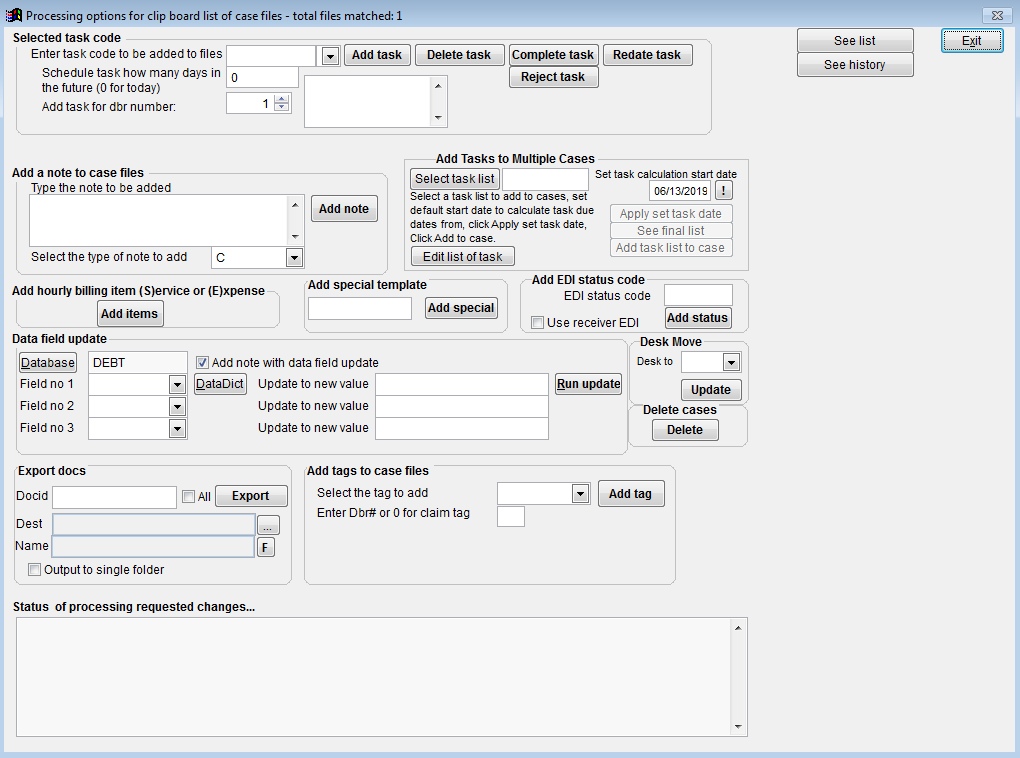
When using the processing options, any changes will apply to all accounts in the clipboard list.
- Task Codes
- Task codes can be added/ deleted/ completed/ redated or rejected from this screen
- Can set a task a number of days in the future when adding or redating
- By default, tasks will add for DEB1. Can be changes to be set for other DEB#s
- If a DEB# is specified but that DEB# does not exist on an ourfile, the task will not add to the ourfile.
- Notes can be added to the a specific task when adding a new task (deadline.note)
- Account Notes
- The note entered and note type selected will be recorded on ourfiles
- Add Task List
- Select the task list and set the calculation start date.
- Hourly Billing Items
- Add the same hourly billing items to ourfiles
- Add Special template
- Add a special template to ourfiles
- If the special template already exists on the ourfile, a duplicate special template will NOT be added.
- Add EDI status code
- This does not update the status on an account (debt.statid), it will only records to the status table for EDI reporting.
- Requires an EDISYSTEM on the ourfile
- Requires codes to be properly setup in EDISTATUS and EDIMATRIX
- Data Field Update
- Select up to 3 fields to update in a single table.
- By default, a note will be added to the ourfile with the change. Uncheck the box to not record an account note.
- Field changes are recorded in change log
- A log file (dataupdate-logfile.txt) is created recording the changes and saved in logs folder.
- Desk Move
- Change the desk (debt.collect) on ourfiles
- Delete Cases
- Delete ourfiles from Q-LawE
- This CANNOT be undone, use carefully
- Files with transaction records cannot be deleted
- Delete ourfiles from Q-LawE
- Export Documents
- Please see Document Export for Audit
- Add Tags
- Add tags to ourfiles
- If no DBR number is set or if ‘0’ is entered, the tag will apply to the whole ourfile.
- If a DBR number is set, the tag will apply for that DBR
- If a DEB# is specified but that DEB# does not exist on an ourfile, the tag will not add to the ourfile.
Build Custom List
Build Custom List allows you to build complex queries that will create a list of accounts that match specific criteria. Once the custom list is generated from the specified search criteria, Q-LawE will create a work list that can be worked. In addition, this list of accounts can also be exported into Excel, utilizing this functionality as an extremely powerful reporting tool.
Accessing Build Custom List
To access the Build Custom List screen, click [Build Custom List] in the Task Manager screen.
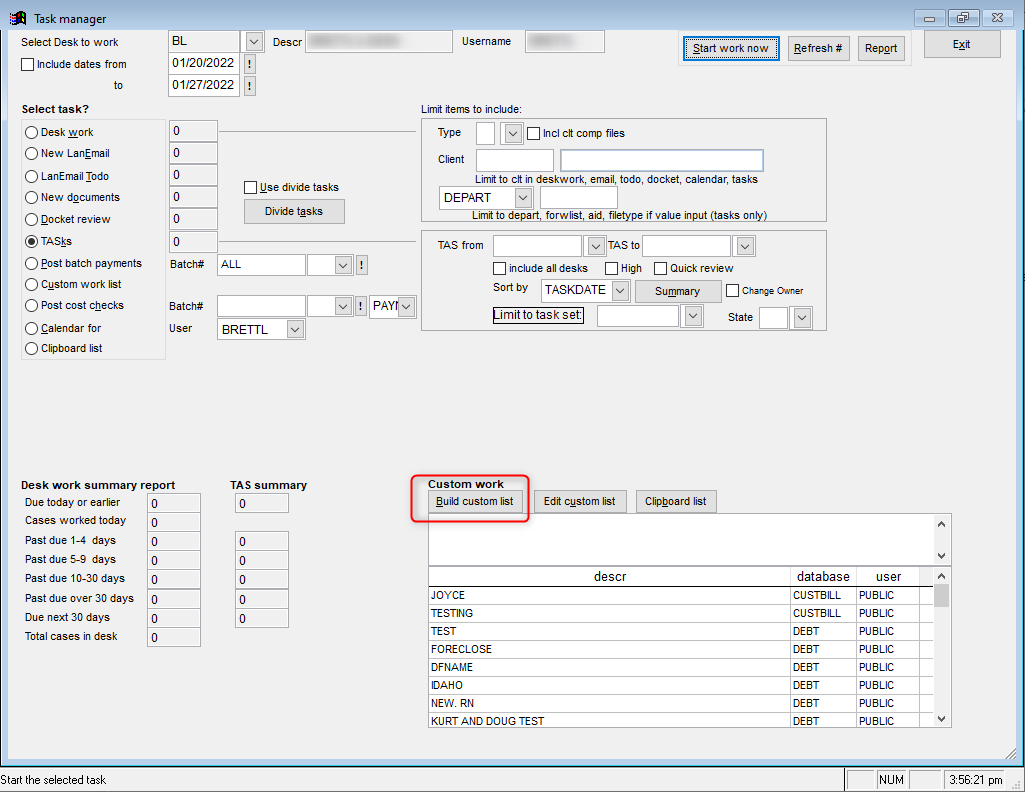
Clicking [Build Custom List] opens the Select Conditions screen.
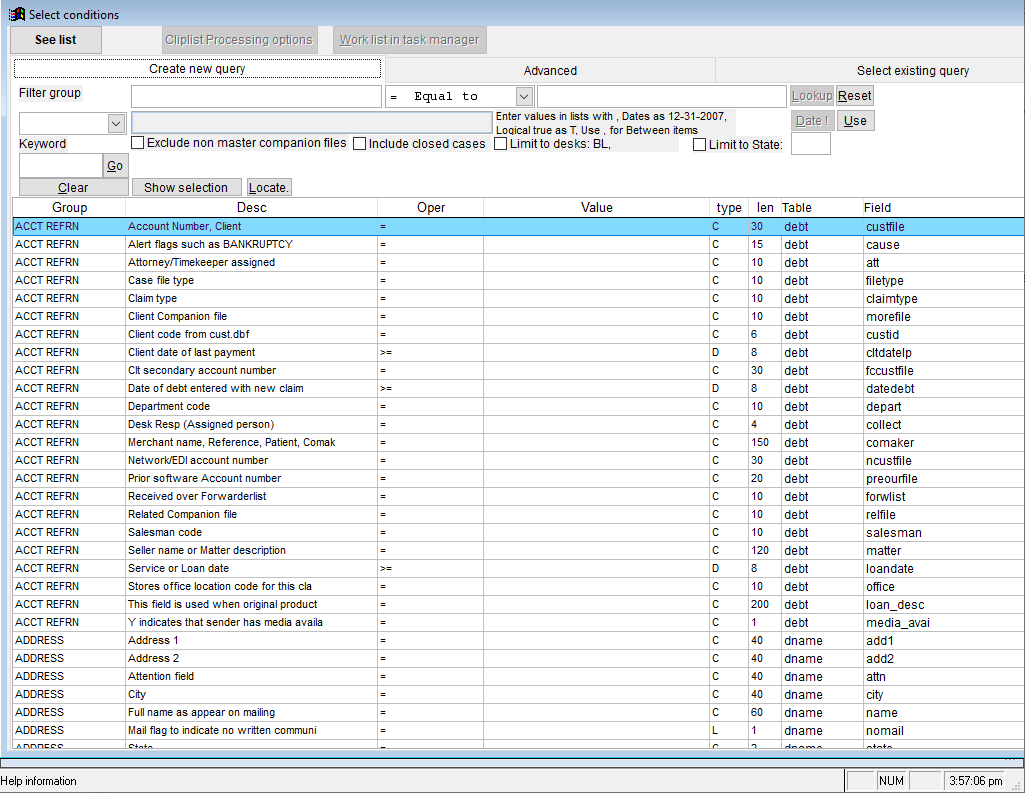
Select Condition Tab
- Used to create the search criteria identified the list of accounts.
Fields – Sortby Tab
- Used to identify the fields that will be displayed in the results and the order of the results
Select Advanced Tab
- Used to save and edit queries that were created from the Select Condition screen.
Formula Bar
- The formula bar identifies the field(s) being searched, along with the operator and the value field.
Selection Criteria
- This includes a list of all items that may be used in the search.
Additional Screen Information:
Lookup
- [Lookup] by default will be grayed out and not available until specific search fields are selected that can utilize [Lookup]. At this point, the button will highlight and become available to click. Clicking this button will pull up a list from which data can be selected. For example, if the Desk Resp field is selected, [Lookup] will populate, and when pressed, it will provide a list of valid desk assignments that can be browsed. Once the value is found, highlight and, click [Select Record]. This will return you to the Select Condition screen with the value populated.
Reset
- Clicking on [Reset] will clear the screen.
Date!
- [Date!] will open a calendar so a date can be chosen. This button also does not populate until a specific search field is chosen that can utilize it.
Use
- [Use] will populate the search selection as a programming string in the Select Advanced tab. This allows the user to manipulate the string manually or save the string for future use.
Exclude Non Master Companion Files
- If checked and the results contain any companionated files, the results will only display the main file and will exclude the non-main files in the search results.
Include Closed Files
- By default, closed accounts are not included. To include closed files in the search results, check this field.
Limit to Desk
- By default, the search results will be limited to the user’s desk only. Supervisors will have the security to override this default by un-checking this field to view accounts assigned to other desks.
Locate
- This opens a word locator to help find a search item that is to be used in the list of search options.
See List
- Clicking this button will generate the results in a grid format that can be saved or printed.
OK
- Clicking [OK] will generate and take the user to the work list.
Cancel – Exit
- This button will take you back to Task Manager screen.
Using the Build Custom List
From the Select Condition screen, a field or fields will be chosen, and then filters will be identified. Below are the steps to create the Build Custom List.
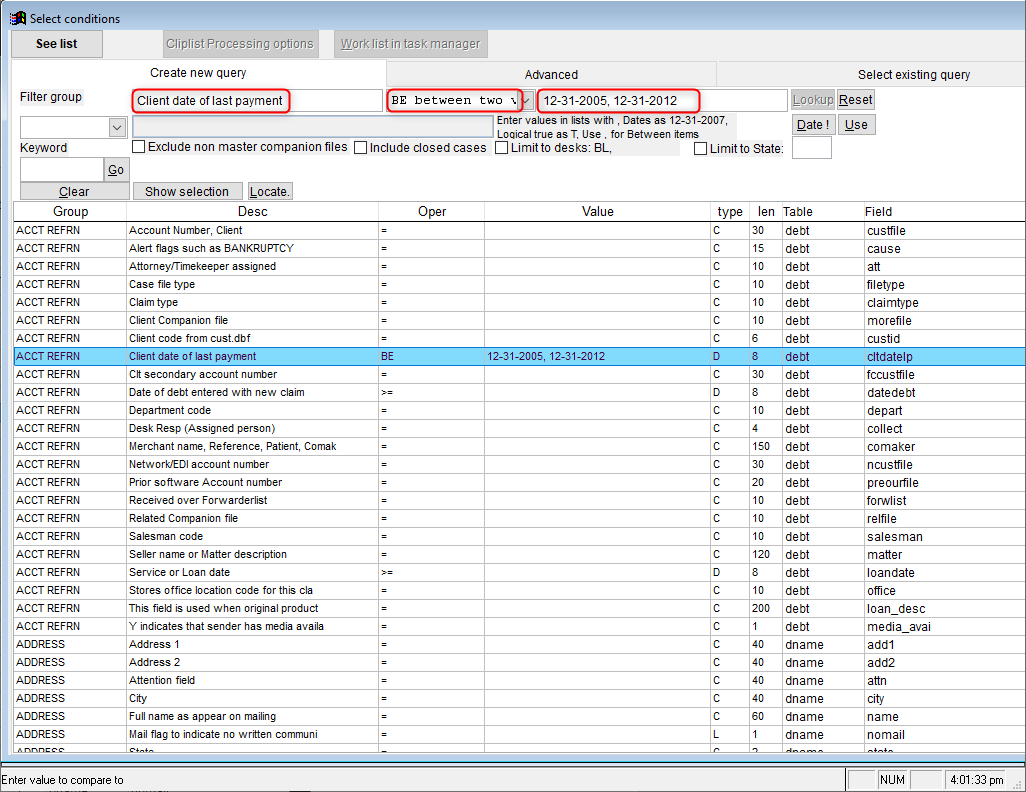
Step 1: Search Criteria Selection
The search criteria are arranged in groups that are found in the left most columns to make it easier to search for a field. Once a field to use is found, click on that item. It will highlight that row. After clicking the row that is to be used, the formula bar at the top of the screen will automatically have the field name populated. At this point, the operator field in formula bar needs to be populated.
Step 2: Operator Selection
The operator can be chosen by using the dropdown menu in between the field name and value field.
The operators include:
= Equal to
To identify accounts with field name’s that are equal to the value to be entered in the value field.
< Less than
To identify accounts with field name’s that are less than the value to be entered in the value field.
> Greater than
To identify accounts with field name’s that are greater than the value to be entered in the value field.
<= Less than or equal to
To identify accounts with field name’s that are less than or equal to the value to be entered in the value field.
>= Greater than or equal to
To identify accounts with field name’s that are greater than or equal to the value to be entered in the value field.
<> Different than
To identify accounts with field name’s that are different than the value to be entered in the value field.
BL Blank or Empty
To identify accounts with field name’s that are blank of empty. With this operator, nothing will be entered in the value field.
NB Not Blank or Empty
To identify accounts with field name’s that are not blank or not empty. With this operator, nothing will be entered in the value field.
$ Contains Value
To identify accounts with field name’s that merely contain the value to be entered in the value field.
BE Between Two Values
To identify accounts with field name’s that fall between two values to be entered in the value field.
IL Inlist
To identify accounts with field name’s that are included in a list of values to be entered in the value field.
Step 3: Enter the Value
In the value field, enter the value to be searched.
Value Field Formats
Single Value
- When the Field Name is a numeric field, the value field will be a number with or without a decimal and with neither a dollar sign nor a percent sign (e.g., 5000 or 5000.00).
- When the Field Name is alpha-numeric, the value field will need to be typed exactly. If the field is mixed case (This Is Mixed Case) or in caps (THIS IS CAPS), then what is entered in the value field will have to match accordingly (e.g., JOHNSON does not equal Johnson).
- When the Field Name is a date, the value field will have one date in mm-dd-yyyy format (e.g., 12-31-2012).
- When the Field Name is a logic field, the value field will have a T for logically true or an F for logically false.
- Operators that require a single value in the Value Field are: = Equal to, < Less than, > Greater than, <= Less than or equal to, >= Greater than or equal to, <> Different than, $ contains value.
Two Values
- The only operator that requires two fields and only two fields is BE Between two values.
- When using two values, the format of the values in the value field generally follow the same rules single values; however, there will be two values and they will be separated by a comma.
- Numeric Example: 5000, 6000 or 5000.00, 6000.00
- Alpha-Numeric Example: DA, FZ
- Date Example: 01-01-2013, 06-01-2013
Multiple Values
- The operator IL Inlist uses two more.
- When using multiple values, the format of the values in the value field generally follow the same rules as single value and two values. All values will be separated by a comma.
- Numeric Exampe: 5000, 6000, 7000 or 5000.00, 6000.00, 7000.00
- Alpha-Numeric Example: Johnson, Richards, Franks
- Date Example: 01-01-2013, 02-01-2013, 03-01-2013
Blank Value
- The operators that require a blank Value Field are:
- BL Blank or Empty
- NB Not Blank or Empty.
Step 4: Fields-Sortby (Optional)
- The fields that show in the results can be changed in this screen.
- When pressing Select field groups to include, a grid will open up that shows the different information that can be chosen.
- When highlighting a line, the bottom will populate with what that check box contains.
- Check next to the boxes that contain the information to be displayed in the report and click [Select record].
Step 5: See list
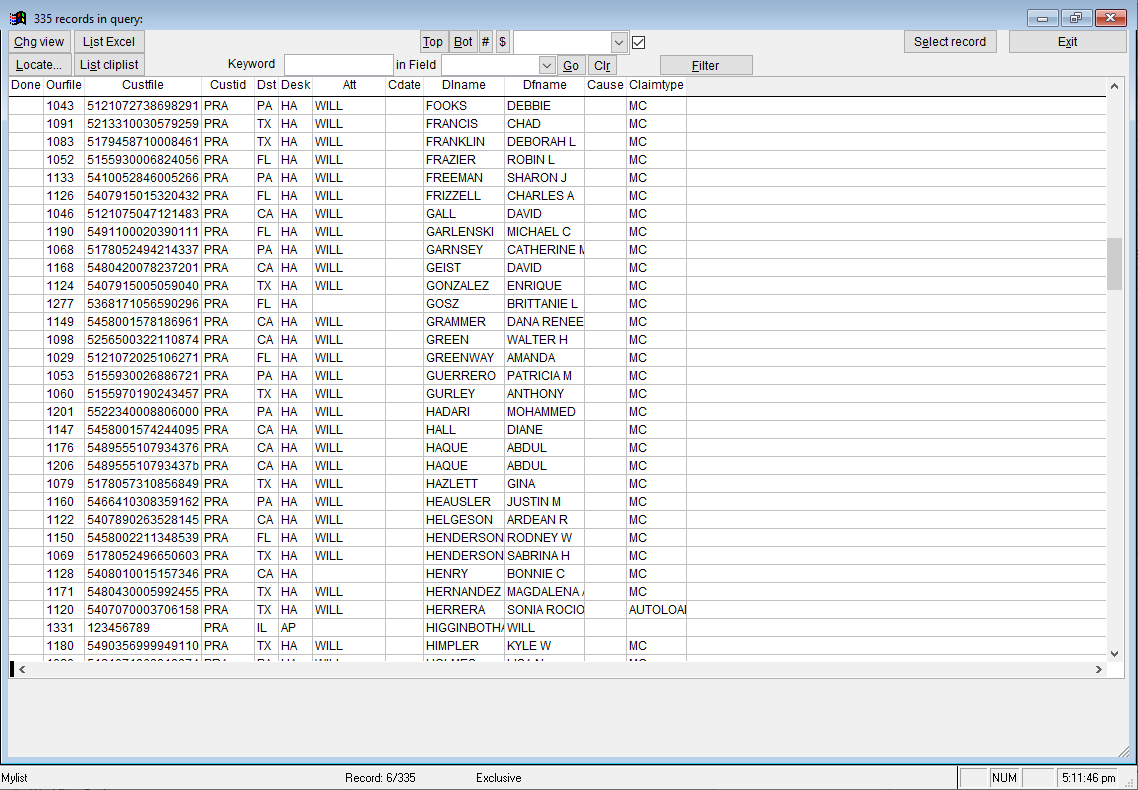
Steps 1-3 can be repeated as many times as desired to add numerous search criteria to the report. After choosing the search criteria and changing the fields to display in Fields-Sortby, pressing See list will generate the results in a preview format that can be listed to Excel or just viewed in the grid format.
If the results are not returning what is wanted, choose Exit and the criteria can then be edited. The criteria in the Select Conditions screen must be found and reselected in the grid prior to changing the Value field.
Step 6: Save Report for Future Use
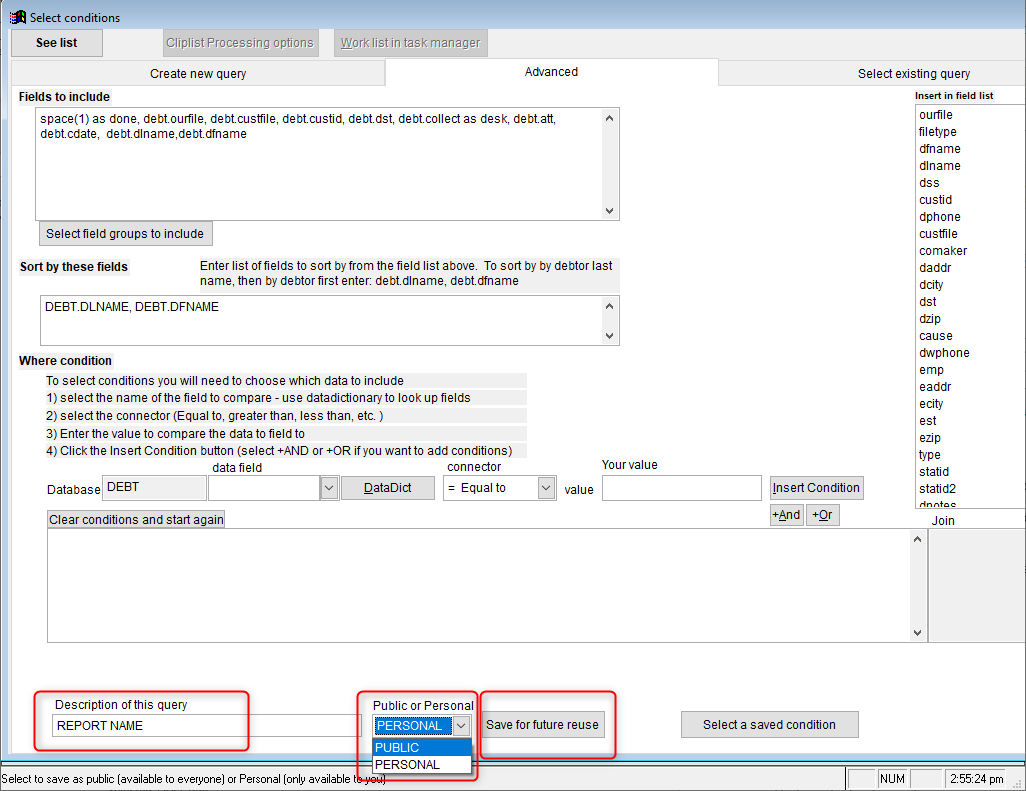
If this is a report that is to be run more than once, it can be saved so it does not have to be rebuilt each time. To save a report, choose the Select advanced tab, enter a name, choose whether the report is to be used by anyone or the username, then click [Save for future reuse].
Step 7: OK or Processing Options
When the report is ready to run, two options are available. Processing options can be chosen and the list of ourfile numbers that were generated will be brought over to the Processing options screen where multiple Administrative actions can be performed, or OK can be chosen and the list of accounts will be made into a worklist.
If [OK] is clicked before the report is saved, the report will be lost and must be rebuilt if it is to be used again.
Processing Options
Selected Task Code
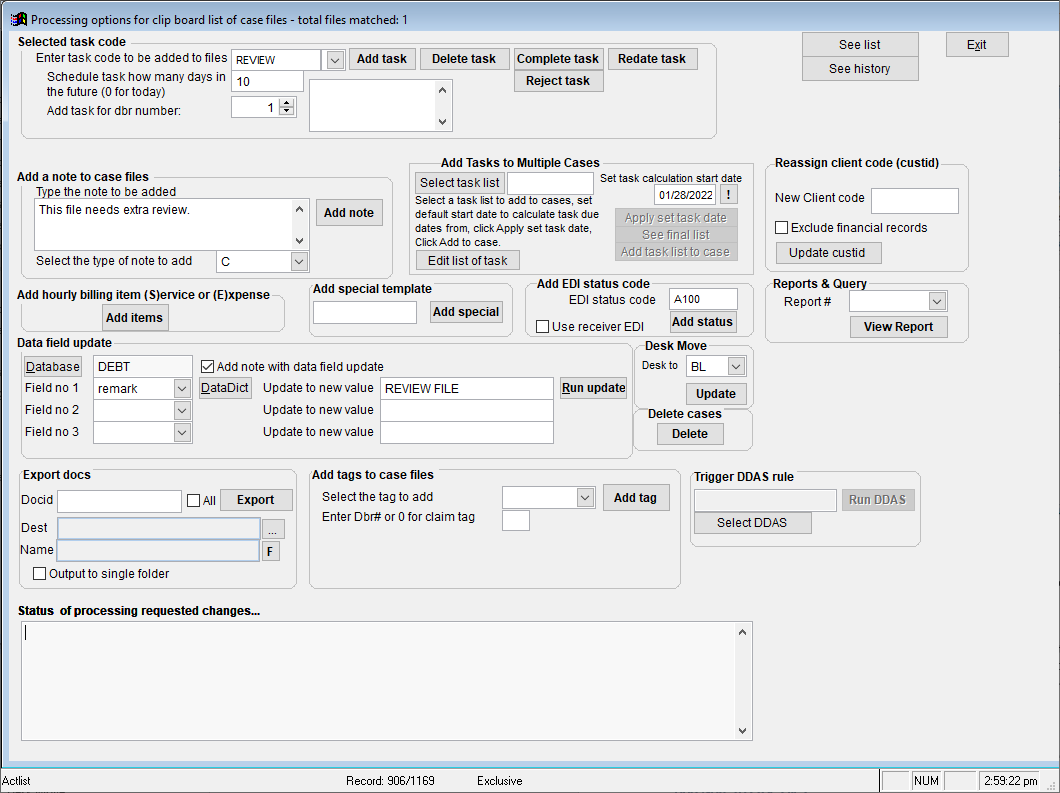
In this area, a task can be added, deleted, completed, re-dated or rejected on the files that are produced from the build custom list results. To use this part, choose a task code in the Enter task code to be added to files dropdown, then click the corresponding task button.
The Schedule task how many days in the future (0 for today) is for [Add task] and [Redate task] only. Add a number in this field to either add or re-date a task for that many number of days in the future. Enter 0 if the task is to be re-dated or added for today’s date.
Add Tasks to Multiple Cases
In this section, if task lists have been set up, a task list can be added to the files in the results.
Add Note to Case Files
In this area, a note can be added to all the files in the results. Type the note in the box, choose the note type in the Select the type of note to add dropdown, then click [Add note].
Add EDI Status Code
If these files are EDI files, an EDI status code can be added to all the files.
Add hourly billing item (S)ervice or (E)xpense
If an hourly billing item is to be added to all of the files, click [Add items]. Fill in the information requested, then confirm an item is to be added.
Data Field Update
If there is a field or fields to be updated on all of the files, this section can be used. The first thing to do would be to determine the database and field name. After determining those, they should be put in the Database and Field boxes. The information that is to be placed in the database and field name goes in the Update to new value box. After the Update to new value box is populated, then click [Run Update].
Desk Move
If the files are to be moved to a new desk (debt.collect), the new desk is chosen in this Desk to dropdown and [Update] is chosen to update all the files debt.collect to a new desk.
Recalling and Editing a Build Custom List
In Task Manager, the saved Build Custom Lists are listed in the bottom right. To edit, click [Build Custom List]. Select [Advanced], and then select a saved condition. All saved custom lists will be listed here. Select the custom list to edit.
To recall for a worklist, highlight the report, and click [Start work now].