Last Update: September 10, 2024
Excel Graphing Automation in Q-LawE
Functionality has been added to Q-LawE to automate the process of plugging data from the Q-LawE database into Excel to create graphs. This feature requires that Excel be installed on the workstation where Q-LawE is running.
The feature has been added in all places where Q-LawE data is displayed using the generic grid form (as shown in the examples below). Although the new [Graph] button always appears on the grid form, the data being displayed may not always lend itself to being graphed. It is up to the user’s discretion to determine if the grid data would be useful to graph. In general, the grid form must be displaying numeric data, or else there is no data to graph.
A pre-configured version of the graph feature has also been added to the Business Snapshot section of the Bookkeeping menu. Examples are shown below.
In all cases, as long as Excel is installed, the numeric data from the Q-LawE database is plugged into Excel and a graph is created from the data. The user then has the option of using the open instance of Excel to further refine or edit the resulting graph before saving or printing it.
Example 1: VTFS Dashboard
From the Maintenance menu, click the “Edi – Custom Modules – Help” tab and then click the [VTFS Dashboard] button.

Then click the [View history] button.

Then click the [Graph] button when the grid results appear.

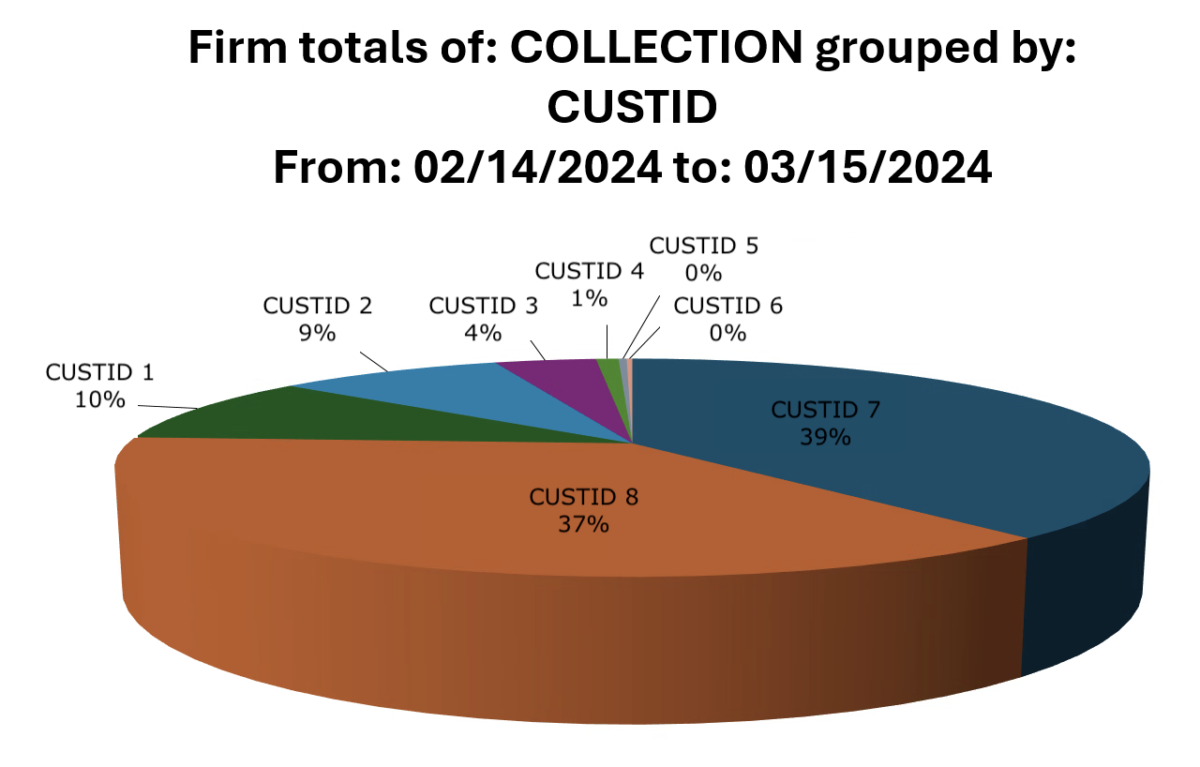
Selecting the Graph Options shown above will produce the following graph in Excel when you click the [Create Graph] button.
Example 2: Client List
From the “Work case” screen, click the [Clients] button. Then click the [Client list] button.
From the client list on the Clients screen, click the button labeled [Big] to open the Client Big List screen where the new [Graph] button is available.

Click the [Graph] button and select the Graph Options as shown below.

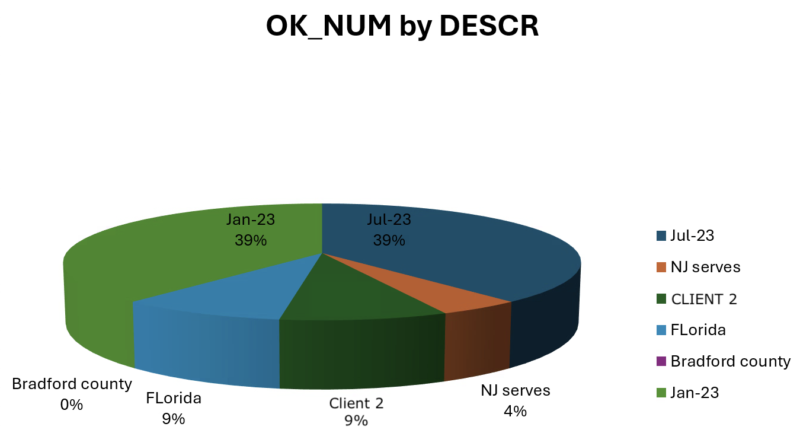
These selections will open the graph below in Excel when the [Create Graph] button is clicked.
Example 3: Business Snapshot
From the Bookkeeping screen, under Owner Reports, click the [Business snapshot] button.
After selecting values and date ranges to report on, click the [Start Query] button to populate the requested data into the grid.

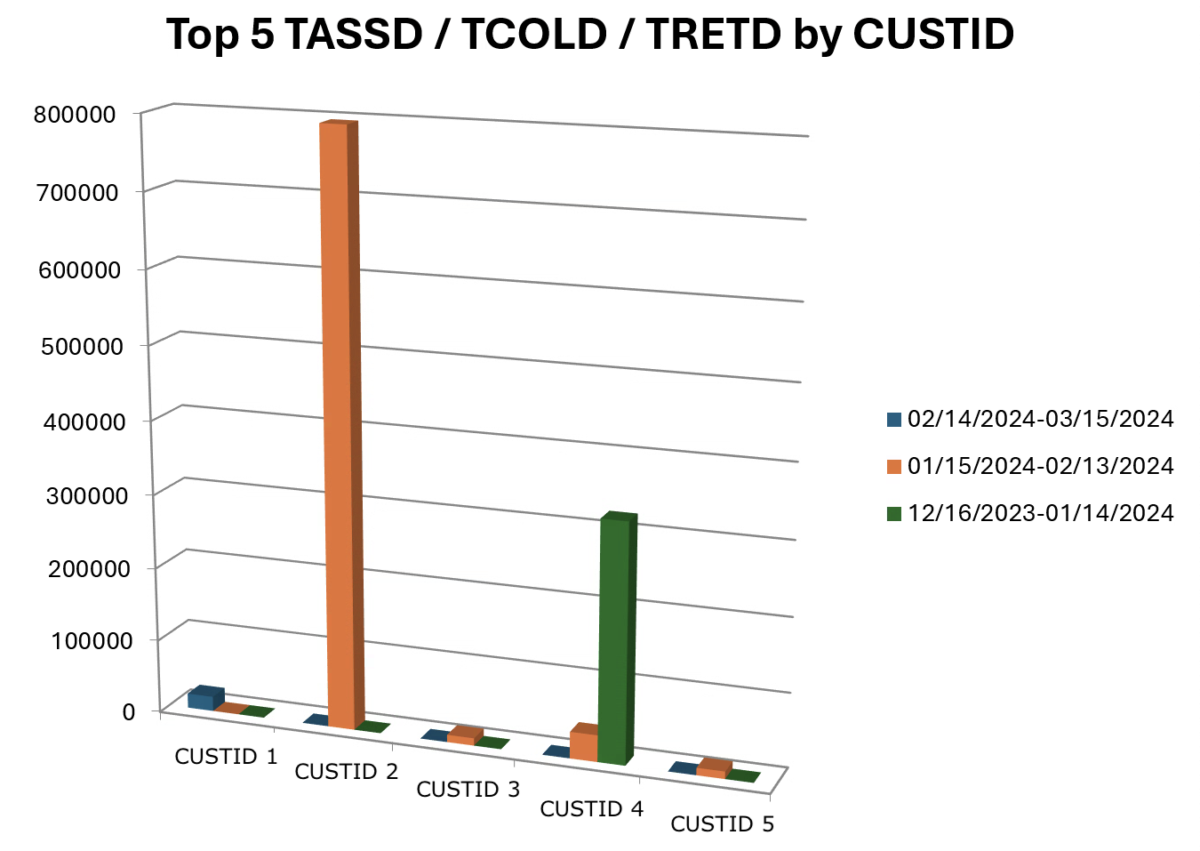
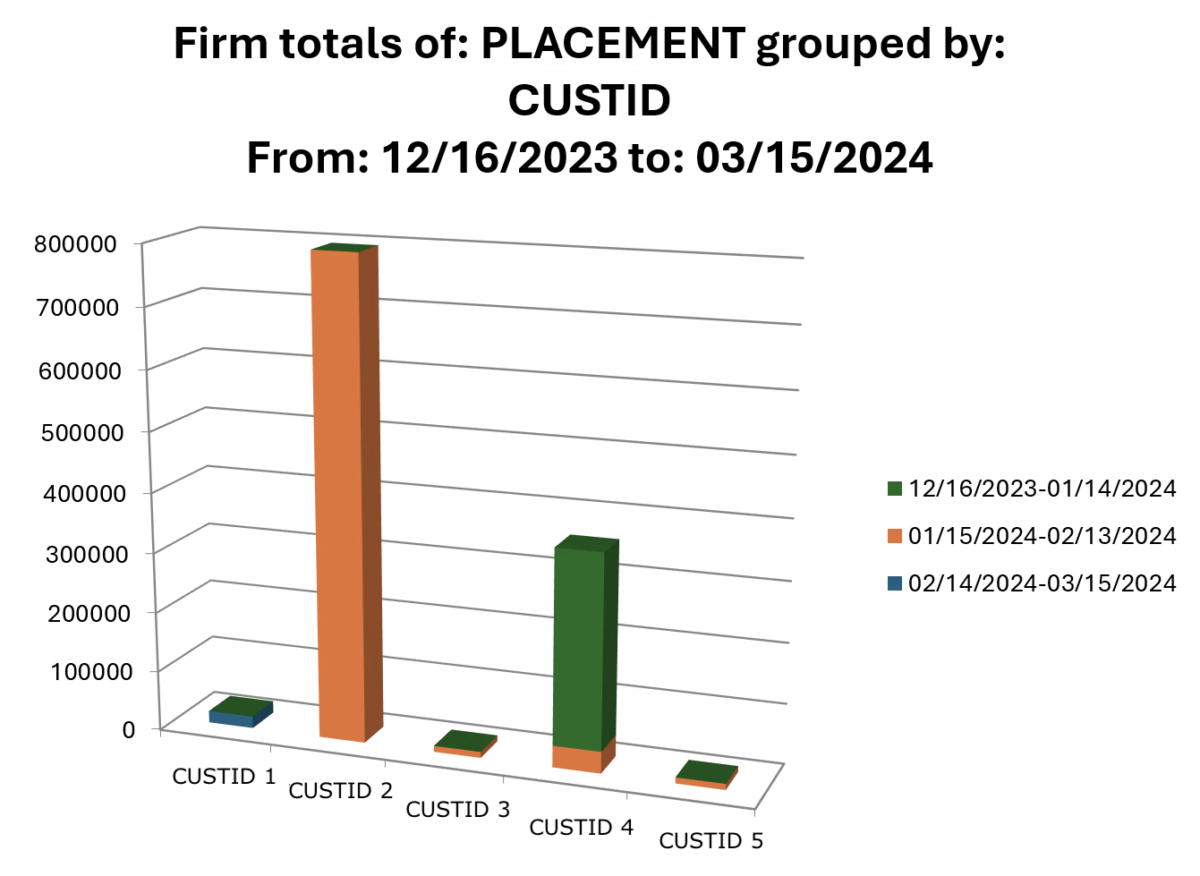
When data is populated in the grid and there is a check next to “All periods”, the [Graph] button will open a stacked bar graph in Excel, as shown below.
A stacked bar graph will always be created when there is a check next to “All periods”, so that each of the three time periods can be shown as a distinct data series.
If there is no check next to “All periods”, only Period 1 will be graphed.

In this case, when the [Graph] button is clicked, the user is offered a choice of graphing the data in the form of a Pie chart or a Bar Graph.

Choosing “Yes” will select a Pie chart, as shown below.