
Print to vMedia Issues: Reinstall Workstation
Printer Issues
When a user is having issues with Print to vMedia, whether they are unable to print at all or having other printing issues, the best practice is to uninstall the printer drivers and re-install them using the instructions on this page.
- While Windows 11 is not officially supported, these steps have resolved some printing problems in that environment.
- If printer issues persist, we address additional steps you may take at the bottom of this page.
- Note: Special circumstances apply to Installing vMedia Printer Drivers for Terminal Server Clients.
- If you are running vMedia on a Windows Remote Desktop Services (RDS) or Remote Desktop Protocol (RDP) terminal server, we recommend using Vertican Professional Services for vMedia installation assistance.
Before You Begin
- vMedia version 3.2.44 or newer is required for Reinstall Workstation instructions to work.
- Look up How to Find Your Software Version, if necessary.
- Before you install vMedia, make sure you download the correct version: either production or development.
- Production version: Most firms will download the production version.
- Development version: Available for firms that wish to test features early.
- Development versions should only be installed in a non-production location.
- Recommended: Do a backup before you begin!
- Required: All users must be logged out of vMedia prior to installation, including all tools and vMedia components (e.g., Print to vMedia, File to vMedia, Send to vMedia, and any vMedia importer).
- Download the vMedia_Install.exe from the vMedia Product Info page.
- Alternatively, navigate to vPortal > My Vertican > My Products and click the [View License Details] button next to vMedia. Then scroll down to the Software Download section.
- Alternatively, navigate to vPortal > My Vertican > My Products and click the [View License Details] button next to vMedia. Then scroll down to the Software Download section.
- More Detailed Installation Instructions are available, if necessary.
- You must have Windows administrator credentials.
- Please read all the steps below before performing them.
- These instructions assume vMedia was installed to F:\IMASTER.
- Note: There are several restarts involved in this process, and each one is necessary for the process to be successful. Please give Windows ample time to fully reboot between each restart.
Uninstalling C:\ProgramData\vMedia
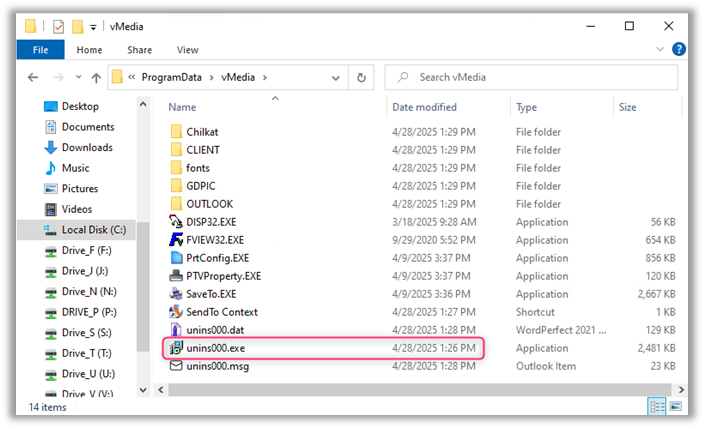
- Open Windows File Explorer and navigate to C:\ProgramData\vMedia.
- If C:\ProgramData\vMedia does not exist, you may proceed to the next section.
- Find the unins###.exe file with the most recent Date Modified and double-click it.
- In this example, the file name is unins000.exe, but it could be unins001.exe.
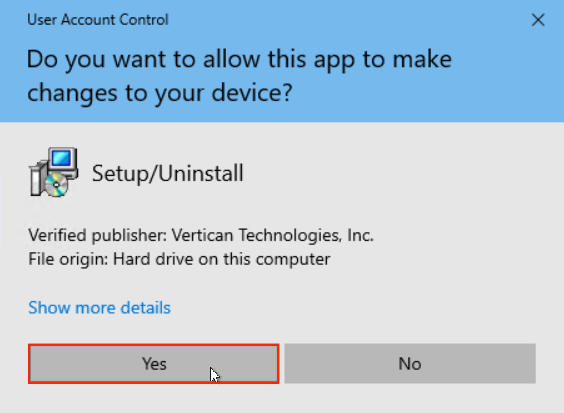
- You will see a User Account Control window that asks, “Do you want to allow this app to make changes to your device?”
- Click Yes.
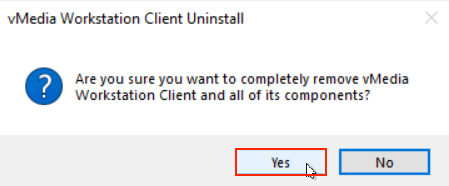
- Another window will ask, “Are you sure you want to completely remove vMedia Workstation Client and all of its components?”
- Click Yes.
- Several Command Prompt windows will appear, along with an uninstaller window. Let them run.
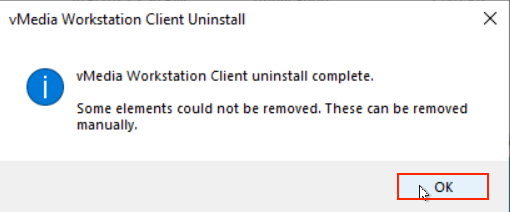
- You will then see a window that says, “vMedia Workstation Client uninstall complete.”
- This message may also say, “Some elements could not be removed. These can be removed manually.” This is typical, and our instructions will handle this.
- Click OK.
- Restart the workstation.
- Open Windows File Explorer and navigate back into C:\ProgramData.
- Right-click on the vMedia folder and select Delete.
Uninstalling C:\IMASTER
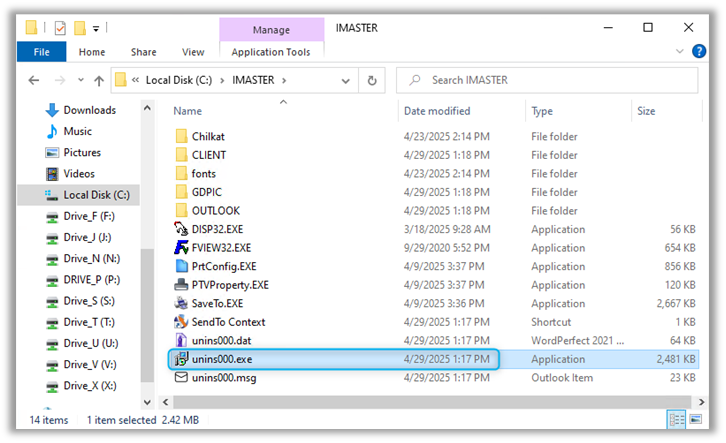
- In Windows File Explorer, navigate to C:\IMASTER.
- Find the unins###.exe file with the most recent Date Modified and double-click it.
- In this example, the file name is unins000.exe, but it could be unins001.exe.
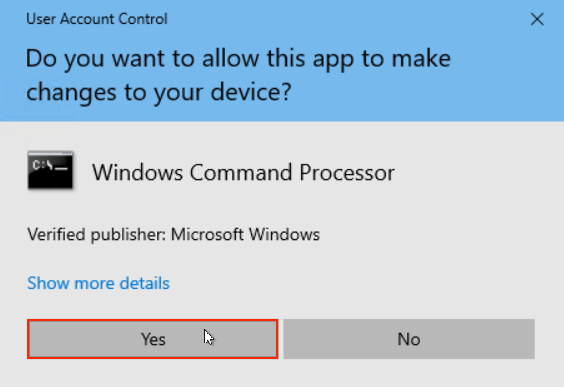
- You will see a User Account Control window that asks, “Do you want to allow this app to make changes to your device?”
- Click Yes.
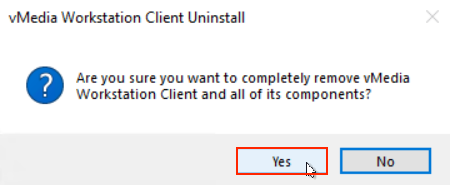
- Another window will ask, “Are you sure you want to completely remove vMedia Workstation Client and all of its components?”
- Click Yes.
- You will see several Command Prompt windows appear, along with an uninstaller window. Let them run.
- Note: If C:\ProgramData\vMedia was uninstalled first, you may receive an error that states, “Unregister OutlookAddin.SendTovMedia—An error occurred. Details: Cannot delete a subkey tree because the subkey does not exist.“
- This is to be expected and isn’t harmful. You may click OK.
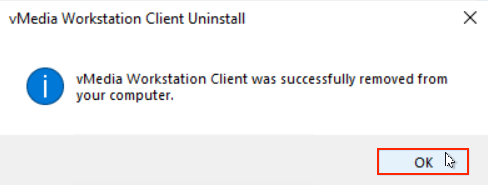
- You will see a window that says, “vMedia Workstation Client was successfully removed from your computer.”
- You may see several files remaining in C:\IMASTER—this is to be expected.
- Click OK.
- Restart the workstation and allow Windows a few minutes to boot up before you proceed — this is crucial.
- Open Windows File Explorer and navigate back to C:\IMASTER.
- Highlight all the files in this directory, right-click, and select Delete. DO NOT DELETE THE IMASTER FOLDER.
Reinstalling the Workstation Client to C:\IMASTER
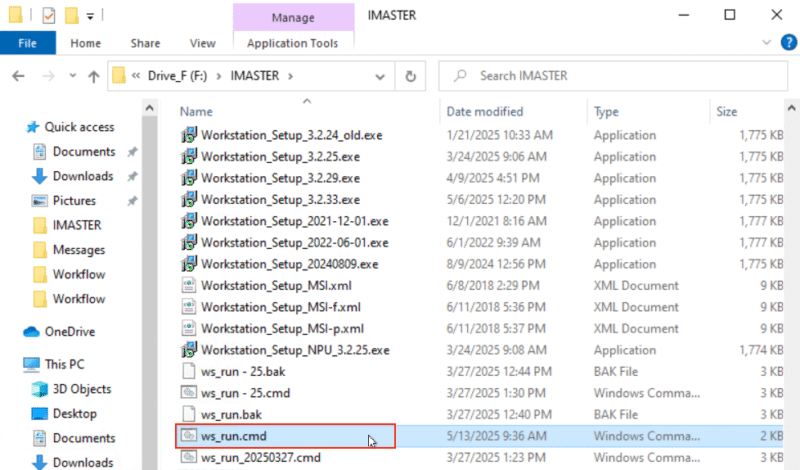
- In Windows File Explorer, navigate to F:\IMASTER.
- Locate a file named ws_run.cmd and double-click it to open the command prompt.
- Enter your administrative credentials when prompted.
- You will see a User Account Control window that asks, “Do you want to allow this app to make changes to your device?”
- Click Yes.
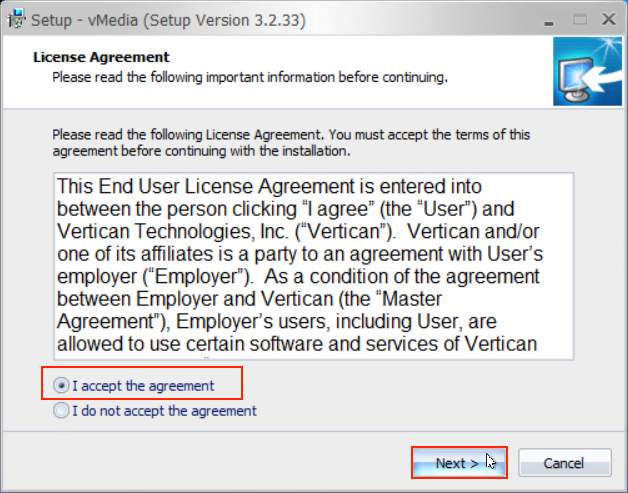
- You will be brought to a License Agreement.
- After reading thoroughly, select “I accept the agreement” and click Next to proceed.
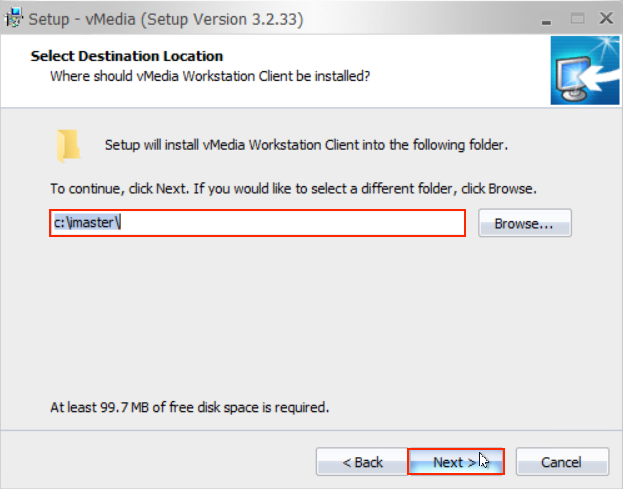
- You will be brought to a Select Destination Location screen.
- The folder should default to c:\imaster\.
- Click Next.
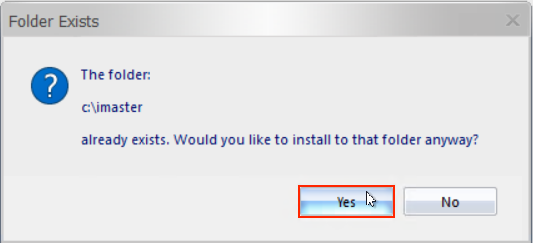
- The program will tell you that this folder already exists and will ask if you’d like to install to that folder anyway.
- Click Yes.
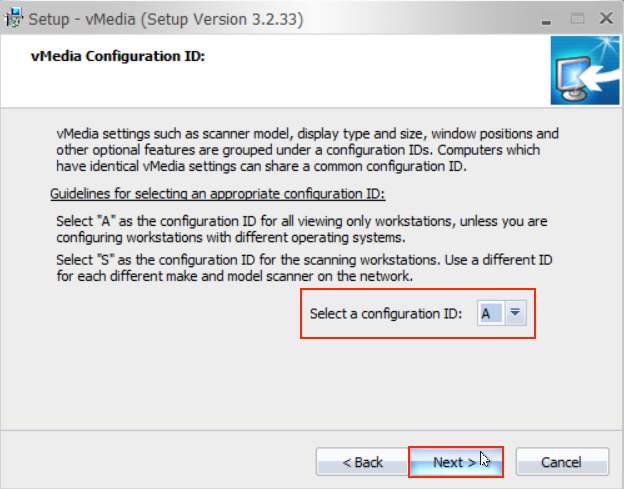
- Select the correct configuration ID for this workstation.
- If the workstation is not used for scanning, you will typically select configuration ID: A.
- For additional configuration IDs, read the vMedia Configuration ID window guidelines (shown in the screenshot below).
- Click Next.
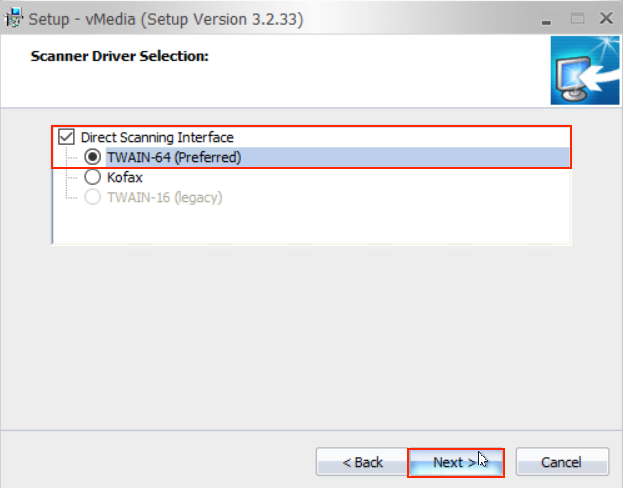
- Select the scanning interface you use in your office. Typically, we recommend TWAIN-64.
- Click Next.
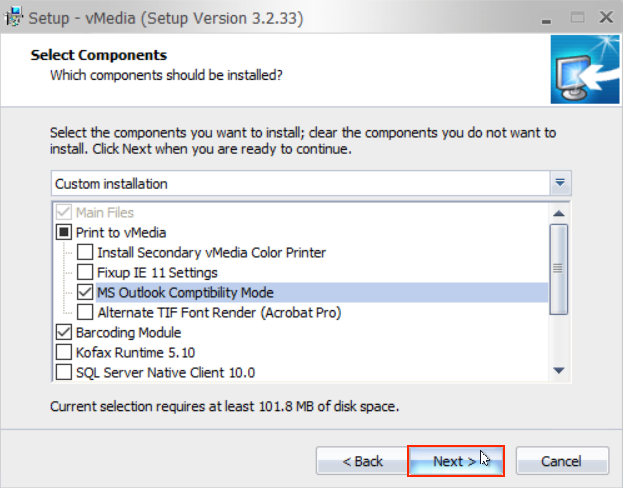
- You will be brought to a screen where you can select which components you’d like to install. We recommend the following:
- Print to vMedia
- MS Outlook Compatibility Mode
- Barcoding Module
- Register the VLM
- VC++ Redistributables (Note: This is a necessary component for Print to vMedia.)
- Add vMedia to the Outlook Context Menu
- Select the optional color printer, if you wish to print in color
- Once you’ve made your selections, click Next.
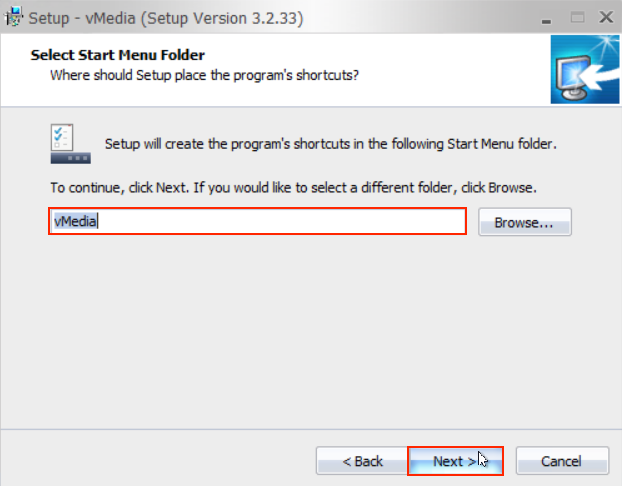
- You will be brought to a screen that asks you where you want the program’s shortcuts to go in the Start Menu.
- Typically, the default folder is recommended.
- Click Next.
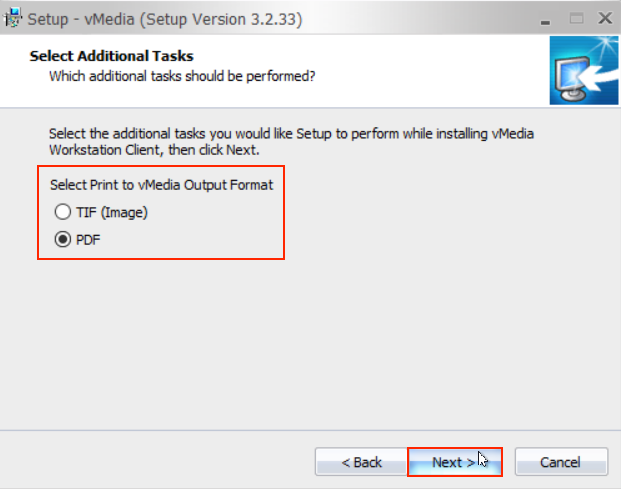
- Select the Print to vMedia Output Format you’d prefer.
- When saving documents, it’s important to choose the right format:
- TIF files are highly efficient for storage, especially when dealing with large volumes of documents.
- PDF files, while larger in size, preserve formatting more accurately and generally offer better visual quality—ideal for documents you need to print, share, or present.
- Choose TIF for storage efficiency and PDF for presentation quality.
- Click Next.
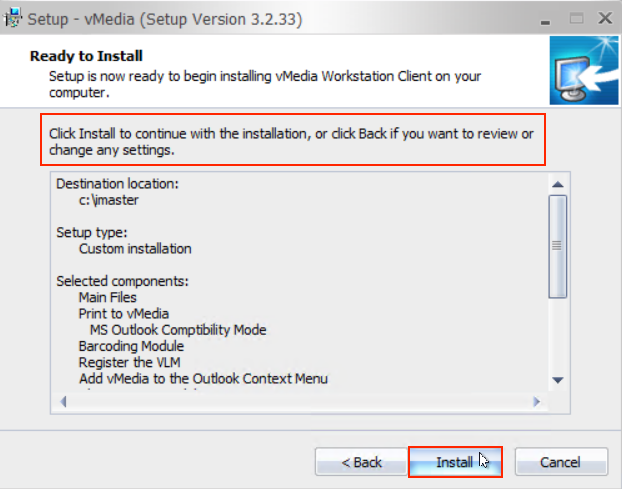
- At the Ready to Install screen, review the selections you’ve made for this installation to ensure no changes need to be made.
- Once you are certain this looks good, click Install to proceed with the installation.
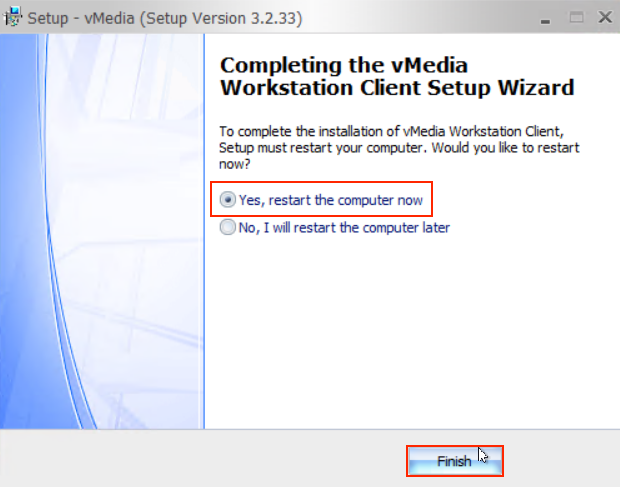
- After the installer has completed, you will see the screen below.
- Select Yes, restart the computer now and click Finish.
- If the computer doesn’t reboot on its own after a minute or so, restart it manually.
If Printer Issues Persist
- If printer issues persist, you can refer to the vConnect software tip How to Wipe vMedia from your Workstation.
- In addition, Vertican Professional Services can help vMedia clients with web based consulting.