
Ask Goldie User Guide
About Ask Goldie
Firm Admin Actions
Click to Buy Initial Licenses
- Go to the vStore and click on your product.
- Select Ask Goldie from your product page.
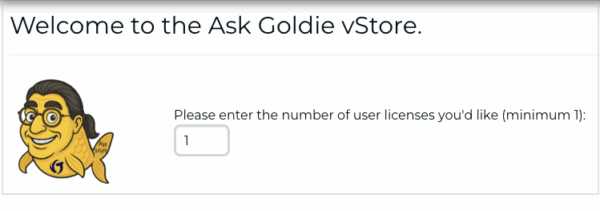
- Enter your desired number of user licenses.
- Only 1 user is required.
- You can Add or Decrease Licenses later.
- In Terms and Conditions, scroll down and check the “I Agree” checkbox.
- Click [Proceed to Checkout]. This button will not be active until you check I Agree.
- Click [Proceed] on the next page.
Purchase Confirmation
A confirmation page displays two links:
- “Click here to download a copy of your Ask Goldie Subscription Agreement.”
- This same agreement will be sent to you from portal@vertican.com.
- “Please click here to manage your Ask Goldie users.”
- This link takes you to the “Manage My Ask Goldie Users” page covered in a toggle below.
Next Step
- To Add or Decrease Licenses, go to the next toggle.
- Otherwise, go to the Assign Users to Licenses toggle.
Ask Goldie Product Info
- Go to My Vertican > My Products > Ask Goldie.
- Next to Ask Goldie, click the [View License Details] button.
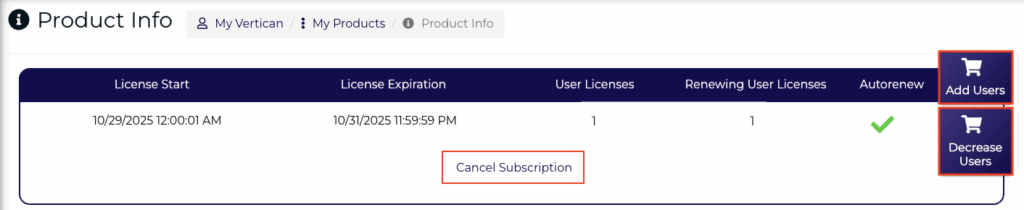
- From the Product Info page, you can view your license count and perform three actions:
- Add Users
- Decrease Users
- Cancel Subscription
Add Users
- On the Product Info page, click the [Add Users] button.
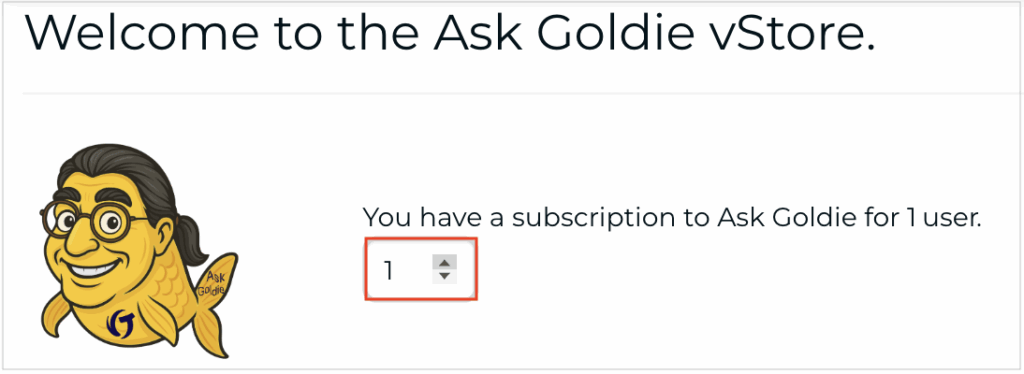
- Welcome to the Ask Goldie vStore page is the same page where you purchased your initial license(s).
- Using the toggle, add user licenses.
- In Terms and Conditions, scroll down and check the “I Agree” checkbox.
- Click [Proceed to Checkout] for Additional Users.
- Click [Proceed] on the next page.
Decrease Users
- On the Product Info page, click the [Decrease Users] button.
- The Alter User License Count screen will display.
- Using the toggle, decrease the number of user licenses.
- Click the button [Set number of user licenses to autorenew next month].

- You will then see a Success confirmation message.
- Your decreased user license count will take effect the following month.
- Therefore, on the Ask Goldie Product Info page, the number of Renewing User Licenses will be lower than User Licenses.
Cancel Subscription
- From the Ask Goldie Product Info page, click the Cancel Subscription link.
- Please allow up to three business days to process and cancel your order.
- Please share your reason for canceling in the Cancel Subscription popup window.
- If you’re sure, click the [Cancel Subscription] button. If not, close the popup window.
Assign Users to Licenses After Purchase
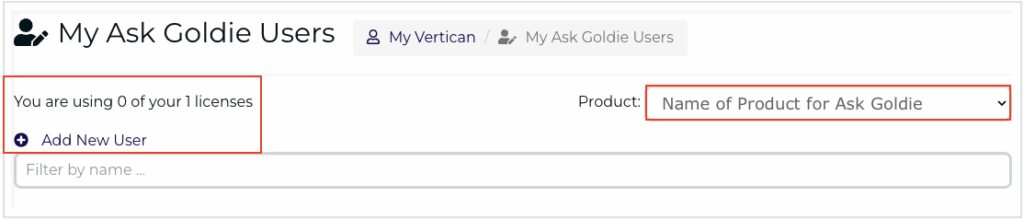
- Firm Admins will go to My Vertican > My Ask Goldie Users.
- The screen displays the number of licenses being used.
- Before you add any users, it will show that 0 licenses are being used.
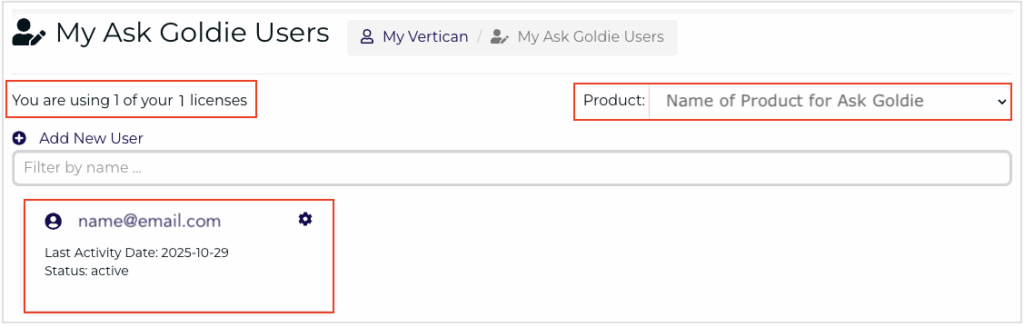
- If your firm had registered beta users, their licenses will already be included in the number of licenses being used.
- Click the [+] button next to Add New User for each license you have.
- If your firm had registered beta users, each beta user will already be displayed with a status of “active”.
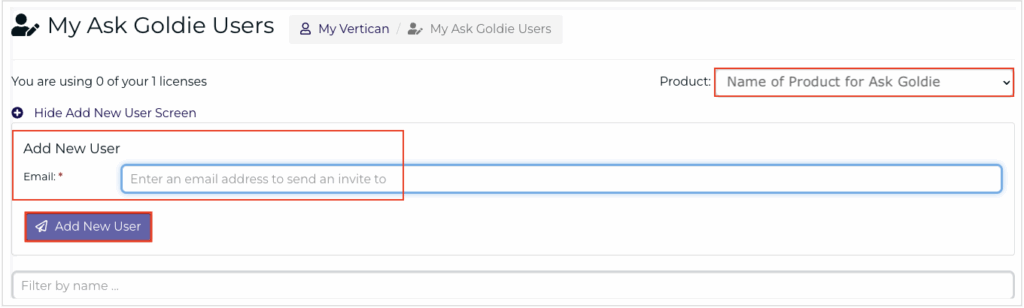
- Enter the email of the new user and click the [Add New User] button.
Note
- The Ask Goldie site shows an option for a user to connect another email account.
- This is not permitted; all user emails must be added by the Firm Admin through vPortal.
After You Add a New User
- A message will confirm a new user was created.
- An email from notifications@asteragents.com was sent to the email address you entered.
- Tell the new user to:
- Check their spam folder for the email.
- Click [Accept Invitation] in the email.
- Follow directions in the User Actions section of this guide.
- If the user doesn’t have vPortal access, grant access by following directions in the Housekeeping Guide > Add Users toggle. This will ensure access to resources from Ask Goldie, as well as this Orientation Guide.
- Refresh the My Ask Goldie Users page.
- The count of licenses being used will update.
- A card will display for the new user.
- Status will show as “pending” until the user completes account setup.
- Status will show as “active” after the user completes account setup.
Find out more about managing users by clicking the Manage My Ask Goldie Users toggle below.
Find out how to give other users the ability to manage My Ask Goldie Users by clicking the Permission to Manage Ask Goldie Users toggle below.
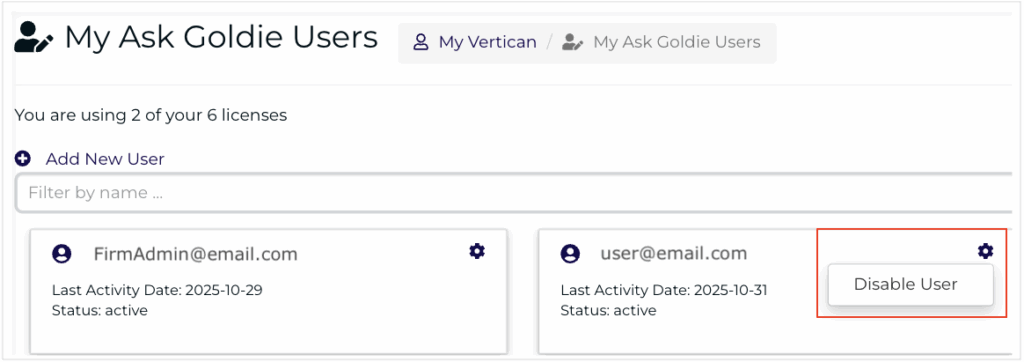
As shown above, the My Ask Goldie Users page can be used by Firm Admins to Assign Users to Licenses. Here we also show how to disable users if you would like to keep a set amount of licenses by reassigning which users will have access to Ask Goldie.
- On a user’s card, select the gear icon to display and click [Disable User].
- A warning message will say, “Please click OK to disable this account or click cancel to go back without changes.”
- If you click [OK], the user status will change to “inactive”.
- You can now add a different user while keeping the same number of licenses.
- To make an inactive user active again, click the gear icon and click [Enable User].
- If you click [OK], the user status will change to “active”.
- Be careful not to disable your own card unless you no longer need access to Ask Goldie.
Find out how to give other users the ability to manage My Ask Goldie Users by clicking the Permission to Manage Ask Goldie Users toggle below.
Manage Users
Permission to manage Ask Goldie users defaults to the Firm Admin. However, the Firm Admin can give other users the right to manage Ask Goldie users, if desired.
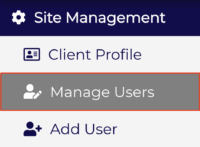
- From vPortal, select the VT gear icon in the top right menu.
- Using the dropdown arrow, select Site Management.
- Select Manage Users from the left menu.
- You can get to the same page by selecting the blue Manage Users icon from the vPortal home page.
Edit Contact
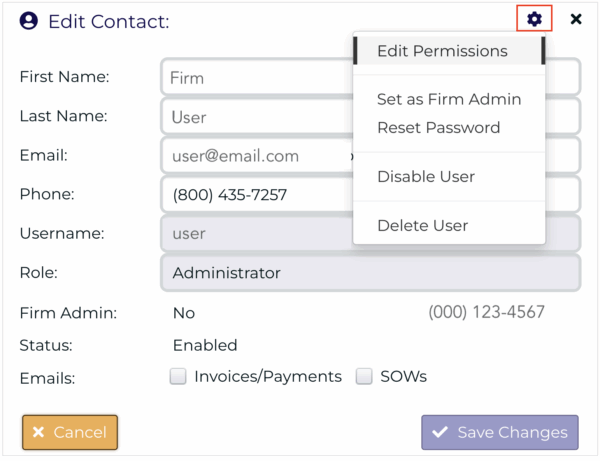
- Find the user you wish to grant permission to.
- Click the user’s card and then click the gear icon in the top right of the card.
- Select Edit Permissions.
- Only one profile can be in edit mode at any one time.
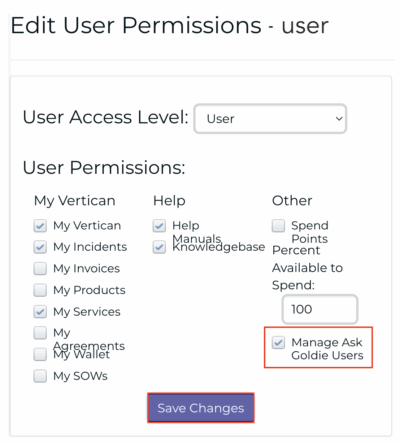
Edit User Permissions
- Place a check mark in the box next to Manage Ask Goldie Users.
- The user will now have My Ask Goldie Users access to assign users to licenses.
- Click the [Save Changes] button.
For detailed information on other Firm Admin tasks, refer to the vPortal Housekeeping Guide.
User Actions
Accept Invitation & Create Password
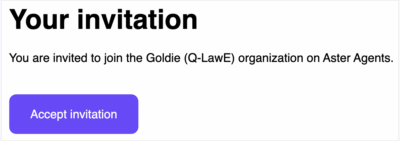
- You will receive an email from Aster Agents <notifications@asteragents.com>.
- Subject Line: “Invitation to join Goldie”.
- Click the [Accept Invitation] button in the email.
- Your browser will open to the Aster Agents corporate site, which you can close.
Log In & Join
- Go to https://chat.vertican.com.
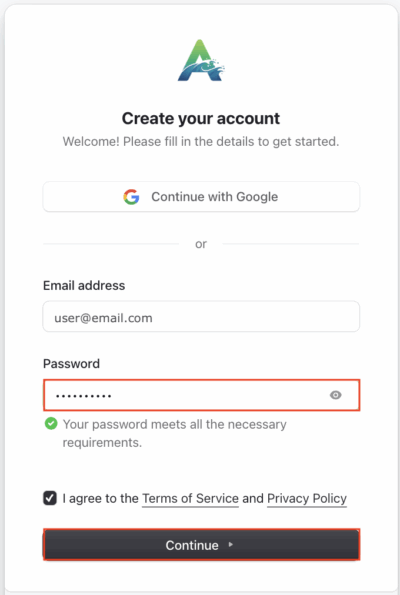
- You will be prompted to “Create your account”.
- Enter your email address and a password.
- Check the box for “I agree to the Terms of Service and Privacy Policy” and click [Continue].
- Enter the code to verify your email; click [Continue].
- “Choose an organization” = your Vertican product.
- Click the [Join] button, then the right arrow next to your product.

Start a Chat
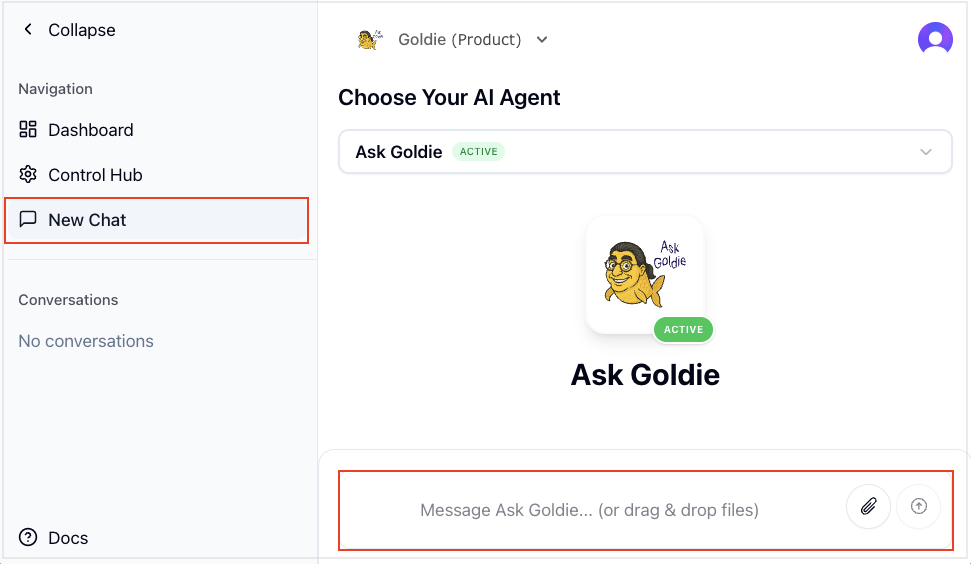
- Select New Chat from the left navigation menu.
- Enter your query (“prompt”) into the Message Ask Goldie field.
- The Goldie Prompt Guide gives you tips on getting the most out of Goldie.
- When your chat is done, vote Thumbs Up/Thumbs Down.
- Consistent feedback helps Goldie improve.
- Click New Chat for each new topic.
- Search chat history or view by topic.
- If your firm had registered beta users, they will see their prior chat history.