
Ask Goldie Prompt Guide


Ask Goldie takes your chat request (a.k.a. prompt) and scans Vertican knowledge sources to deliver helpful information and educated answers. Goldie is configured by Vertican, but the quality of your prompts determine if Goldie understands your message.
Your Prompts
A prompt is the message (or instruction) that you provide to Ask Goldie. Goldie wants to be helpful, but it will take what you say very literally. Your prompts should be clear, specific, and concise – with relevant context and attachments.
Subtle changes in your prompt can drastically change responses, so this guide is designed to help you get the best possible responses from Goldie.
Prompt Guidelines:
- Give Clear Instructions
- Provide Context
- Attach Relevant Files
- Refine Your Prompt
- Send Feedback
Other Topics in this Guide:
- Start a New Chat
- Get More Help
- Give Product Input
Knowledge Sources
Goldie has access to the following knowledge sources:
- Knowledge Base: Articles created by Client Success based on resolved tickets.
- Help Manuals: Collection-Master, EDI, SQL-Sync, and Q-Law.
- Help Center: Q-LawE Documentation, software tips from vConnect, and more.
Knowledge Source Search:
- Goldie will display the knowledge sources it’s searching, but your prompt can ask it to narrow the search to a particular source.
Citation Links:
- Goldie should provide a clickable link to the specific citation within the knowledge source. If it doesn’t, you can ask it to do so.
Goldie has been programmed to work best with instructions first, followed by context and attachments. Keep to one topic per chat since unrelated questions and unrelated information will confuse Goldie.
What to Include
- Goal: Clearly define what you want from Goldie. Do you want it to find information? Diagnose a problem? Give you how-to steps? Avoid negative instructions: tell Goldie what to do rather than what not to do.
- Output: Ask for the data, parameters (e.g. date range), and format you want. You can also provide general guidance such as “Give me a short summary first, then detail” or “List likely causes, then ask me clarifying questions.”
- Source: You can tell Goldie to narrow its search to particular Knowledge Sources. Otherwise Goldie will search all sources until it finds the answer.
Tips for Clarity
- Simplify & Separate:
- Break down complex sentences.
- Use punctuation like commas and periods.
- Create a line space between paragraphs with [SHIFT] + [Enter].
- Sequence:
- Present information sequentially e.g., the order in which something happened.
- Copy a bulleted list into the chat or number items to show the steps you took.
- Accuracy:
- When referring to elements in the tool, use the correct labels and names for buttons, tabs, and menu items.
Examples by Goal
- Find Information: If asking, “Where can I find info on [topic]” does not yield a result, try “Where can I find instructions on how to do X from the Y screen when the case is in [Status].”
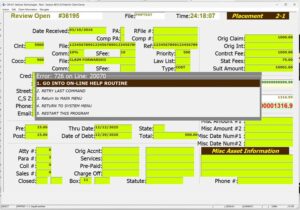
- Crash/Error Message: Instead of simply saying, “Error 726 on Line 20070,” say “Error 726 on Line 20070 after clicking [button] in [screen] after performing [action].”
- How-To Guidance: “I’m trying to [goal] in [module]. When I [steps], I get [error text / behavior]. I’ve already tried [attempted action]. Please respond with [desired output/format].”
Context helps Goldie understand what you’re asking it to do.
- System: Version, environment, module/program/feature
- Screen: What screen or menu are you in?
- Situation: What were you trying to accomplish at the time?
- Actions: What actions did you take before seeing an error message?
- Message/File: What is the specific error message or log file type?
- Problem: Do you have an idea what the problem might be?
- Solution: What solutions have you tried and what happened?
- Source: Do you want Goldie to check a particular knowledge source?
- Level: Goldie can tailor the complexity and depth of its reply if it knows your level of expertise (e.g. “I know SQL queries and I’d like you to provide extensive detail in your answer” or “Explain this with the simplest terms like I’m a new user.”)
Relevant Files
- Error logs – particularly useful
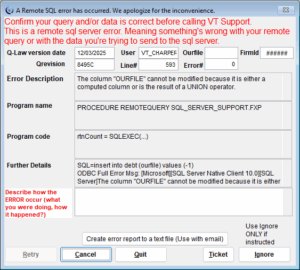
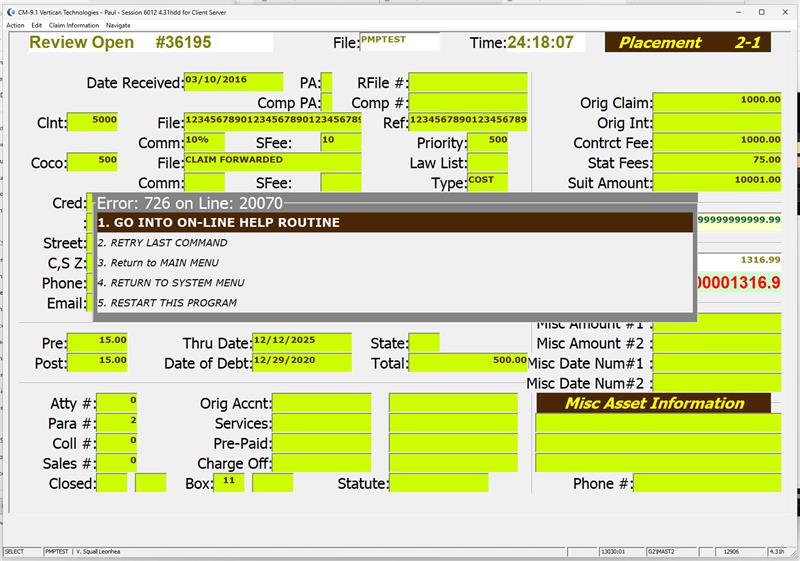
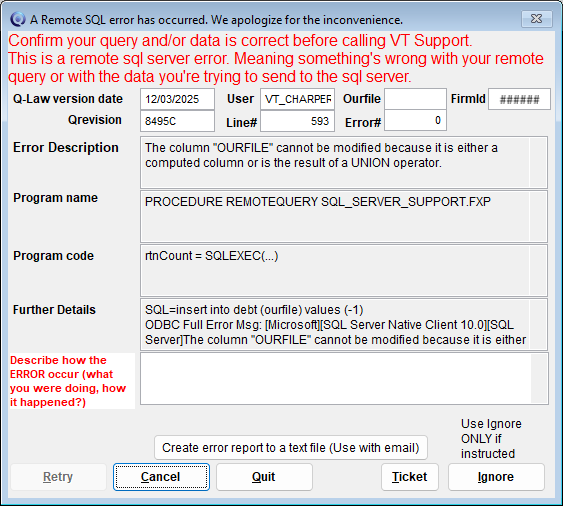
- Screenshots of error messages with entire screen
- Screenshots of the screen where you encountered a problem
- Import/export files
- Reports
Screenshot Tips
- Show the entire screen with useful identifying information such as menus and buttons.
- Enlarge the screen before taking the screenshot to provide the best resolution.
- A screenshot of an error message is an alternative to writing out the error message text.
- To take a screenshot, press the [Windows] key + [Shift] + [S].
- This will open the Windows Snipping Tool menu.
- Select from a variety of options, including a full screenshot.
- You can also left-click and drag to make a custom selection.
- If you add boxes or arrows to the image, tell Goldie to look at the highlighted area.
- View examples of good and bad Collection-Master screenshots and Q-LawE screenshots.
Adding Files
- Drag and drop
- Upload via the paperclip icon
- Paste from your clipboard.

File Formats
Supported Extensions
- Images: PNG, JPEG, TIFF
- Documents: CSV, DOCX, HTM, LOG, PDF, TXT, XLS/XLSX/XLSD
- In theory, other formats are supported except video, DOC, and WP.
About Files
- If you have a WordPerfect (WP) file, simply convert it to PDF before sending to Goldie.
- If a file has no extension or an extension that Goldie doesn’t understand, you can copy and paste the contents into a TXT file.
- There is no limit to the number or size of attachments allowed, although large files may slow Goldie’s response.
File Instructions
Tell Goldie how to use each attachment, including whether to limit its analysis or analyze the entire file.
Examples
- “The attached error log was generated when I did X, Y, and Z. Please look at the entry on Line 20 and explain what I did wrong to generate that entry.”
- “The attached xlsx export file shows that it’s missing Record 300 in column F. Since I did X, Y, and Z please tell me how to get Record 300 in the export file. Review the entire file.”
- “The attached screenshot shows the error message received when I clicked the [button] on the [screen] after completing [action].”
Tips
- While you can attach multiple files at the same time, make sure Goldie understands the relationship between the files and your prompt. Attach files in a logical sequence and refer to the name of each file when providing instructions for multiple files.
- If you send a file in error, it’s best to restart the chat. Even if you tell Goldie to ignore that file, it may still cause confusion.
If you ask Goldie for help and it is unsuccessful, don’t give up after the first time! Goldie is built for conversations, so maintaining a back and forth is essential.
- Provide more context, clarification, or information.
- Ask Goldie to focus on a particular solution.
- Ask it for additional options, clarification, or detail.
- Ask it to search more knowledge sources, if applicable.
- For example, if you asked for your software’s recommended environments, and you saw Goldie searching the Knowledge Base without finding anything, you could ask it to check the Help Center or the Help Manual.
When your conversation is done, please vote Thumbs Up or Thumbs Down.
- Consistent feedback helps Goldie improve.
- Tell it what it got wrong, what’s missing, or how to improve.
- Thumbs Down: response is incorrect, incomplete, or unhelpful.

Once you finish a chat, click “New Chat” to start a new topic. This will:
- Prevent Goldie from being confused by different issues within a single chat thread.
- Goldie will treat all prompts in a single chat as related; attempts to synthesize unrelated requests will lead to inaccurate responses.
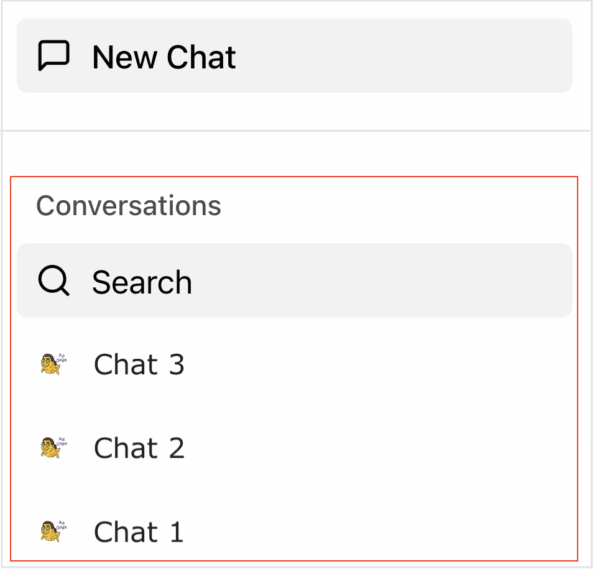
- Allow you to see a list of Conversations by topic in the left navigation.
- You can search Conversations.
- You can open a prior chat if you wish to continue the same topic.
If you can’t find the help you need through Ask Goldie, or you need assistance using the information, you can get direct support by purchasing Professional Services consulting hours on the vStore. You may also want to check out vPro Service Packages first.
Product Input
We value your feedback and want to improve your experience! Reach out to the Ask Goldie product team if:
- You believe Goldie has a knowledge gap and it should know something.
- You wish to give input on the Ask Goldie product roadmap.
Custom Upgrade
If you want a private version of Ask Goldie that supports your firm’s custom configuration, contact Account Management for more information. Here’s how to distinguish between the free and custom version of Goldie:
- Ask Goldie:
- Free for all users with unlimited conversations and no usage caps.
- Trained solely on Vertican documentation.
- Generally requires prompts to reference generic terminology and standard processes.
- If you provide details about your custom configuration, Goldie may still be able to help.
- Goldie Plus Custom Agent:
- Requires a Goldie Plus subscription, which also gives you access to the Goldie Automation Suite.
- Trained on your firm SOPs and client manuals, along with Vertican documentation.
- Query results will reflect any customizations to your VT software.