
Scroll for full TOC
CheckMate User Guide – Q-LawE
Before following this User Guide, you should have subscribed to Goldie Plus and CheckMate, completed onboarding, and installed the CheckMate program.
CheckMate processes garnishment, debt settlement, attorney, and consumer checks by identifying data such as:
- Account number (Ourfile for posting)
- Case number (garnishment checks)
- Check item amount to post to an account
- Check date and number
- Routing/Account numbers (consumer checks)
Checkmate.prg is a custom program to faciliate each Job Scheduler Taskid, which is launched in the following order.*
- 10003 Checkmate – zip pdf files and create client match
- 10001 CheckMate FTP Upload to VT
- 10002 CheckMate FTP Download from VT
- 10004 Checkmate – import and run results files
* Vertican will help you set up the 4 CheckMate Job Scheduler tasks. This does not include setting up a complete Job Scheduler computer, which requires Professional Services. However, if your firm does not have an active Job Scheduler computer, you can still kick off CheckMate Job Scheduler tasks manually.
Each Job Scheduler Taskid is found at Maintenance > System maintenance – Admin tab > Misc menu > Auto Job Scheduler. You will select the appropriate Taskid and [Execute Job]. To familiarize yourself with Job Scheduler, refer to the Q-LawE Mastermind Video Library or the Job Scheduler User Guide.
Each morning, your firm should collect the scanned PDF images of all checks you wish to be recognized for auto posting in your system.
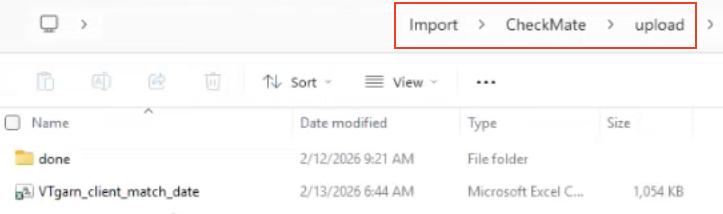
- Save the image PDF files in this folder: \import\checkmate\upload.
Run Taskid 10003
- Zips all payment PDF image files into a single zip file for FTP upload.
- Runs a SQL query to create a Client Match file used to identify payments.
- Contains all claims in your system that are open or that have been closed in the last 90 days.
- CheckMate will use this file to match your claim data to payments in your zipped check image file.
- For more details on the file, see the Client Match File Specifications below.
- Job Scheduler will place two files in the same folder where you placed the check images: \import\checkmate\upload.
- Zipped image file name: Checkmate-clientimagefiles.zip
- Client Match file name: VTgarn_client_match_date.csv
Client Match File Specifications
The Client Match file is created by the CheckMate program to extract data from your SQL Server database: all claims, including accounts closed in the last 90 days. It contains the following types of data.
- Case Number
- Debtor Full Name
- Date of Birth
- Last 4 of SSN
- POE Name/Address
- Garnishment Date
- Judgment Date
- Judgment Number
View all the Q-LawE fields in the Client Match File:
Run Taskid 10001
- Pulls the zipped image file and the Client Match file from the \import\checkmate\upload folder.
- Zipped image file: Checkmate-clientimagefiles.zip
- Client Match file: VTgarn_client_match_date.csv
- Uploads both files to your vExchange ToVertican > GarnChktoVT subfolder using your Qlaw FTP.
- After upload, both files move from the upload folder to the import\checkmate\upload\done folder.
- The prior date on VTgarn_client_match_date.csv will be overwritten; only the most recent file will be stored in the “done” folder.
- You can review the files or delete them when no further review is needed.
- Wait at least two hours for CheckMate to process your files before you move to the next step.
Run Taskid 10002
- CheckMate will create a Results file showing matches between payments in your check images and the accounts from your Client Match file.
- For more details on the file, see the Results File Specifications below.
- CheckMate will place the Results file in your vExchange FromVertican > GarnChkfromVT folder using your Qlaw FTP.
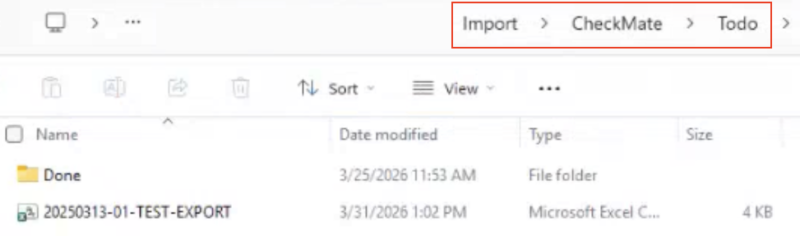
- Results file name: YYYYMMDD-export.csv.
- Download the Results file to this folder: \Import\CheckMate\Todo.
Results File Specifications
If CheckMate finds a matching account number, the Results file will display the following information.
- Percentage confidence of the match and the algorithm used to match the accounts.
- If it’s matched on the caseno, ourfile, or clientacctumber, then it’s a 100% match.
- If no unique number can be found, any secondary information that was used to validate a match; e.g., the consumer’s name and address.
View a list of fields in the CheckMate Results File, with additional notes about some of the fields.
Run Taskid 10004
- TaskId 10004 will read and process the CheckMate Results file and create a payment posting batch.
- CheckMate creates a separate payment item for each payment (each line item of a check).
- When 10004 runs and an account is identified as a match, a CheckMate Note line is created in the account with the fields from the Results file.
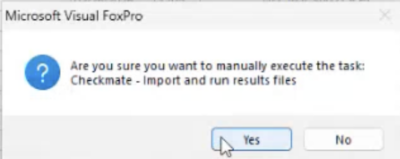
- When you click the [Execute Job] button for 10004, you will see a popup message asking you if you want to import and run results files. You will be notified when the job is done.
- After import, the Results file will move from the Todo folder to the \Import\CheckMate\Todo\Done folder.

- The Client Match file includes the Q-Law bank Trust Account Code for each claim. It is stored in trustacct c(10).
- The CheckMate Results file also includes the trustacct field for each claim, as well as the Check Routing number, Check Bank Account number, and Check number.
- Fields in the Jaguar Bank Deposit Interface.
Manual Post Batch File
- This file acts as a failure log to help you manually correct, re-process, and post payments.
- Manual Post Batch match results are saved to this folder: \import\checkmate\exception\.
- Name of file: checkmate-VTService_Failure_results_ManualPost_Batch_YYYYMMDD.csv.
- Your staff should open this file each day and review the data, identify the correct ourfile, and input the ourfile in this field: check_match_ourfile.
- Once all ourfiles are corrected in the CSV file, please place the file in this folder: \import\checkmate\Todo.
- Rerun TaskId 10004: Checkmate – import and run results files.
- Job Scheduler will import the file into a new posting batch ready for processing your manually identified accounts.
- When the job is completed successfully, the file is moved into the \import\checkmate\Todo\done folder, where it can be reviewed any time.
- For help automating the Manual Post Batch, refer to the DDAS Scenarios section below.
AutoPost Batch Log
- AutoPost batch log match results are saved to this folder: \logs.
- Name of file: checkmate-VTService_Succes_results_AutoPost_Batch_YYYYMMDD.csv.
- The date is updated each day.
Recognition Log
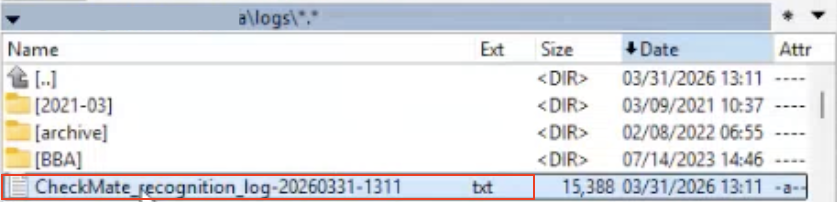
- After Job Scheduler runs 10004, it will also create a detailed Log file in your logs folder.
- TXT Log file name: CheckMate_recognition_log-YYYYMMDD-HHMM.
- The log identifies the batch #, the number of payments processed, gross check amount, and other details.
- Highlight the log file and click the [F3 View] button at the bottom left of the window to open the Log file.
- View a Sample Recognition Log.
Regular Posting
Follow the regular payment posting process, or review posting options below.
- Main Menu > Bookkeeping > Functions menu > Collection batch payments.
- In the Batch dropdown menu, select the batch you want to process and post:
- AutoPost Batch: created based on the AutoPost Batch Log
- Manual Post Batch: created based on the Manual Post Batch Log
- After selecting a batch, you will see the Trx type and payment Type.
- Only Q-LawE knows what type of check it is: garnishment, debt settlement, attorney, consumer.
- There is no separate payment Type for debt settlement checks, which are identified by the payor name.
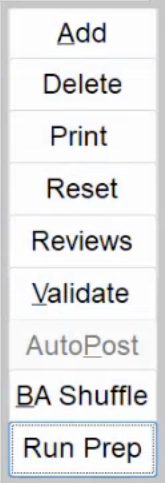
- Click the [BA Shuffle] button, if applicable: Creates batches for each client trust account.
- Click the [Run Prep] button: Populates additional data for payees.
- Click the [Validate] button: Confirms whether there is a payment arrangement active on the account and identifies the type of arrangement; will also notify you of holds that require review or approval and flag exceptions.
- After Validate is successful, a “P” will display in the Hold column for “Post”.
- Click the [OK] button.
- Click the [AutoPost] button.
- Run the Task Manager for manual payment posting items.
Posting Options
Follow these options if they apply to your situation:
- Use Manual Batch Posting if you need to make changes to the account before posting.
- Use BA Shuffle to link trust accounts to specific clients and create batches for each bank account.
- Use DDAS if you wish to review the account data prior to posting or exclude some posting items as exceptions.
- See the DDAS for CheckMate section below for details.
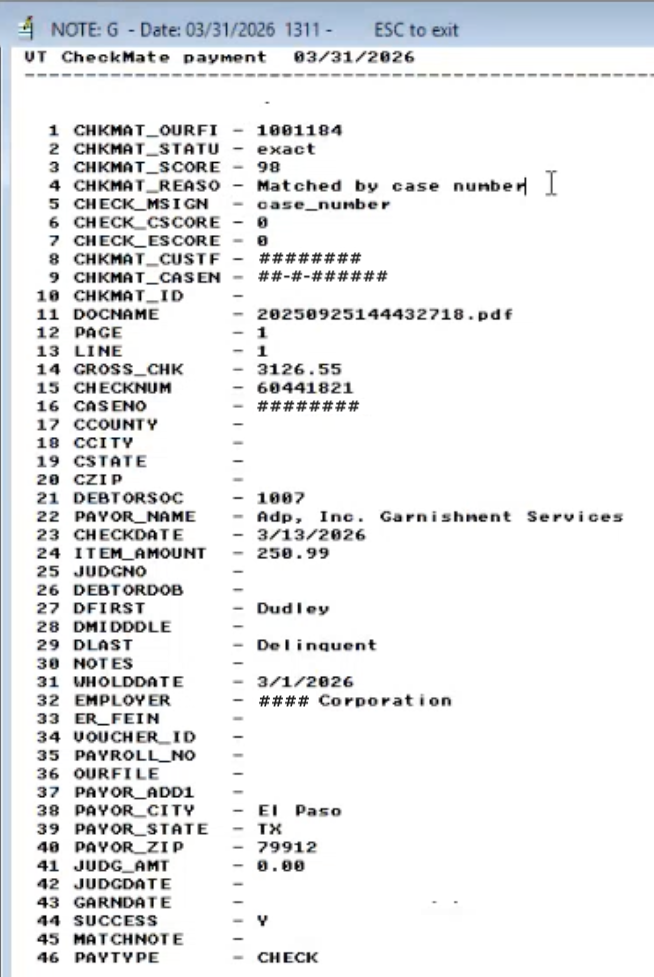
This note is available after you run Taskid 10004.
- Q-LawE keeps a record of the CheckMate Results data for each payment on each account.
- From the Main Menu, go to Workscreen.
- Within an account, in the Notes section, click on the transaction “VT CheckMate payment MM/DD/YYYY”.
- The Note will display the CheckMate Results data for every single payment.
- Check Match Score
- Reason for Match
- Each piece of data from the check
- Includes the same data that is in the CheckMate Results file but in an easy-to-read format.
Firm Preferences are managed by your Firm Admin, but it’s helpful for all users to be aware of these options.
- Firm Preferences are activated by navigating to [Maintenance] > System Maintenance – Admin tab > [Firm Preferences] > Misc Preferences tab.
- Refer to the Firm Preference guide if necessary.
- Click the links below to display more details.
Q-LawE’s Data Driven Automation System (DDAS) automates certain field changes and actions within cases.
- Below are a few DDAS Scenarios that can be handled by the YES/NO trigger, parameters for DDAS Setup, as well as helpful DDAS Fields for use with CheckMate.
- These resources may help you become familiar with DDAS and DDAS triggers.
- DDAS Basics or DDAS Advanced Documentation
- DDAS Introduction or DDAS Advanced Videos
DDAS Scenarios
Manual Post Batch: DDAS can decide to post as an auto payment or put in an exception file for review. A DDAS YES/NO trigger rule can review the account data prior to including in a payment posting batch or exclude some checks and place them in the Exception review file (CSV).
- Exception folder: \import\checkmate\exception\
- Exception file name:
- checkmate-VTService_Failure_results_ManualPost_Batch_YYYYMMDD.csv.
Court Cost Refunds: Will often say “refund” or “overpayment” on the check or the backup. However, some of the checks don’t say that. We just know they are cost refunds by the amount or the state sending the payment. For example, all checks from Pima County Constable, Maricopa County Sheriff, and Yuma County Sheriff are cost refunds. But none of these checks say “refund” or “overpayment” to indicate they are a cost refund.
Client money posted as a payment on a file: Your mailroom sometimes scans client money in as a payment. Most of the time, these checks will say “invoice” or “inv” on them. However, some firms do not have invoice or inv but do have information regarding the file.
Post Dated Debtor Check: Occasionally a debtor payment has a post dated check date. This should be handled as an exception.
DDAS Setup
About Using DDAS
- If a Q-LawE account ourfile is present, then all standard tables are opened such as debt, dlegal.
- If not present, we can only use data from the bridge table with the INPUTX name (see below).
DDAS YES/NO procedure to support calling a single DDAS rule and returning .T. or .F. value
- Will be used for CheckMate check processing.
- If DDAS returns .T., then the condition was true and check should be placed in exception file.
- If DDAS returns .F., then the condition was false and check should be treated as an Auto Payment.
DDAS Setup Form
- Dbf: DDASYESNO
- Fieldname: CHECKMATE
- Make sure to set the Active checkbox.
- Enter a description of the rule; Checkmate Cost refunds, Client payment detection, etc.
- Enter more notes in the help field.
- Now enter your condition statement in the condition box
- Double check the syntax. If there is a typo, you will only see it when importing new Checkmate results files. If an error is encountered, Uncheck the DDAS Active checkbox to deactivate the rule and run the results again.
DDAS Fields
Inputx.notes c(250) – Notes from Check:
- Example use: Client payments (invoice payments not debtor payment); Invoice or INV is in notes:
- Client payments:
- ‘INV ’ $ upper(inputx.notes) or ‘INVOICE’ $ upper(inputx.notes)
- The INV keyword or Invoice keyword is found in the notes field.
- Cost refunds:
- ‘REFUND’ $ upper(inputx.notes)
- ‘OVERPAYMENT’ $ upper(inputx.notes)
Inputx.Check_date (Character field 10) – Check Date:
- Example of a debtor who sends a post dated check:
- Ctod(Inputx.check_date) > date()
- Convert to a date type using ctod function (check date is tomorrow or later)
Inputx.payor_name -c(80) – Check Payor Name:
- Example of a client who pays an invoice:
- ‘[Firm Name]’ $ Inputx.payor_name
- Client name1 or client name2 is in the payor_name (include all variations of the client name)
- Cost refund from from Pima County Constable:
- ‘PIMA COUNTY CONSTABLE’ $ Inputx.payor_name
Fields that follow the format for Check Payor:
- Inputx.payor_add1 c(100) – Check Payor Address
- Inputx.payor_city c(40) – Check Payor City
- Inputx.payor_state c(10) – Check Payor State
- Inputx.payor_zip c(10) – Check Payor Zip Code
Wrong Ourfile Match
Question: An account was matched to a wrong ourfile.
Answer: Please reverse and repost to the correct ourfile. Submit a query to Ask Goldie if you need instructions.
Transaction Fee
Question: Is there an item charge for accounts where we have to manually look up and input the ourfile?
Answer: Only accounts where Checkmate included an Ourfile in the “Matched_ourfile” field will be charged. Your monthly transaction volume and overage fees are based on each matched item transaction in each check. Only matched item transactions count toward your monthly allowable volume and overage fees only apply to matched item transactions over your monthly transaction volume. You can always go to the CheckMate vStore to increase your monthly volume tier if it’s more economical than paying the overage fee.