
Onboarding Guide

Onboarding process after Sender/Receiver has completed Pre-Onboarding Steps.

Before proceeding, confirm that your firm has completed Pre-Onboarding Steps, which include:

  • Designating a person as Firm Admin to obtain vPortal access
  • Signing the Master Services Agreement (MSA)
  • Signing the End User License Agreement (EULA)
  • Confirming login access
Log In to vPortal
  • Now that you have signed the MSA and EULA, purchase your vExchange Mailbox and Support Plan subscription.
  • Go to the vPortal page for vExchange Receivers or vExchange Senders and log in.
    • You can also navigate here from the vPortal home page > vStore > vExchange > vExchange for Receivers or Senders.


  • vExchange Terminology:
    • Receivers: Collections agencies and law firms. May be called “vendors” by creditors and debt buyers.
    • Senders: Creditors and debt buyers that outsource collections to Receivers.
      • May be called “clients” by collections agencies and law firms.
    • Servicers: Another term for Receivers since they service the collection of accounts on behalf of creditors and debt buyers.

Select your Support Plan
  • From the Receiver or Sender page, select “vExchange Mailbox and Support Plan.”
  • On the Support Plan page, decide on your plan.
    • For Receivers, the Support Plan defaults to Silver, as indicated by the √ above the green [Choose Plan] button.
    • For Senders, the Support Plan is based on inventory.
      • New Senders with no inventory in vExchange will initially be assigned the Silver Support tier.
      • Your support tier can change at any time based on your inventory.
    • The monthly subscription price is displayed, with the number of support incidents that come with the plan.
  • Click the green [Choose Plan] button for your desired plan.
  • If you purchase in the middle of the month, the prorated price will appear.

Choose Number of Mailboxes
  • Next, choose the Number of Mailboxes you wish to have.
  • Your first vExchange Mailbox is free with the purchase of a support plan.
  • Additional vExchange Mailboxes cost extra and the price is displayed.
  • If you want additional Mailboxes, select the number using the toggle.
    • Some firms purchase additional Mailboxes for their operations; e.g. a different Mailbox for each state.
    • Each Mailbox has a separate vExchange ID and comes with 3 SFTP accounts (i.e., up to 3 users can access each Mailbox).


Implementation Contact Details
  • Enter your name and contact information.


Subscription Agreement
  • Read the Terms and Conditions of the Subscription Agreement.
  • Check the [I Agree] box at the end of the Subscription Agreement.

Add to Cart / Proceed to Checkout
  • Click the [Add to Cart] button.
  • If you are a Collection-Master firm, you can click [Proceed to Checkout].
  • If you are not a Collection-Master firm, a message will appear on screen:
    • “Do you also want to purchase the vExchange Native Adapter or the YGC Business Adapter?”
  • If you are ready to purchase an adapter, click the appropriate button:
    • Yes, add [name of adapter]
  • If you are not ready to make a decision:
    • Click [No].
    • You will receive a message that your selections have been saved for later.
    • Click [OK] in the message box.
    • You can return later to purchase an adapter.


vExchange ID

After purchasing your Mailbox, the Vertican Implementations team will send the firm’s vExchange ID to the Firm Admin. Please check your junk folder and designate implementations@vertican.com as a safe sender.

  • Your vExchange ID is comprised of 3-6 alphanumeric characters.
    • You receive a separate vExchange ID for each Mailbox that you have.
    • Most Senders and Receivers have only one Mailbox.
  • You will enter this ID when you complete the Submit SFTP Form step.
  • Whenever you communicate with Implementations, it’s helpful to put your vExchange ID in the subject line.

Depending on the context, your vExchange ID may be referenced in other ways:

  • Receivers: The vExchange ID is also called the agent_id (when referring to a key), the Receiver Id (in vExchange Analytics), and the FIRM_ID (for those using the YGC Business Adapter).
  • Senders: The vExchange ID is also called the forwarder_id (when referring to a key), the Sender Id (in vExchange Analytics), and the FORW_ID (for those using the YGC Business Adapter).
Terminology

Vertican uses the terms below to reference various types of data exchange.

  • EDI: An Electronic Data Interchange is a generic term for sending and receiving data electronically.
  • Business Adapter: Vertican uses this term for an EDI that is programmed from within a Vertican application.
  • DTP: Refers to a Data Transfer Protocol that allows different languages and adapters to send data. Typically, Vertican uses the term DTP to refer to programs that communicate with third-party creditors outside the Vertican ecosystem.

Log In to vPortal
  • If you didn’t purchase a business adapter when you purchased your monthly vExchange Mailbox and Support Plan subscription, you can do so now.
  • Go to the vPortal page for vExchange Receivers or vExchange Senders and log in.
    • You can also navigate here from the vPortal home page > vStore > vExchange > vExchange for Receivers or Senders.

Select an Adapter

Your business adapter options will vary based on your system of record (SOR).

  • For Vertican SOR, your business adapter is set.
  • For Non-Vertican SOR, you have a choice of business adapter.
  • If you still have questions after reviewing the information below, contact the Implementations team.


Purchase Business Adapter
  • After selecting your adapter, complete the purchase as you did for the vExchange Mailbox and Support Plan.
  • You can purchase more than one business adapter for your Mailbox.
  • If you buy an additional Mailbox, you will also need to purchase a business adapter for that Mailbox.
    • Each Vertican ID requires its own mailbox subscription and adapter subscription.
  • The business adapter is a separate charge for each Mailbox and cannot be shared across Mailboxes.
  • Your vExchange Mailbox and Support Plan
    • Your firm’s vExchange Mailbox and Support Plan subscription includes:
      • One Mailbox for free with the option to purchase additional Mailboxes.
      • Up to 3 Secure File Transfer Protocol (SFTP) accounts per Mailbox.
      • This means up to 3 people can access each Mailbox.
      • Access to the vExchange Analytics website with up to 10 active users per Mailbox.
  • Submit an SFTP Access Request
    • After you purchase the Mailbox and Support Plan and Business Adapter(s), complete and submit an SFTP Access Request, which grants you access to your mailbox.
      • The vPortal Firm Admin must be logged in to vPortal.
      • Create a New Support Request.
      • For Product, select vExchange. Leave the Version blank.
      • For “Description of issue,” select Request FTP Access.
      • In the “Provide a detailed description of your issue” field, enter your vExchange ID.
        • This ID came from Implementations@vertican.com.
        • Your vExchange ID is comprised of 3-6 alphanumeric characters.
  • Vertican will create your SFTP account(s)
    • Each user will receive their SFTP username and password within 3 business days.
    • For security purposes, usernames will be sent separately from passwords.
      • The username(s) come from Implementations@vertican.com.
      • The password(s) come from ftp_resets@vertican.com.
      • Please check your Junk folder and designate these emails as safe senders.
    • Please keep in mind that initial SFTP access is only on your side. Once you complete the testing phase, the SFTP access will be enabled on the vExchange side.

After receiving an SFTP username and password, users should login to the SFTP site to verify access and to change the default password that was assigned by Vertican. SFTP login will be required during the testing phase of onboarding so we want to make sure you and your users are familiar with login and experience no issues.

Segment by Adapter & Sender

It is crucial to segment your files according to the appropriate folder on the FTP for both upload and download. View the FTP Folders you should choose based on your Adapter and Sender.

Login Instructions
  • Navigate to https://vftp.vertican.com/WebClientNew/Login.
  • Enter the Username and Password provided to you.
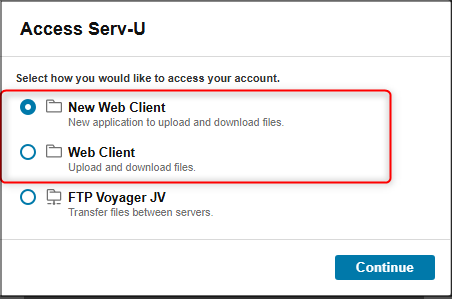
  • Choose which FTP interface you wish to use.
  • New Web Client and Web Client are the suggested choices, but any can be used.
Select Business Adapter

After login, you will see folders for the business adapter(s) you are subscribed to. Choose one of the business adapter subfolders.

  • CMvX: for Collection-Master SOR
  • YGC: for Q-Law, Q-LawE, and non-Vertican SOR
  • vEx: for non-Vertican SOR
Select Subfolder

Now select another subfolder. The three below are the main ones, though there may be others present.

  • ToVertican: Used to upload files to vExchange for processing.
    • If you are doing business with CA20, you must place all files for CA20 in the “Midland” subfolder without exception.
  • FromVertican: Used to download files from Vertican to you.
    • Rejections: This folder contains any rejected files or returned records. This location should be monitored so that any rejections can be corrected and re-uploaded in a timely manner.
    • Reports: This folder contains any custom reports delivered to you.
  • Historical: Used as a data transfer folder. Files placed here will not be processed and Vertican does not receive a notification of their upload. 
Follow Directions for Your Adapter(s)

Complete setup for your system of record (SOR) to communicate with vExchange, using the approporiate business adapter(s) that you selected for your software and creditor(s). More information on the different adapters can be found in the Buy a Business Adapter section above.

  • Collection-Master: All Collection-Master firms use the CMvX Business Adapter. Follow these instructions.
  • Q-Law and Q-LawE: Q-Law and Q-LawE firms use the YGC Business Adapter.
  • Non-Vertican SOR: Receivers and Senders using a non-Vertican SOR will use either the vExchange Native Business Adapter or the YGC Business Adapter to connect their SOR with vExchange.
    • You may need to work with your software vendor to correctly configure your SOR.
    • Alternatively, you can engage Vertican Professional Services to configure your SOR.
Testing for Vertican Receivers

Testing for VT Receivers may depend on client requirements. Reach out to your client(s) if you are onboarding or changing adapters.


Testing for Non-Vertican Receivers

Below are instructions for testing as it relates to the vExchange side. Since you use a non-Vertican system of record (SOR), you may need to work with your software vendor so that your SOR executes the required testing actions from your side.

  • Alternatively, you can engage Vertican Professional Services to guide you through testing between your SOR and vExchange.
  • By importing and exporting mock data, you can validate that your firm’s SOR has been configured correctly.
  • Testing is required for each business adapter/mailbox that your firm has.
  • For each step, your firm will be asked to confirm testing results, including emails received.
    • Delays in response to the Implementations team will delay your onboarding to vExchange.
Test Import Files

The test files below contain the format and layout requirements for testing according to your business adapter.

  • vExchange Native
    • Receiver Test Import File:
      • The link will open in a separate tab. To download the file, follow these instructions, which vary by browser.
        • Right click or select “File” from your browser menu.
        • Choose “Save Page As” or “Save As”.
        • Save as a .txt file to your preferred location.
        • You may wish to open the file with a text editor such as Notepad++ for easier viewing.
      • Receivers will test the import of 1000 series records from Senders.
      • In this file, replace “FIRM.1234” with your vExchange ID.
    • Sender Test Import File:
      • The link will open in a separate tab. To download the file, follow these instructions, which vary by browser.
        • Right click or select “File” from your browser menu.
        • Choose “Save Page As” or “Save As”.
        • Save as a .txt file to your preferred location.
        • You may wish to open the file with a text editor such as Notepad++ for easier viewing.
      • Senders will test the import of 2000 series records from Receivers.
      • In this file, replace “VERT.5678” with your vExchange ID.
    • Receiver Test Import File:
      • To download the file, follow these instructions, which vary by browser.
        • Right click or select “File” from your browser menu.
        • Choose “Save Page As” or “Save As”.
        • Save as a .txt file to your preferred location.
        • You may wish to open the file with a text editor such as Notepad++ for easier viewing.
      • Receivers will test the import of Sender records, which begin with numbers  01-28.
      • Since YGC is a fixed length data standard, you must input your vExchange ID in the proper column position or the test will fail.
    • Sender Test Import File:
      • To download the file, follow these instructions, which vary by browser.
        • Either right click or select “File” from your browser menu.
        • Choose “Save Page As” or “Save As”.
        • Save as a .txt file to your preferred location.
        • You may wish to open the file with a text editor such as Notepad++ for easier viewing.
      • Senders will test the import of Receiver records, which begin with numbers 30-99.
      • Since YGC is a fixed length data standard, you must input your vExchange ID in the proper column position or the test will fail.
  • Test Import Process
    • Import the appropriate file above into your SOR.
    • Make sure the claims open as expected.
    • Send an email to the Implementations team to verify successful import.
    • Please include your vExchange ID in the email subject.
  • Test Export Process
    • It’s best to create an export with as many types of records as possible.
      • For Receivers: 2001, 2101, 2405, 2341, and 2303/2304 (depending on your Sender).
      • For Senders: 1001, 1101, 1405, 1341, and 1303/1304
    • Check the file for proper format and record layout so the data will not be rejected.
    • Follow instructions for your SOR to export the same file that you imported.
    • Log In to the SFTP Site:
      • Navigate to https://vftp.vertican.com.
      • Enter your Username and Password.
      • Open the folder for your business adapter.
      • Place the export file into your “Historical” subfolder.
    • Send an email to the Implementations team to verify successful export.
    • Please include your vExchange ID in the email subject.
    • Your exported file is checked by Vertican for proper format and record layouts so that data will not be rejected. 
  • Final Verification
    • Once testing of import and export is successful, vExchange will activate your SFTP(s) on the vExchange side.
    • Your firm will be notified when you are active and ready to send and receive files.
  • After testing is complete and validated by Vertican, the vPortal Firm Admin will be granted access to the vExchange Analytics website. Notification will come from Implementations@Vertican.com.
  • The Firm Admin will then grant access to other users in the firm.
    • Go to the Analytics User Guide. From the left menu, navigate to the Firm Admin section.
    • Follow directions for how to manage user access in the Admin Console.
  • Your vExchange support plan includes a mailbox. Each mailbox includes up to 10 active Analytics user login accounts.
    • If your mailbox exceeds 10 active Analytics users, your firm will automatically be charged $99.99 for each active user per month in excess of 10.
    • If your firm has more than one mailbox, the extra charge will apply to each mailbox that exceeds 10 active users.
  • If you have questions about how to grant Analytics access, you can contact the Implementations team.
  • If your firm wants help to fully leverage Analytics, you can book a Professional Services training or consultation.
Separate from Analytics access, Firm Admins manage vPortal access for other users in their firms.

  • vPortal access is recommended for your users so that they can access Vertican Help Center documentation.
  • You may wish to grant specific access to  users in your firm for billing or other authorizations.
  • To view the types of access and how to manage user access, see the vPortal Housekeeping Guide.

If you have questions about your onboarding process, please contact the Implementations team.

Was this helpful?

Yes
No
Thanks for your feedback!
Help Center > Self-Help > vExchange > Documentation > Onboarding Guide