
Scroll for full TOC
Overview Guide
Information you should understand before using vExchange
There are two parties in vExchange:
- Senders (also called Forwarders) – Debt Buyers and Creditors
- Receivers (also called Servicers) – Law Firms and Collection Agencies
Both parties send and receive from the other by uploading To Vertican from their System of Record (SOR) and downloading From Vertican via the Vertican FTP interchange.
Senders
Sending: Senders export data from their SOR, upload consolidated files to the ToVertican FTP folder, and send data to all their Receivers. This data starts as Placements and continues through the collections lifecycle.
Receiving: Senders download consolidated files from the FromVertican FTP folder, receive data from all their Receivers, and import that data into their SOR. This data starts as Acknowledgements and continues through the collections lifecycle.
Receivers
Receiving: Receivers download consolidated files from the FromVertican FTP folder, receive data from all their Senders*, and import that data into their SOR. This data starts as Placements and continues through the collections lifecycle.
Sending: Receivers export data from their SOR, upload consolidated files to the ToVertican FTP folder, and send data to all their Senders*. This data starts as Acknowledgements and continues through the collections lifecycle.
* Receivers using the YGC or vExchange Native adapters will use a Midland subfolder to exchange files with MCM.
Senders
Only claims established by Senders can receive updates from Receivers.
- Senders Establish Claims: Forwarder Placement Record 1001 will establish claims.
- CM Exception: Collection-Master “All In” firms can also establish claims (covered below).
Collection-Master
Collection-Master firms have the added advantage of being able to configure their system for “All In” on vExchange.
- Going All In means your firm can establish claims (accounts) in vExchange for Senders that are not current vExchange subscribers.
- All your claims will be sent to vExchange, which allows you to see and compare data on all claims within vExchange Analytics.
- Read more about Going All In on vExchange and see how the Firm Claims by State report promotes All In firms to Senders.
- Collection-Master firms can contact Account Management about going All In.
- This option is only available to Receivers using Collection-Master.
Claims | Records | Files
-
Claims
- Each claim has a set of unique identifiers – the “Four Keys”. These identifiers are loaded into vExchange when a claim is established.
-
Records
- To successfully update a claim, a record update transmitted through vExchange must match an existing set of these identifiers.
- If no matching set is found, the record will be rejected because all Four Keys do not match an existing claim.
- All four keys must be present and match the Forwarder Placement Record 1001.
- Record rejections are covered in the Troubleshooting menu at the top of this page.
- This Overview Guide and the vExchange User Guide aim to help you prevent record rejections.
-
Files
- A claim includes multiple records.
- A single file you upload to vExchange may include multiple claims and records for those claims.
- Even if a file is accepted by vExchange, individual records within the file will be rejected if one or more of the Four Keys are either missing or do not match the Forwarder information.
- File and record processing are covered in more detail in the Data Processing section.
The Four Keys
As mentioned above, the Four Keys are unique identifiers for a claim that are loaded into vExchange when a claim is established. In the table that follows, each key is listed in the left column, followed by its location within each product. All four keys must be present and match the Forwarder Placement Record 1001.
- cred_fileno
- sender_int_file
- forwarder_id
- agent_id
Reminder: “Sender” and “Forwarder” are equivalent terms in vExchange, but one or the other may be used to reference specific fields.
| Key to Match | vExchange Analytics | Collection-Master | Q-LawE | YGC |
| cred_fileno | Creditor Fileno |
MASTER.FORW_FILENO
Placement screen in the “File” field next to the Forwarder Number. |
debt.custfile Workcase > enter ourfile > debt.custfile field identified in this screen. |
FORW_FILE (Forwarder File Number) Acct # issued by original creditor (aka Original Creditor's File #) |
| sender_int_file | Sender Fileno |
MASTER.FORW_REFNO Placement screen in the “Ref” field next to the “File” field that is next to the Forwarder Number. |
debt.ncustfile Workcase > enter ourfile > debt.ncustfile field identified in this screen. |
FILENO (File Number) Internal file # of Sender placing the account (aka Sender's Internal File #) |
| forwarder_id | Sender Id |
MASFORW.EDI_ACCT_NO Inside the Forwarder file [1-2-1-1] EDI Setup screen that is the Account # for the Forwarder. |
cust.edicltcode and cust.yougotclm Workcase > Clients > client list > select client > Misc Info tab to view the fields identified in this screen. |
FORW_ID (Forwarder ID) Vertican ID of Sender placing the account. Typically 2 digit state code + 1-3 digit #. |
| agent_id | Receiver Id | Pulls from YouveGotClaims ID# in [1-S-4-8] |
cust.edifirmcod Workcase > Clients > client list > select client > Misc Info tab to view the field identified in this screen. |
FIRM_ID (Firm ID) Vertican ID of Receiver working the account. Typically 2 digit state code + 1-3 digit #. |
Senders
Senders send 1000 series records. vPortal provides the 1000 series record layouts.
Receivers
Receivers send 2000 series records. vPortal provides the 2000 series record layouts.
vExchange Status Codes serve two main purposes:
- Standardize Communication
- Trigger Account Status Changes
- This section also covers how to Find a Status Code and how Senders Can Request New Status Codes.
Standardize Communication
Status Codes allow Senders and Receivers to communicate information to each other in a Note Record.
- Senders send notes in 1401, 1402, 1405, 1407, and 1410 records.
- Receivers send notes in 2401, 2402, 2405, 2407, and 2410 records.
A Note Record is a record with a particular type of note e.g. a phone call log or media log.
- vExchange segments different types of notes into the appropriate record.
- The Record Description for each of the Note Records listed above are shown in the chart below.
- Use the 1401/2401 Note Records for Phone Call Log and the 1402/2402 Note Records for Media Log rather than using the 1405/2405 Note Records for General Notes.
| Note Record | Record Description | Type |
|---|---|---|
| 1401 | Record Type: Phone Call Log | Sender |
| 1402 | Record Type: Media Log | Sender |
| 1405 | Record Type: General Notes | Sender |
| 1407 | Record Type: Record Notes | Sender |
| 1410 | Record Type: Media Request | Sender |
| 2401 | Record Type: Phone Call Log | Receiver |
| 2402 | Record Type: Media Log | Receiver |
| 2405 | Record Type: General Notes | Receiver |
| 2407 | Record Type: Record Notes | Receiver |
| 2410 | Record Type: Media Request | Receiver |
Trigger Account Status Changes
Status Codes for Key Events
- Some Status Codes are associated with a Key Event.
- Examples: Demand Letter Sent, Suit Served, Judgment, Closed.
- Status Codes must be associated with a Key Event in order to move the claim status.
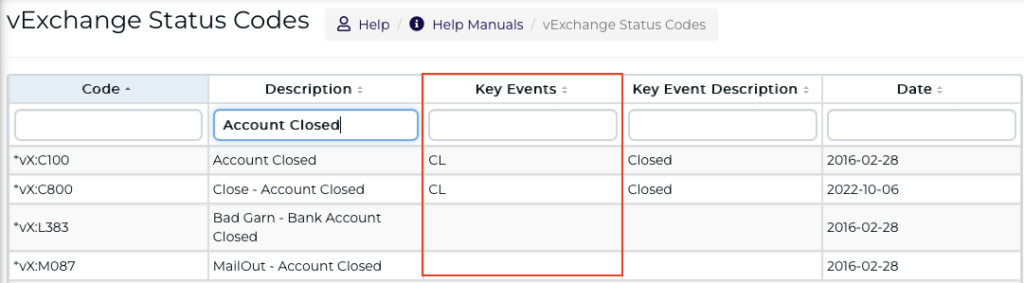
- In the screenshot below, some Status Codes for Account Closed are associated with a Closed (CL) Key Event, while others are not.
- To find vExchange Status Codes as shown in the screenshot, go to the section on how to Find a Status Code.
- If you send a code that is not associated with a Key Event, the claim status will not change.
Claim Status vs Key Event
Not all Claim Statuses are Key Events.
- Example: In the chart below, “Not Acknowledged” is a Claim Status but not a Key Event.
- NACK is simply the default status for the claim until it is Acknowledged by the Receiver/Firm.
Claim Status & Key Event Table
| Claim Status | Key Event | Description | Sent By | Order |
|---|---|---|---|---|
| NACK | n/a | Not Acknowledged by Receiver (default) | n/a | 1 |
| ACK | ACK | Acknowledged | Receiver | 2 |
| DS | DS | Demand Sent | Receiver | 3 |
| DC | DC | Consumer Contacted | Receiver | 4 |
| SNR | SNR | Suit Not Recommended | Receiver | 5 |
| SF | SF | Suit Filed | Receiver | 6 |
| SV | SV | Served | Receiver | 7 |
| JG | JG | Judgment | Receiver | 8 |
| PJ | PJ | Post Judgment | Receiver | 9 |
| Closed | CL | Closed | Receiver | 10 |
| Closed | CL | Hard Closed | Sender | 10 |
| Last Non-Closed Status | RO | Account Reopened | Sender | 11 |
Chart only includes Claim Status and Key Events for Active claims; Archive and Unarchive Key Events not included.
Receiver-Triggered Status Changes
Key Event Status Codes
To trigger a change in account status, a firm sends a Status Code associated with a Key Event as part of a 2000 series Note Record. Using Status Codes associated with Key Events ensures the status is advanced as intended and the Sender is informed.
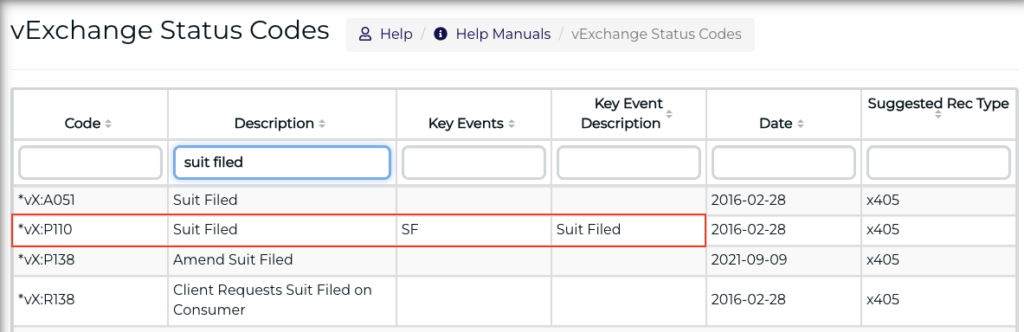
- For example, in order to move an account to Suit Filed status, the Note Record must be sent that contains the Status Code corresponding to the “Suit Filed” Key Event Status Code.
- Other Suit Filed Status Codes that are not associated with the Suit Filed Key Event will fail to change the status of the claim.
- In the screenshot below, the firm should use the Key Event Status Code *vX:P110 if they want the claim to move to the status of Suit Filed.
Multiple Status Codes for a Key Event
There may be multiple Status Codes associated with a single Key Event.
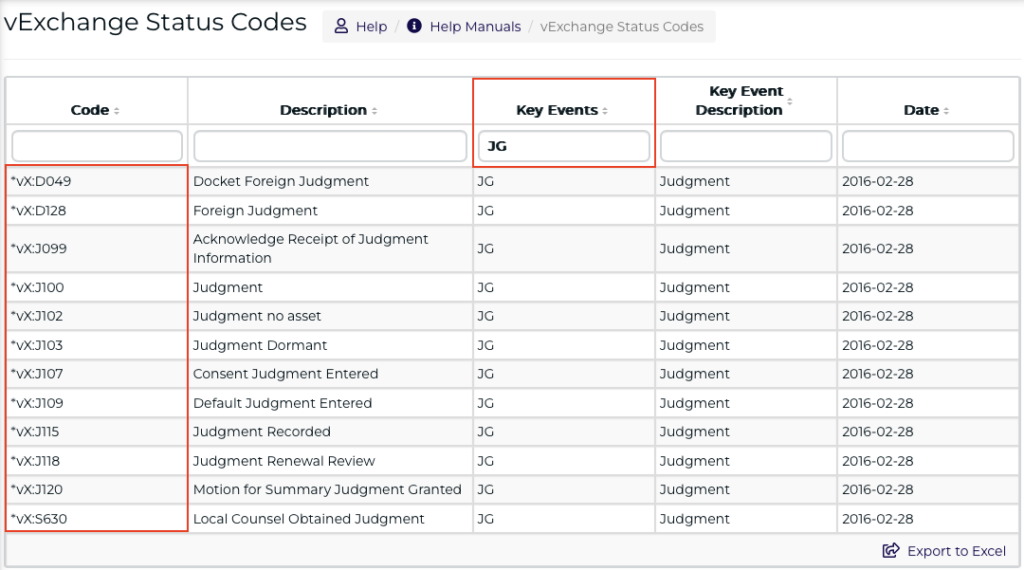
- For example, firms use a Status Code associated with the Judgment Key Event to communicate a Judgment to Senders.
- Firms often use Status Code *vX:J100, but there are other Judgment Status Codes for additional specificity that will also advance the status.
- The use of vExchange Status Codes ensures that Senders will receive standardized Status Codes for Judgment from all their firms in vExchange, regardless of what each firm calls it in their SOR.
Special Case: Acknowledged Status
Moving the claim status from “Not Acknowledged” to “Acknowledged” does not require a specific ACK code to be sent.
- Any note record (2401, 2402, 2405, 2410 but not 2407) will produce an Acknowledged (ACK) event.
- If the firm sends one of these note records, but not a formal S101 acknowledgment, the status will still advance.
- In essence, it is easier to advance a claim to Acknowledged status than other claim statuses.
Sender-Triggered Status Changes
Recall
Senders can recall accounts with a status code, even though Recall is not a Key Event.
Hard Close
Senders have the option of facilitating a Hard Close by sending a Record 1405 that will advance the status to Closed (CL) if the particular Closed Status Code is associated with a CL Key Event.
- All Hard Close Status Codes start with *vX:C8 and show as a CL Key Event.
- However, the CL Key Event includes both Hard Close and other Closed Status Codes.
Reopen
In order to reopen the account, a Status Code corresponding to Reopen (RO) status should be sent.
- Reopen Status Codes can be found by typing RO into the Key Events field.
- When a claim is Reopened, the claim status goes back to the latest status before close.
- For example, if claim was in Post Judgment (PJ), then closed (CL), and then Reopened, the claim will go back to Post Judgment status.
- Therefore RO shows as a Key Event on the Claim Status & Key Event Table, but RO is not a separate status.
Archive / Unarchive
The following Status Codes are used to Archive and Un-Archive claims (accounts) and are associated with Key Events. This ensures that the Account Status is reflected in Analytics and visible in the Key Events Report.
- Archive Claim
- vX Code: *vX:C900 and *vX:C901
- Key Event: ARC
- Un-Archive Claim
- vX Code: *vX:C950 and *vX:C951
- Key Event – RAR
While this section covers Archive/Un-Archive Status Codes, these vExchange Analytics resources are helpful to manage Archive and Un-Archive events.
-
- Archive Activity Report (Receivers and Senders)
- Activity on Archived Accounts (Senders)
- Bulk Archiving and Bulk Unarchiving (Senders)
Status Only Moves Forward
Status Codes can only advance the status of a claim; a Status Code cannot be sent to revert the account status to a preceding Key Event.
- For example, the firm sends a record with a Suit Filed (SF) Status Code and the claim status becomes Suit Filed.
- If at any point of time after this event the firm sends another note record with a Demand Sent (DS) Status Code, which precedes Suit Filed status, the status of the claim will not revert back to Demand Sent but will remain as Suit Filed.
- However, if you need the Account Status to revert to a prior desired status, you can engage the vExchange team. Please see the vExchange Service Menu > Updates to Status Codes menu item. Schedule a free consultation with Account Management to learn more.
- Updates to Status Codes sent in error and recalculation of the Account Status requires Sender approval if requested by a Receiver.
Find a Status Code
Find Status Codes on vPortal.
- If you want to see the newest Status Codes, you can sort by the Date column.
- If you’re looking for a type of Status Code such as a Judgment code, enter “judgment” in the Description field to display judgment-related Status Codes.
- If you need a Status Code for a Key Event, you can type a Key Events code in the Key Events field.
- See the Claim Status & Key Event Table for a list of Key Events codes that correspond to your desired claim status.
Senders Can Request New Status Codes
New Status Codes allow for additional granularity for the same type of status or Key Event. If you are a Sender and would like vExchange to create a new Status Code:
- First check if one already exists for your purposes by searching Status Codes on vPortal.
- If you would like a new Status Code, please submit a New Status Code Request on vPortal.
- Any new Status Code is available for use by all vExchange users.
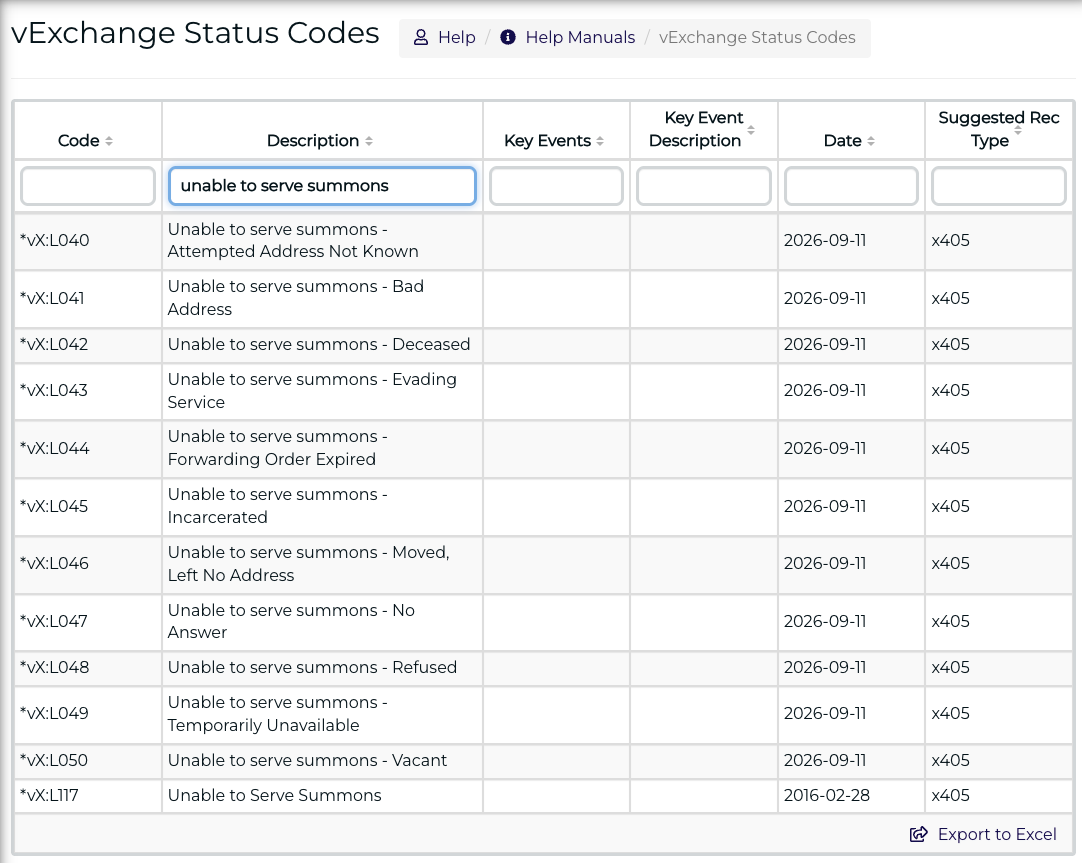
Example: Status Code *vX:L117 is for Unable to Serve Summons.
- A Sender wanted new Status Codes to capture 11 additional reasons that a summons would be unable to be served.
- If you search Status Codes on vPortal with “unable to serve summons” in the Description field, you can see *vX:L117 along with the 11 additional reasons, giving you the option to have your firms segment the data more precisely.
Files
- On a daily basis, data should be exported from your System of Record and uploaded to the FTP for vExchange processing.
- There are important requirements for successful processing that are covered in the vExchange User Guide.
- After submission, files will be checked through pre-validation.
- If a file is accepted, the file moves into the processing queue and disappears from the FTP.
- A file may be accepted while records within the file are rejected.
- If a file is rejected, the file and Rejection Reason file are placed in FromVertican/Rejections on the FTP.
- You must correct the errors and re-submit the file for processing.
- You will receive an email notification for both acceptance and rejection.
- If a file is accepted, the file moves into the processing queue and disappears from the FTP.
Records
While files are screened through a pre-validation process, records are screened through a validation process.
- As mentioned earlier, a file may be accepted while the record or records within it may be rejected.
- To successfully update a claim, a record update transmitted through vExchange, all Four Keys must match the Forwarder Placement Record 1001.
- In addition to the Four Keys, your business adapter may have adapter-specific record requirements, which are covered in the vExchange User Guide.
Gates
Senders can implement Gates, which are business rules (filters) that exclude or flag data not meeting the Sender’s compliance requirements in real-time. They reduce or eliminate human errors, increase efficiency, and ensure the transparent flow of accurate information.
A Gate is way for Senders to control the flow of data into their system. It is essentially a business rule that ranges from compliance checks and balances, to accuracy checks that ensure a Sender’s specific requirements have been met by their Receivers.
There are two types of Gates available to Senders:
- Universal Gates: available on the vStore.
- Custom Gates: available as part of the vExchange Service Menu.
Senders can configure Gates as either:
- Rejections: Reject the data and send a notification to the Sender.
- Exceptions: Allow the data to pass, populating a report with exceptions for the Sender to review.
Gate information for Receivers:
- Notification: Receivers are notified by Vertican and/or their Sender when a Gate is implemented.
- Monitoring: Receivers should regularly Monitor Gates Rejections & Exceptions to ensure submissions meet Sender requirements.
More about Gates from Mastermind:
- Senders: Senders should contact Marketing if they would like access to the Sender video and presentation.
- Receivers: Understanding and Leveraging Universal Gates for Receivers Video Recording and Presentation.
Archived Claims
Data transmision for archived claims (accounts) is handled differently from active claims. While vExchange captures data on archived accounts, archived accounts are considered dormant and data is not passed to the Sender.
- If a Receiver sends a record on an archived claim, the record will be processed and received in vExchange as data on an archived claim, but it will not be passed to the Sender. Only active accounts are eligible to transmit data in vExchange.
- You will receive a Record Rejection if you submit data on an archived account.
- This will ensure you are aware so that you can align with your Sender on the status of the account.
- Records on archived accounts will not be displayed in Analytics.
- Claims are archived and unarchived by Senders, but Receivers can ask their Sender to unarchive a claim.
- Senders can use the proper Status Codes to trigger Archive / Unarchive Key Events.
- You will receive a Record Rejection if you submit data on an archived account.
- If a Sender later unarchives the account, all the data on the account will become visible in Analytics, including the records that were previously received by vExchange but not delivered while the account was archived.
- After the account is unarchived, the records sent while the account was archived will be denoted in Analytics with a Record Status of “Data Received While Archived”.
- Both Senders and Receivers can use the Archive Activity Report to search across all archive and unarchive events. You can check the history of a given account or find all events over a given period.
FTP Schedule
Follow the vExchange Daily Processing Schedule to ensure that files are submitted before the daily processing time in order to meet the deadline for same day processing.
- If files are received after the daily processing has started, submitted and approved files will be processed in the next day’s processing run.
- vExchange validates, processes, and delivers data 365 days a year 24/7.
- Any scheduled maintenance will be communicated to clients in advance. On rare occasions, emergency maintenance must be performed and advanced notice cannot be provided. In these instances, validated files will be processed in the next available processing run.
Vertican Terminology:
- EDI: An Electronic Data Interchange is a generic term for sending and receiving data electronically.
- Business Adapter: Vertican uses this term for an EDI that is programmed from within a Vertican application.
- DTP: A Data Transfer Protocol allows different languages and adapters to send data. Typically, Vertican uses the term DTP to refer to programs that communicate with third-party creditors outside the Vertican ecosystem.
Your business adapter options will vary based on your system of record (SOR). Since your business adapter is selected during Onboarding, this information is provided to new users as a reference.
- For Vertican SOR, your business adapter is set.
- For Non-Vertican SOR, you have a choice of business adapter. The information below can also be used to switch from the YGC Business Adapter to vExchange Native.


Non-Vertican SOR

vExchange Analytics is a web portal that allows Senders and Receivers to review the same accounts and data, so that all stakeholders are aligned and reviewing data in the same standardized format regardless of their System of Record. Senders and Receivers can:
- View and analyze claims and data
- Access and download aggregated Gates reports
- Review claim-level status (e.g. if a payment was Passed, Rejected, or marked as an Exception)
During onboarding, Firm Admins are granted access to the vExchange Analytics website, and are then directed to grant access to other users in their firm. If Firm Admins have not yet assigned access to all their users, instructions can be found in the Analytics User Guide.